If your game is stuttering on mid-range hardware, chances are your assets are bleeding unnecessary vertex count at every draw call. Level of Detail (LOD) meshes are the most direct remedy: simpler versions of your models that swap in as the camera moves away, slashing GPU load without touching perceived quality. The problem is that most tutorials hand you a slider in Unreal Engine and call it done. This guide goes deeper—building LODs from scratch in Blender, validating them, and wiring them up correctly in both Unity and Unreal Engine 5.
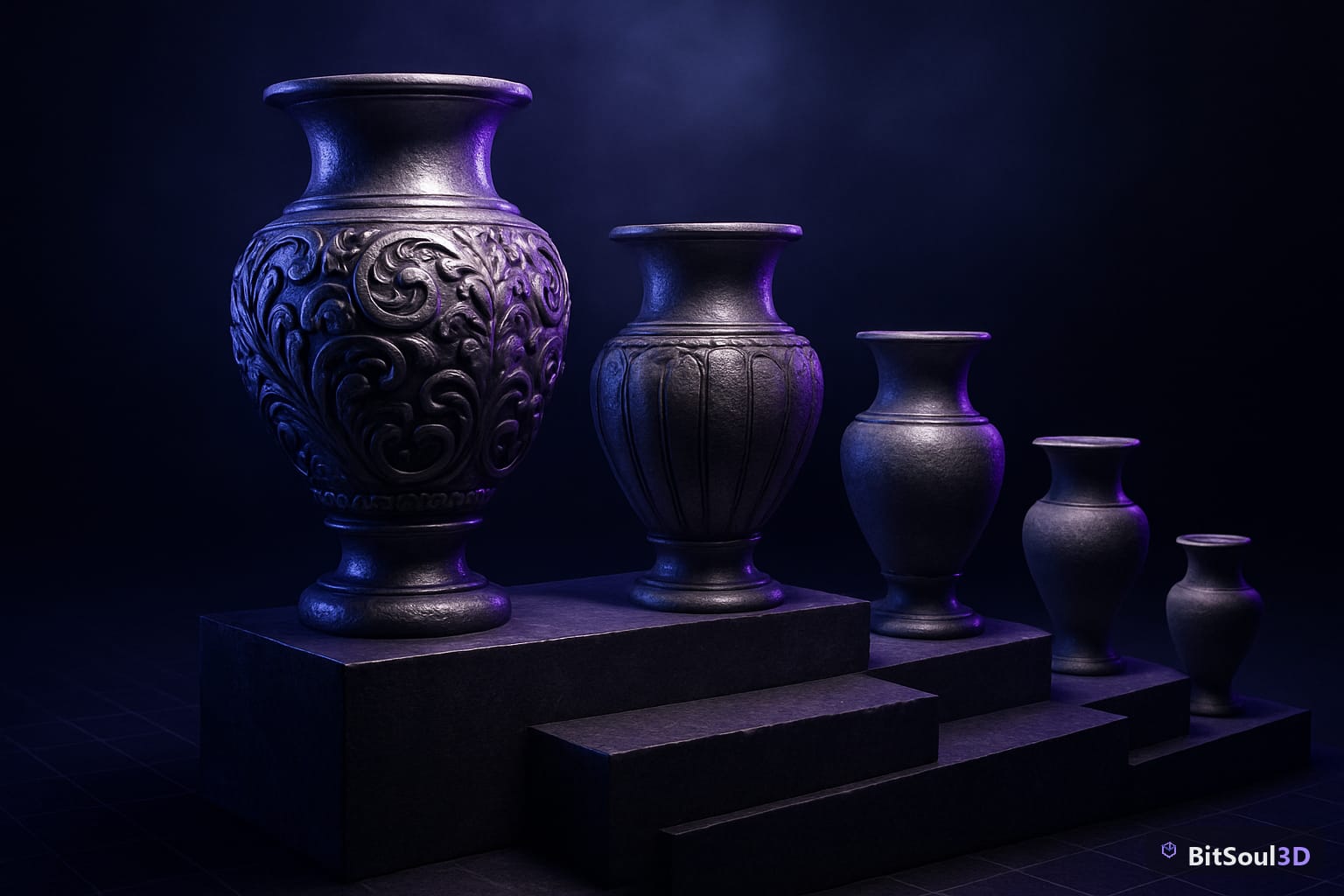
Understanding LOD Budgets Before You Model
Before you touch the Decimate modifier, you need a target. Without hard numbers, you'll decimate arbitrarily and either over-destroy your silhouettes or barely save any triangles.
A practical starting framework for real-time game assets:
| LOD Level | Distance (approx) | Target Tri Reduction |
|---|---|---|
| LOD0 | 0–5 m | 100% (full detail) |
| LOD1 | 5–15 m | 50–60% of LOD0 |
| LOD2 | 15–40 m | 20–25% of LOD0 |
| LOD3 | 40 m+ | 8–12% of LOD0 |
| LODX (Imposter/Billboard) | 80 m+ | 2 tris (quad) |
These are guidelines, not rules. A hero character that fills half the screen at 10 m needs different budgets than a background barrel. Profile first using your engine's statistics overlay—Unreal Engine 5's stat unit and Unity's Frame Debugger both show per-object triangle counts in real time.
Also consider your texture resolution per LOD. Switching to a 512×512 albedo at LOD2 saves as much bandwidth as halving the triangle count. LOD is a system—mesh, texture, material complexity, and shadow casting all work together.
Blender's Decimate Modifier: Fast LODs for Static Props

For hard-surface props—crates, furniture, vehicles, architectural elements—the Decimate modifier is the fastest path to clean LODs.
Open your LOD0 mesh in Blender, go to the Properties panel → Modifier tab, and add a Decimate modifier. You have three modes:
- Collapse: general-purpose polygon merging, best for most props
- Un-Subdivide: reverse subdivision, ideal for meshes built with Subdivision Surface
- Planar: merges coplanar faces, great for hard-surface models with flat panels
For a typical prop LOD1 (targeting ~55% of original), set Ratio to 0.55 in Collapse mode and watch the face count update live. A critical setting many artists miss: enable Triangulate in the modifier to pre-triangulate before export. Engines triangulate at import anyway—doing it in Blender lets you see the actual triangle budget and catch any degenerate tris before they become engine import errors.
UV preservation: Decimate respects existing UV seams when you keep Symmetry off and Vertex Group unset. However, aggressive ratios below 0.25 frequently destroy UV islands. Always check your UV layout after decimating by opening the UV Editor and looking for stretched or collapsed islands.
# Blender Python: batch generate LOD meshes from selected object
import bpy

obj = bpy.context.active_object
lod_ratios = {"LOD1": 0.55, "LOD2": 0.22, "LOD3": 0.10}

for lod_name, ratio in lod_ratios.items():
    # Duplicate original
    bpy.ops.object.duplicate()
    lod_obj = bpy.context.active_object
    lod_obj.name = f"{obj.name}_{lod_name}"

    # Add decimate modifier
    mod = lod_obj.modifiers.new(name="Decimate", type='DECIMATE')
    mod.ratio = ratio
    mod.use_collapse_triangulate = True

    # Apply modifier
    bpy.ops.object.modifier_apply(modifier="Decimate")

print("LOD meshes generated.")
Run this script in Blender's Scripting workspace with your prop selected. It generates three new objects suffixed _LOD1, _LOD2, and _LOD3, each with the Decimate modifier already applied and triangulated.
Blender Remesh and Multiresolution for Organic Characters
Decimate works poorly on organic meshes—characters, creatures, foliage. The triangles it produces create ugly shading artifacts because the mesh topology fights the curvature of the surface. For these assets, use either the Remesh modifier or Multiresolution workflow instead.
Remesh (Voxel mode): Set Voxel Size to progressively larger values for each LOD. A character whose LOD0 was remeshed at 0.005 m might use 0.012 m for LOD1 and 0.025 m for LOD2. The output topology is uniform quads, which shades cleanly and decimates further with Collapse if needed.
Multiresolution: If your character was sculpted with a Multiresolution modifier, lower subdivision levels directly give you lower LODs with zero artifact risk—the topology is identical, just at lower subdivision. Export each level as a separate mesh: apply the modifier at the target level, export to FBX, undo, then repeat for the next level.
Preserving silhouette at LOD2+: The hardest part of organic LODs is maintaining the character's readable outline at distance. Before finalizing LOD2, orbit around the mesh at 45-degree intervals and check that ears, fingers, and distinctive clothing shapes are still legible as simplified shapes. If they collapse completely, use a Vertex Group with the Decimate modifier to protect those regions.
For characters sold on https://bitsoulhosting.com/marketplace, including pre-built LOD meshes as separate objects in your FBX significantly increases perceived asset quality and accelerates buyer integration time.
Exporting LODs from Blender to Unity and Unreal Engine 5
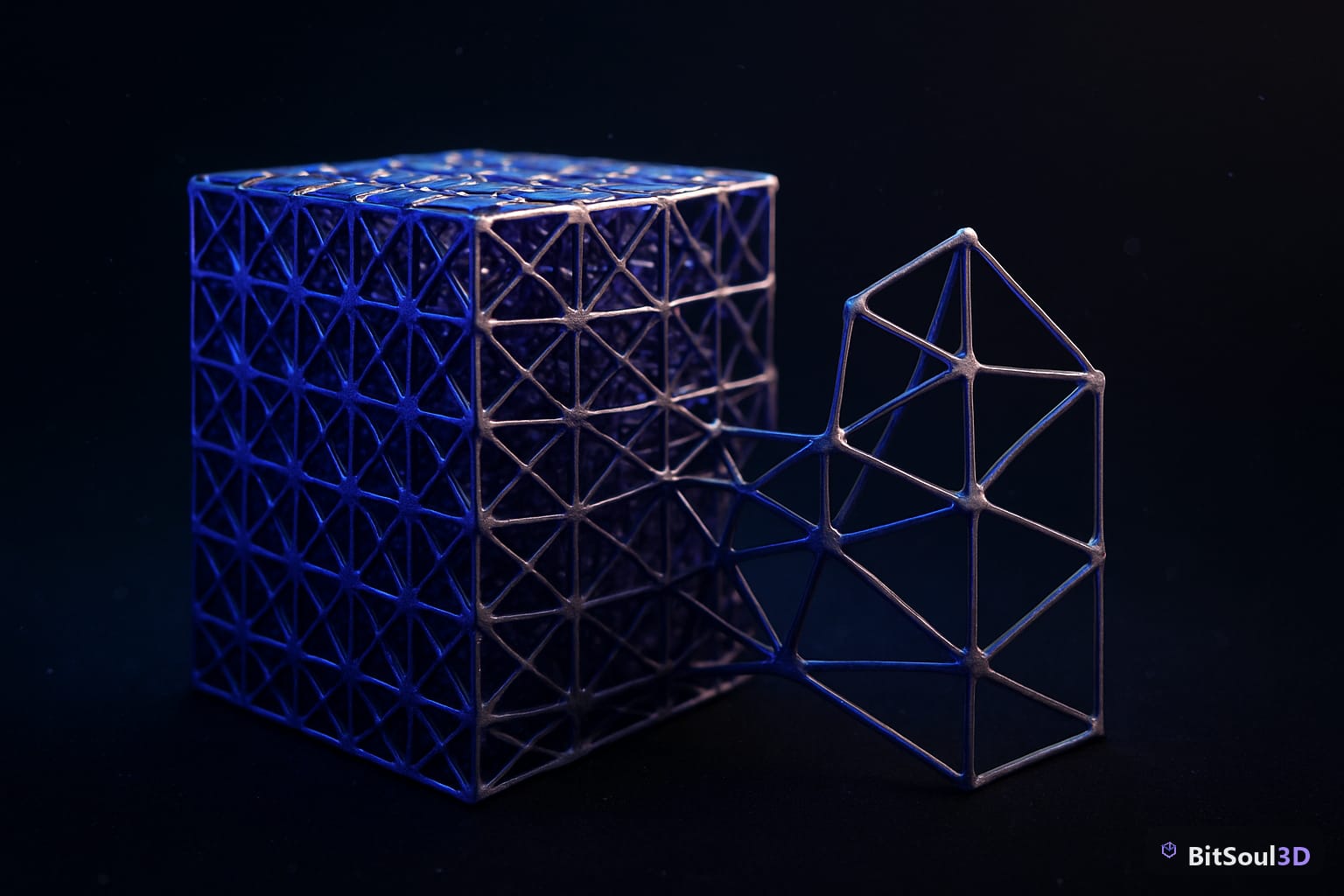
This is where most tutorials skip critical details. The export method differs depending on target engine.
Exporting to Unity (FBX LOD Groups)
Unity reads LOD meshes from a single FBX if they follow a strict naming convention: your meshes must be named MeshName_LOD0, MeshName_LOD1, etc., and they must all be children of an empty parent object in Blender named MeshName.
# Blender hierarchy for Unity LOD export:
Crate          (empty parent)
  Crate_LOD0   (full detail mesh)
  Crate_LOD1   (50% decimated)
  Crate_LOD2   (20% decimated)
  Crate_LOD3   (8% decimated)
Export: File → Export → FBX, enable Selected Objects, set Object Types to Mesh only, and leave Apply Transform enabled. Unity will automatically detect the LOD group and configure transition distances based on screen percentage.
Exporting to Unreal Engine 5
Unreal Engine 5 uses a different import flow. The recommended approach is to export each LOD mesh as a separate FBX file, then import the base mesh first and add LODs through the Static Mesh Editor:
- Import
Crate_LOD0.fbxas normal - Open the asset in the Static Mesh Editor
- Click LOD Settings → LOD Import → Import LOD Level 1 → select
Crate_LOD1.fbx - Repeat for LOD2 and LOD3
- Set Screen Size thresholds in the LOD Settings panel
Alternatively, UE5 can auto-generate LODs—but its auto-generated meshes often miss silhouette preservation on assets with complex UV islands. Hand-built Blender LODs consistently outperform auto-generation on character and hero prop assets.
GLB/GLTF Export Notes
GLTF 2.0 does not natively support LOD groups in the core spec. For web/engine targets that consume GLB, export each LOD as a separate GLB file and handle LOD switching in engine code or via an extension like MSFT_lod.
Testing and Validating LODs In-Engine
Publishing LODs without in-engine validation is guesswork. Both Unity and Unreal Engine 5 have built-in tools to verify your LODs are transitioning correctly.
Unity: In the Scene view, open the LOD Group component on your asset. You'll see colored bands showing each LOD's screen percentage range. Drag the camera bar slider to preview each LOD level visually. Check Culled at the right end—if your LOD3 culls too early, raise the Culled percentage.
Unreal Engine 5: Enable Show → LOD Coloration in the viewport to visualize which LOD level each mesh is rendering as you orbit. Set LOD transitions to Dithered LOD Transition in the material to avoid hard pop-in. Use stat unit and stat scenerendering to confirm triangle reduction targets are being hit at the designed distances.
Common issues to check:
- LOD pop-in: increase the LOD transition screen size threshold by 10% at a time until the pop disappears
- UV stretching at LOD2+: bake a new normal map for the LOD level rather than reusing the LOD0 normal map
- Missing LODs in engine: verify FBX hierarchy naming (Unity) or that LOD imports didn't fail silently (UE5)
- Shadow LOD mismatch: set your shadow casting LOD to LOD1 or LOD2 in UE5 to prevent shadow detail fighting render LOD
Ship Faster with Pre-Optimized Assets
Building robust LOD pipelines is essential for any game targeting mid-range or mobile hardware. The workflow covered here—budgeted decimation in Blender, silhouette-aware organic LODs, clean FBX/GLB export, and in-engine validation—scales from indie prototypes to studio productions.
If you're sourcing base assets rather than building from scratch, the BitSoul marketplace carries game-ready models in GLB and FBX format, many with pre-built LODs included. Buying optimized source assets cuts LOD generation time dramatically and keeps your pipeline focused on what ships product—level design, gameplay, and polish.
Build with real assets: grab the 98-model Character Pack on the BitSoul marketplace and drop them straight into your project.