
Blender Add-on
Blender 4.x
N-panel in the 3D Viewport. Browse 1,051 models and import GLB straight into your scene at the 3D cursor.
Download .zip How to install →Free native plugins for Blender, Unity, Unreal Engine 5, and Godot 4 — plus a desktop app and an instant mobile web app (no App Store download). Search, preview, and import 1,051 GLB models without ever leaving your editor.
N-panel in the 3D Viewport. Browse 1,051 models and import GLB straight into your scene at the 3D cursor.
Download .zip How to install →
Window > BitSoul 3D. Saves to Assets/BitSoul3D/ and triggers AssetDatabase refresh automatically.
Download .zip How to install →
Editor Utility Widget that imports GLB into the Content Browser as a Static Mesh via Asset Import Tasks.
Download .zip How to install →
Editor dock. Saves models to res://BitSoul3D/, ready to instance as PackedScene.
Download .zip How to install →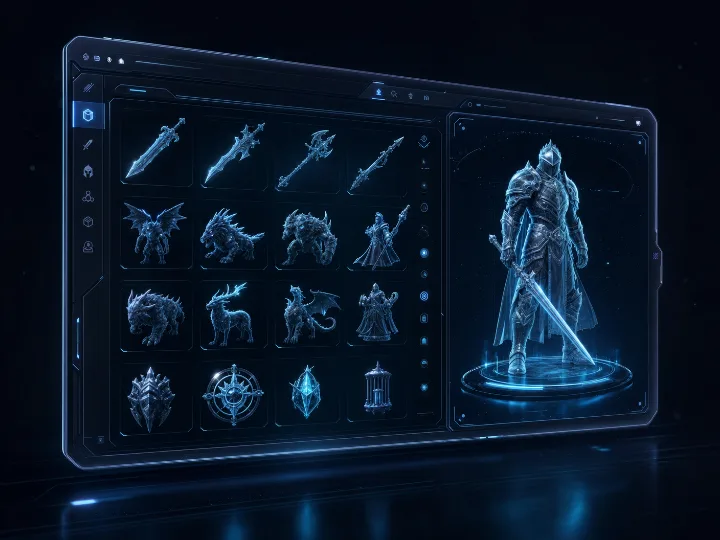
Installable desktop web app (PWA) with a built-in 3D viewer, batch download and a local library tab. A small install script adds the desktop shortcut.
How to install →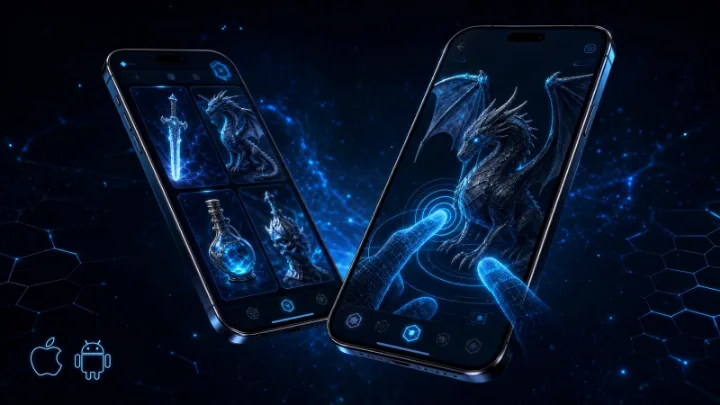
Browse 1,051 models and preview them in 3D & AR on your phone. Opens instantly in the browser — no App Store, nothing to install.
Open Web App How to install →Pick the integration for your engine of choice from the cards above. All plugins are free, with readable source.
Sign in to your account dashboard. Your API key (starts with bsm_) is shown on the page — copy it.
Open the plugin's settings panel, paste your key, hit Verify. You're done — the catalog loads instantly.
Click any guide to expand. Every plugin ships as a single .zip — no compilation required.
 Blender 4.x — Add-on
bsm_… API key into the API Key field, and click Verify API Key.Tip: Imported objects spawn at the 3D cursor — set the cursor first with Shift+right-click.
 Unity 2022.3 LTS+ — Editor Window
BitSoul3D folder into your project's Assets/ directory..glb natively:
com.unity.cloud.gltfast and click Add.bsm_… API key, click Verify Key.Assets/BitSoul3D/. Unreal Engine 5.3+ — Editor Plugin
BitSoul3D folder into <YourProject>/Plugins/ (create the Plugins folder if it doesn't exist).import bitsoul3d_import as bs
bs.set_api_key("bsm_YOUR_KEY")
bs.list_catalog(query="castle", limit=10)
bs.import_model("MODEL_ID_FROM_LIST")
/Game/BitSoul3D/. Godot 4.2+ — Editor Dock
addons/bitsoul3d/ folder into your project's addons/ directory (final path: res://addons/bitsoul3d/).bsm_… API key, click Save key, then Verify.res://BitSoul3D/ and the FileSystem dock refreshes automatically.Install BitSoul 3D (Windows).batInstall BitSoul 3D (macOS).command (if Gatekeeper blocks it, right-click → Open)bash "Install BitSoul 3D (Linux).sh"bsm_… API key, click Verify.Requirements: a Chromium-based browser (Edge, Chrome, or Brave) on Windows / macOS / Linux, or Firefox on Linux. The installer auto-detects whichever you have.
Uninstall: run the matching Uninstall BitSoul 3D script (.bat / .command / .sh) in the same folder, then delete the folder. The uninstaller removes the Desktop shortcut, Start Menu / Launchpad entry, and — if you confirm — the cached browser profile.
bsm_… API key, tap Verify.Uninstall: long-press the BitSoul 3D icon on your home screen — on iPhone / iPad choose Remove App → Delete App; on Android choose Uninstall. To clear just the saved API key without deleting the app, open the app → Settings → Reset app data.
bsm_ followed by 48 hex characters. Whitespace before/after is the most common cause.com.unity.cloud.gltfast is installed and the file is inside Assets/.BitSoul3D folder must sit directly inside <Project>/Plugins/, not nested another level deep.Every plugin is built on the same public API surface, documented and stable:
# Verify your key + see remaining quota
curl -H "X-API-Key: bsm_YOUR_KEY" https://bitsoulhosting.com/marketplace/api/v1/auth/verify

# List the catalog (no auth needed for browsing)
curl "https://bitsoulhosting.com/marketplace/api/v1/models?q=castle&limit=24"

# Issue a one-shot download link (expires in 5 min, single-use)
curl -X POST -H "X-API-Key: bsm_YOUR_KEY" \
  https://bitsoulhosting.com/marketplace/api/v1/models/MODEL_ID/download
Full reference: API documentation.
Every account gets an API key. API and plugin downloads use your plan's monthly allowance; Featured models need a paid plan or an individual purchase. Paid plans add higher limits and the commercial license.
See plans & pricing