Flat surfaces are the enemy of believable game art. No matter how accurate your PBR values are, without surface detail data your assets read as plastic — uniform, featureless, and fake. Cavity maps solve this. They encode the micro-geometry of your mesh — crevices darkened, edges brightened — and apply it as a detail layer that survives even aggressive texture compression.
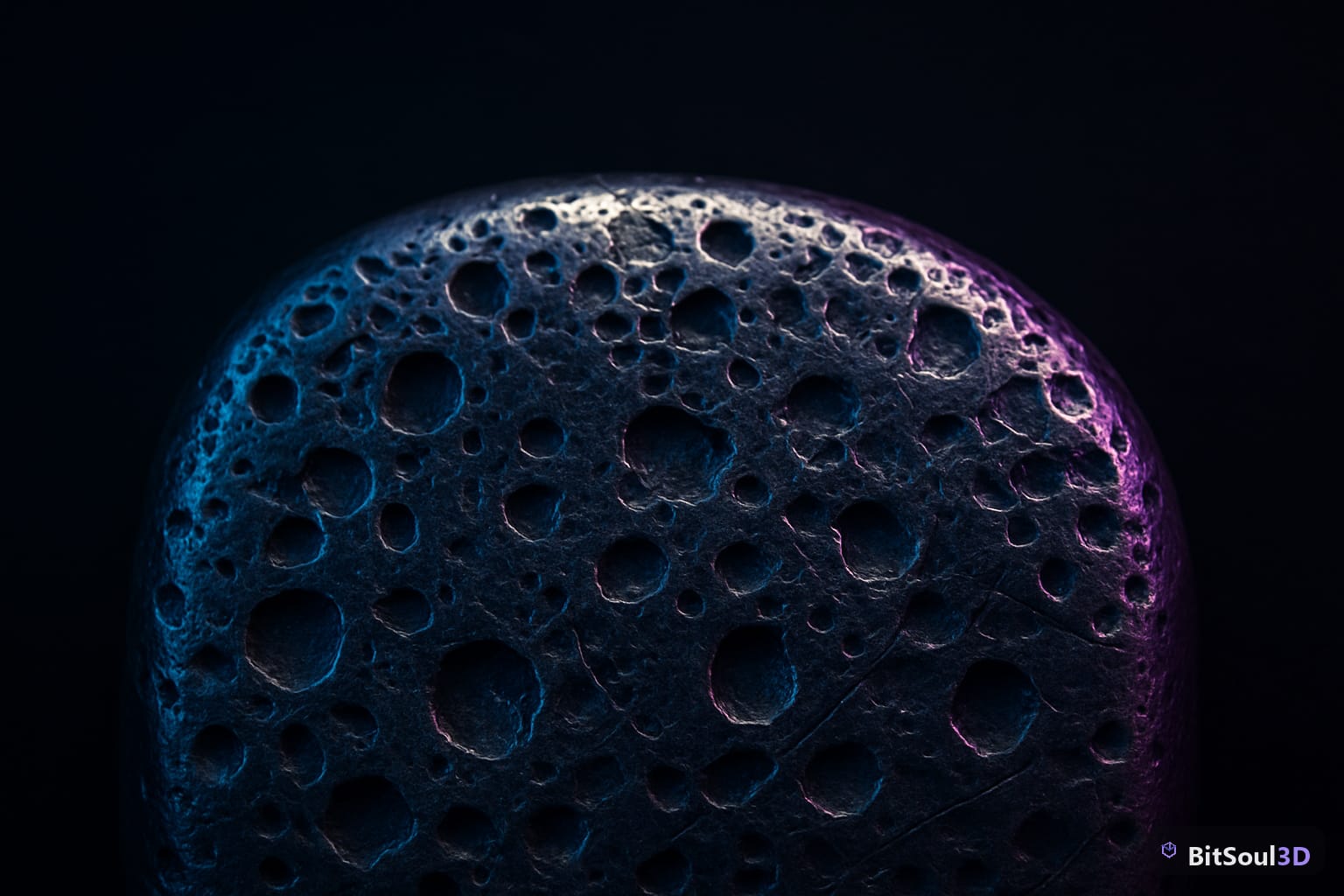
What Are Cavity Maps (and Why They Matter)
A cavity map captures two complementary signals from your mesh geometry:
- Concavity (inner cavity): dark values in crevices, grooves, and indentations — simulates shadow and dirt accumulation
- Convexity (curvature ridge): bright values on raised edges and ridges — simulates edge highlight and wear
This is distinct from ambient occlusion. AO captures large-scale shadowing across the whole mesh. Cavity focuses on micro-scale surface topology — the kind of detail that reads even in motion and at close range.
In a practical game pipeline, cavity maps are used in three ways:
- Multiplied into the albedo — darkens crevices to simulate dirt, grime, or shadow
- Mixed into roughness — edges become less rough (polished from wear), crevices become rougher (trapped debris)
- Blended with AO — for a combined occlusion-detail pass that replaces separate AO and cavity textures
The payoff: your assets look grounded and physically plausible without additional geometry. A 2K cavity map adds almost nothing to your memory budget but transforms readability.
| Use Case | Cavity Role | Blend Mode |
|---|---|---|
| Dirt/grime accumulation | Concavity darkens albedo | Multiply |
| Edge wear simulation | Convexity lightens albedo | Screen/Add |
| Roughness variation | Concavity raises roughness | Mix |
| Combined detail pass | Full cavity + AO | Multiply |
Baking Cavity Data in Blender
Blender does not have a dedicated "Cavity" bake type in the standard bake menu — but you can extract the same data from a curvature bake using the compositor or via the Cycles pointiness attribute.
Method 1: Pointiness Attribute (Cycles)
This is the most direct approach and produces the cleanest results for game assets:
# Node setup in Blender Shader Editor (applied to bake target material)
# 1. Add: Geometry node
# 2. Connect: Pointiness output -> ColorRamp node
# 3. ColorRamp: set to linear, dark left (concave), bright right (convex)
# 4. Connect ColorRamp -> Emission Shader -> Material Output
# 5. Bake type: Emit
Step-by-step:
- Create a new material on your high-poly mesh
- Add a Geometry node — its Pointiness output encodes curvature (0 = concave, 0.5 = flat, 1 = convex)
- Feed Pointiness into a ColorRamp — adjust the stops to control contrast and midpoint
- Connect to an Emission shader
- Set bake type to Emit and bake to a new image texture on your low-poly UV
Method 2: Separate Concavity and Convexity Passes
For more control, bake two separate passes and composite them:
# Concavity pass: clamp pointiness below 0.5, remap to 0-1
# Node: Pointiness -> Math (Subtract 0.5) -> Math (Multiply -2.0) -> Clamp -> Emission

# Convexity pass: clamp pointiness above 0.5, remap to 0-1
# Node: Pointiness -> Math (Subtract 0.5) -> Math (Multiply 2.0) -> Clamp -> Emission
This lets you adjust crevice darkness and edge brightness independently — useful when your mesh has very different scales of curvature across regions.
Resolution guidance:
| Mesh Complexity | Recommended Bake Resolution |
|---|---|
| Simple props (< 5K tris) | 1K |
| Medium props (5K–20K tris) | 2K |
| Hero assets / characters | 4K (downsample to 2K for runtime) |
| Tiling surfaces | 2K–4K with seamless UV layout |
Always bake at 4K, then export to your target resolution. You keep the detail at bake time even if the runtime texture is compressed down.
Using Cavity Maps in Substance Painter and Engine Materials
Once baked, cavity maps slot into your texturing workflow at two points: in Substance Painter during texturing, and in engine materials for runtime application.
In Substance Painter:
Import your cavity map as a texture resource. In the Layer Stack, add a fill layer with your cavity map set to:
- Grayscale channel -> Color with a Multiply blend mode at 30–60% opacity (adds crevice darkening to albedo)
- Grayscale channel -> Roughness with an Add blend mode at 20–40% opacity (raises roughness in grooves)
Use a mask on this fill layer linked to your cavity map — this scopes the effect to geometry-driven areas rather than applying it flat.
In Unity URP (ShaderGraph HLSL):
float cavity = SAMPLE_TEXTURE2D(_CavityMap, sampler_CavityMap, IN.uv).r;
float3 albedo = SAMPLE_TEXTURE2D(_BaseMap, sampler_BaseMap, IN.uv).rgb;

// Darken crevices
albedo *= lerp(1.0, cavity, _CavityStrength);

// Raise roughness in crevices
float roughness = SAMPLE_TEXTURE2D(_MetallicGlossMap, sampler_MetallicGlossMap, IN.uv).a;
roughness = saturate(roughness + (1.0 - cavity) * _CavityRoughnessStrength);
In Unreal Engine 5:
Use a Lerp node between your base color and a darkened version, driven by your cavity texture in the A/B mix. Feed the inverted cavity into your Roughness Add pin. Keep cavity influence between 0.2–0.5 — stronger values look painted-on.
Combining Cavity with AO for Layered Surface Detail
Cavity and AO are complementary frequency bands of the same signal. AO captures macro-scale shadowing; cavity captures micro-scale topology. Combining them gives you a detail pass that works across scales.
Composite approach:
# Combined occlusion:
# combined_occlusion = AO_texture * cavity_concavity_texture

# In Unreal Material Editor:
# Multiply(AO_texture, Cavity_texture) -> AmbientOcclusion pin
# This gives depth variation at both macro and micro scale
This combined map replaces two separate texture samples in your material, saving a texture unit. For mobile targets — where texture unit budget is tight — this single-map approach is almost always preferable to separate AO and cavity textures.
Channel packing the combined pass:
If you are already channel-packing your ORM texture (Occlusion–Roughness–Metallic), replace the R channel AO with your AO x Cavity composite. Your engine reads it identically; you get the enhanced detail at zero additional cost.
R channel: AO x Cavity (combined occlusion-detail)
G channel: Roughness (optionally modulated by cavity)
B channel: Metallic
This is the format expected by Unreal Engine 5's ORM texture convention and Godot 4's StandardMaterial3D when set to ORM mode.
Sourcing Assets with Full PBR Map Sets
When sourcing assets from the BitSoul 3D marketplace, check whether the asset pack includes cavity or curvature maps — many high-quality packs do, especially those targeting AAA pipelines. If the pack ships only AO, you can bake cavity from the included high-poly mesh in Blender and composite it in Substance Painter before integrating into your project.
For assets without a high-poly reference, the Pointiness attribute still works on your low-poly mesh — results are less detailed but still useful for edge highlighting on hard-surface props.
Wrapping Up
Cavity maps are a high-value, low-cost addition to any game asset pipeline. Bake them via the Pointiness attribute in Blender, apply them as a multiply pass on albedo and additive pass on roughness, then composite with AO for a single combined occlusion-detail texture. The result is geometry-driven surface variation that reads at every distance and survives texture compression.
Browse game-ready assets with complete PBR map sets — including cavity and curvature data — at the BitSoul 3D marketplace.
Need drop-in assets for this workflow? Grab the 70-model Food Bundle on the BitSoul marketplace and drop them straight into your project.