Auto-generated collision shapes are one of the most common sources of invisible performance drag in game projects. Unity's automatic mesh collider, UE5's complex collision, and Godot's default trimesh — all of them silently wreck your physics budget while your frame rate tells you something else is wrong. This guide walks through the complete collision mesh workflow: building accurate, minimal collision in Blender and wiring it up correctly in all three major engines.
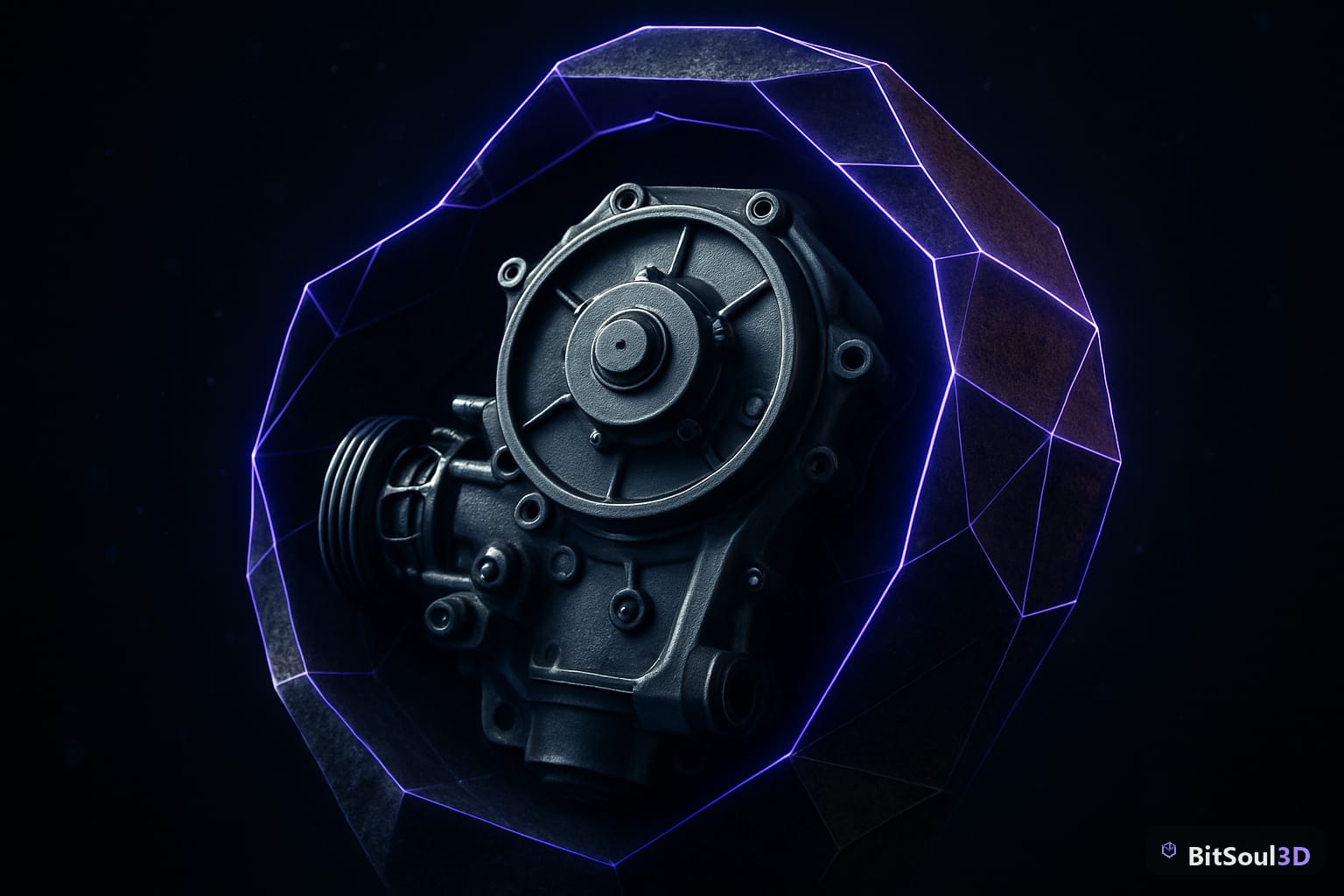
Why Collision Meshes Matter More Than You Think
Physics engines don't use your render mesh for collision — or they shouldn't. When you drop a complex rendered mesh (say, a 4,000-triangle sci-fi crate with bolts, panels, and chamfers) directly into a physics simulation, the engine must test every triangle on every physics tick. At 60 Hz with 50 dynamic objects, that math compounds fast.
The rule of thumb: a collision mesh should be 5–15% the triangle count of its render mesh. A 4,000-tri asset should collide with a 50–200-tri approximation. The player won't notice the difference. The GPU will.
There are three categories of collision shape, each with a different cost profile:
| Shape Type | Physics Cost | Best Use Case |
|---|---|---|
| Primitive (box/sphere/capsule) | Lowest | Crates, barrels, characters |
| Convex hull | Low–medium | Irregular props, vehicles |
| Trimesh (concave) | High | Terrain, level geometry (static only) |
Use primitives whenever you can. Use convex hulls when primitives don't fit. Reserve trimesh for static, immovable geometry only — never on dynamic rigid bodies.
Collision Shape Types: Box, Sphere, Convex Hull, and Custom Mesh
Understanding when to use each shape type is more valuable than knowing how to build any single one.
Box and sphere primitives are handled analytically by the physics engine — no triangle queries, just math. Unity's BoxCollider, UE5's Box Collision component, and Godot's BoxShape3D all resolve in constant time regardless of object orientation. If your asset is roughly box-shaped (a crate, a wall segment, a building block), use a box collider and call it done.
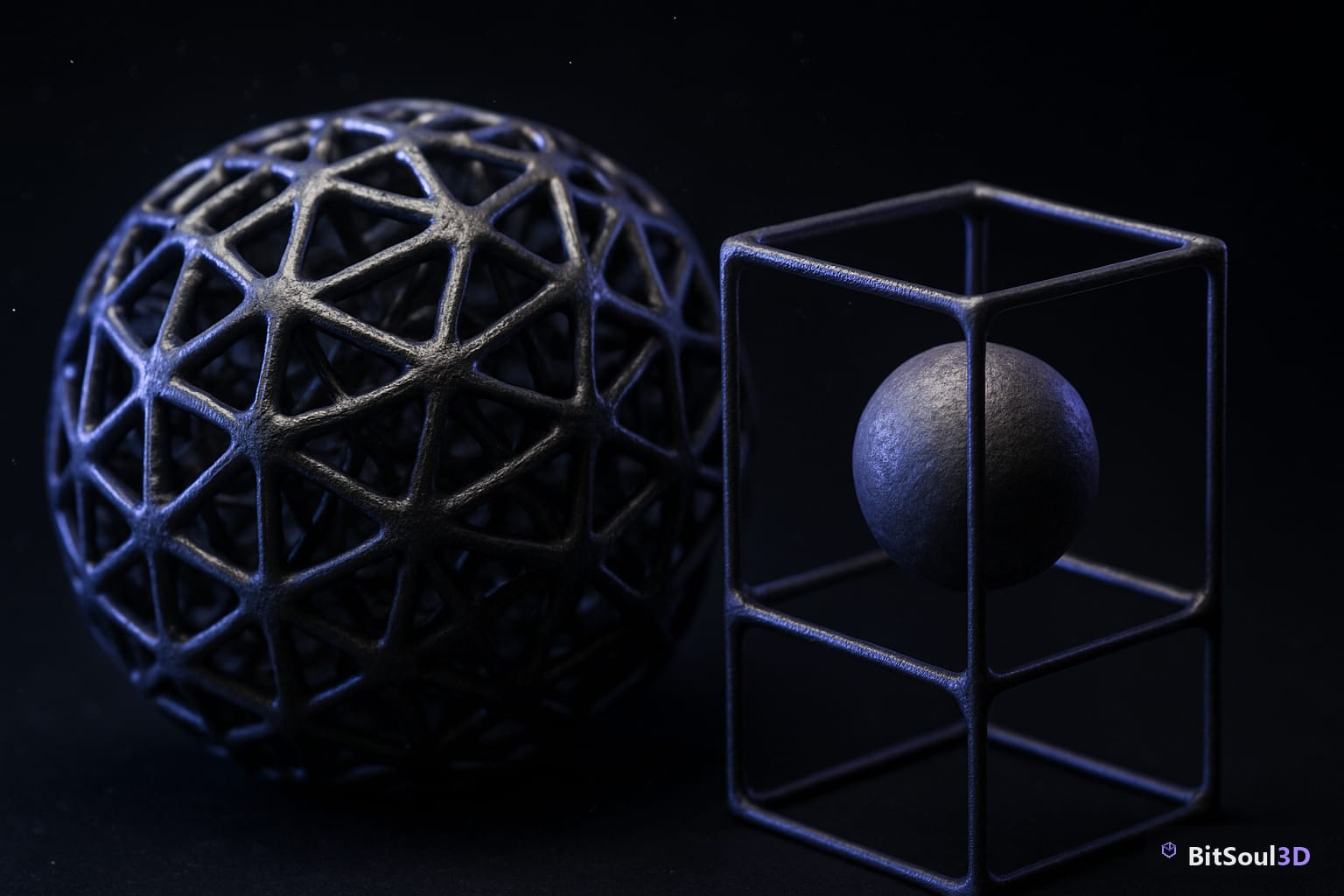
Convex hulls are the workhorse of prop collision. A convex hull wraps your mesh in the smallest convex shape that contains it — imagine shrink-wrapping a hand grenade: the hull won't dip into the grooves, but it will match the overall silhouette closely. The key constraint: convex shapes cannot have concavities. A donut cannot be represented by a single convex hull — it requires compound shapes.
Compound collision combines multiple primitives or convex hulls to approximate a concave object. A table is a perfect example: one flat box for the top, four thin boxes for the legs. This is dramatically cheaper than a trimesh and allows dynamic physics.
Custom trimesh (also called complex collision in UE5) performs per-triangle intersection tests. It's the most accurate and the most expensive. Use it only on static world geometry: floors, terrain, architectural meshes that never move.
Building Collision Meshes in Blender
Blender has no dedicated collision workflow, but the conventions it uses for FBX export (and GLB naming) are universally supported by Unity, UE5, and Godot.
The naming convention
For FBX export to Unity and UE5, prefix your collision mesh object names:
UCX_PropName_01   → convex hull (Unity + UE5)
UBX_PropName_01   → box collision (UE5)
USP_PropName_01   → sphere (UE5)
Godot uses GLB and reads collision meshes from a different convention — suffix your mesh names with -col for a static trimesh or -convcolonly for a convex hull:
MyStonePillar-convcolonly   → convex hull in Godot
MyFloorTile-col             → trimesh in Godot
The workflow
- Start from your render mesh. In Object Mode, Shift+D to duplicate, then move to a new collection named Colliders.
- Decimate aggressively. Apply a Decimate modifier (Collapse mode) targeting 5–10% of the original face count. For a 3,000-tri mesh, aim for 60–150 tris.
- Manually fix problem areas. Select and delete interior loops, support loops, and purely cosmetic geometry. Use Alt+Click to select edge rings and X → Dissolve Edges to remove them without creating holes.
- For convex hulls: In Edit Mode, select all, then Mesh → Convex Hull. This generates a clean convex approximation of your current selection.
- Name the object using the convention for your target engine.
- Check for issues: In Edit Mode, Mesh → Clean Up → Fill Holes and Merge by Distance (M key) to remove duplicate vertices.
Compound shapes in Blender
For compound collision, create multiple collision objects — one per logical piece. A shelving unit might get one box for the frame, two boxes for the shelves, and one convex hull for a curved top piece. Name them with incrementing suffixes: UCX_Shelf_01, UCX_Shelf_02, UCX_Shelf_03.
# Blender Python: batch-rename selected objects with UCX prefix
import bpy

prefix = "UCX_"
base_name = "Shelf"

for i, obj in enumerate(bpy.context.selected_objects):
    obj.name = f"{prefix}{base_name}_{i+1:02d}"
Exporting and Setting Up Collisions in Unity, UE5, and Godot 4
Unity
Unity reads UCX-prefixed meshes from FBX automatically and creates compound MeshCollider components set to Convex. To trigger this:
- Export from Blender as FBX with all collision objects included in the same FBX file.
- In Unity's import settings for the model, check Generate Colliders is OFF — Unity will find the UCX meshes automatically without this option.
- Verify: select the imported prefab, expand the hierarchy. Each UCX_ object should appear as a child with a MeshCollider (Convex) component.
For purely primitive colliders, skip Blender entirely and add BoxCollider, SphereCollider, or CapsuleCollider components directly in Unity.
Unreal Engine 5
UE5 supports the full UCX/UBX/USP naming convention on import. In the FBX Import Options dialog:
- Import Collision: enabled
- One Convex Hull Per UCX: disable this if you want UE5 to respect your manual convex mesh as-is; enable it to let UE5 auto-simplify
After import, open the Static Mesh editor. The collision is shown as orange wireframes. Verify shape count and coverage in Collision → Simple Collision.
For dynamic objects in UE5, open the Physics asset (via the Skeletal Mesh editor) and replace auto-generated capsules with box or sphere shapes on the appropriate bones.
Godot 4
Godot's GLB importer handles collision at import time. In the Import dock:
- Set Physics → Body Type to Static Body, Rigid Body, or Character Body depending on use
- Godot will parse -col and -convcolonly suffixes and generate the appropriate CollisionShape3D nodes automatically
For manual control, use MeshInstance3D → Create Trimesh Static Body or Create Convex Static Body from the right-click menu inside the scene editor.
Testing and Optimizing Your Collision Budget
All three engines expose collision cost in their profilers:
- Unity: Physics Profiler → shows time spent in PhysX simulation per frame. Aim under 2ms for 60 fps projects.
- UE5: stat physics in console. Monitor PhysicsEventQueue and RigidBody costs.
- Godot 4: Debugger → Monitors → Physics 3D. Watch physics_process_time.
Collision complexity checklist:
- All dynamic objects use primitives or convex hulls (never trimesh)
- Static terrain/floors use trimesh; everything else uses simpler shapes
- No collision mesh exceeds 15% of its render mesh triangle count
- Compound shapes have 6 or fewer pieces per asset
- Collision mesh has no duplicate vertices or zero-area faces
- FBX imports validated in engine collision viewer before prefab use
If physics cost remains high after optimizing collision shapes, check whether you have too many dynamic rigid bodies active simultaneously. Consider sleeping distant objects (Rigidbody.Sleep() in Unity, set_sleeping(true) in Godot) or reducing your physics tick rate from the default.
Well-built collision meshes are invisible infrastructure — nobody notices them when they work, but sloppy ones drag down framerate, cause tunneling bugs, and make physics feel wrong in ways that are hard to diagnose. Build them deliberately from the start.
Find game-ready 3D assets with clean collision mesh conventions on the BitSoul marketplace. Every model is vetted for engine compatibility, so you can drop them into your project without rebuilding physics from scratch. Browse the full library at bitsoulhosting.com/marketplace.
Need drop-in assets for this workflow? Grab the 70-model Food Bundle on the BitSoul marketplace and drop them straight into your project.