Custom collision meshes are one of those topics that separates polished game-ready assets from amateur uploads that ship with broken physics. Primitive colliders are fast but imprecise; full mesh collision on a hero prop can tank your frame budget. The sweet spot is a hand-authored convex or per-poly collision mesh — lean geometry that matches the visual hull without mirroring every face. This guide covers the full pipeline: authoring in Blender, exporting, and wiring up in both Unity and Unreal Engine 5.

Why Primitive Colliders Fall Short
Box, capsule, and sphere colliders are computed in microseconds and are the right default for simple props. The problem surfaces on medium-complexity assets: a crate with a recessed lid, a weapon with a protruding guard, architectural trim pieces. A box collider on these either clips through walkable surfaces or creates invisible walls that break player movement and projectile physics.
Full Mesh Collider (Unity) or Complex Collision (UE5) fixes the precision problem but multiplies the physics cost. On a 2,000-triangle prop, the engine must test every face during each broad-phase and narrow-phase pass. At scale — 50 props in a level — this is a frame-time disaster.
The solution is a custom low-polygon convex hull or a small set of convex pieces (Compound Collision in UE5 terminology) that approximates the visual mesh to within a few centimeters of accuracy. Typical targets: 8–24 triangles for small props, 24–64 for complex architecture pieces.
Authoring Collision Geometry in Blender
Start from your final LOD0 mesh. Duplicate it (Shift+D) and immediately move the duplicate to a new collection named COL. This keeps your collision geometry logically separate and easy to hide or export independently.
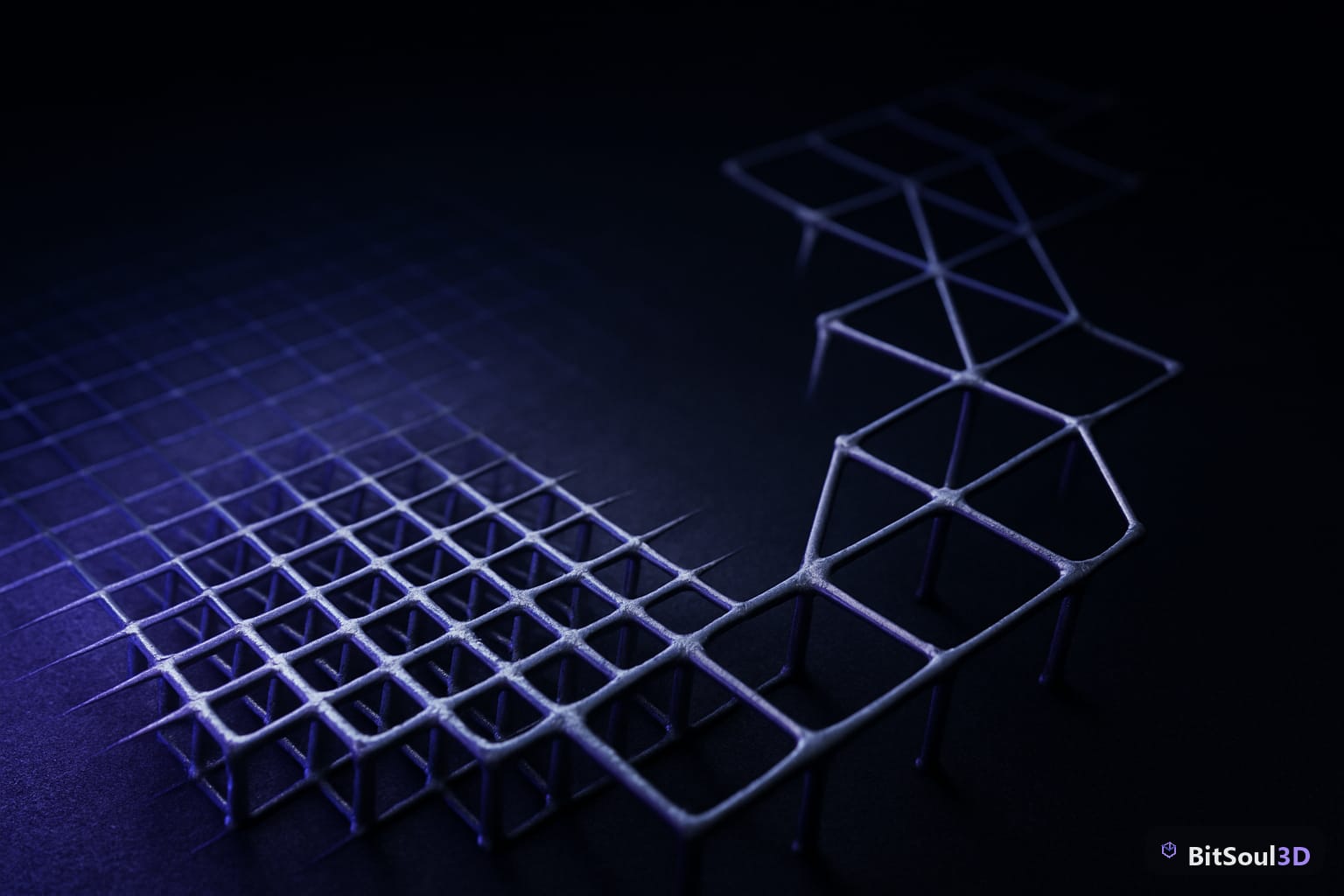
In Edit Mode on the duplicate, use Mesh > Convex Hull (Ctrl+Shift+F → Convex Hull) to generate a rough approximation, then manually delete interior faces and collapse edge loops to bring the triangle count down. For concave areas — an archway, the inside of a barrel — you need multiple convex pieces rather than one hull.
Naming convention is critical for both target engines:
# Unity: prefix each collision object with UCX_
UCX_BarrelBody
UCX_BarrelLid

# UE5: same UCX_ prefix, same mesh name
UCX_SM_Barrel_00   (matches the static mesh named SM_Barrel)
UCX_SM_Barrel_01   (second convex piece)
Keep collision objects at the same world origin as the visual mesh. Export the scene (including collision objects) as a single FBX — both Unity and UE5 parse the UCX_ prefix automatically on import.
# Blender Python: batch-rename collision objects
import bpy

visual_name = "SM_Barrel"
for i, obj in enumerate(bpy.data.collections["COL"].objects):
    obj.name = f"UCX_{visual_name}_{i:02d}"
Setting Up Collision in Unity
Import the FBX into Unity. In the Import Settings → Model tab, ensure Read/Write Enabled is off (saves memory) and Generate Colliders is disabled — Unity should use your authored UCX_ meshes, not auto-generate anything.

Unity detects UCX_ prefixed meshes and converts them to MeshCollider components on the parent GameObject automatically. Verify in the Inspector: the MeshCollider should reference your convex hull, and Convex should be checked.
| Collider Type | CPU Cost | Accuracy | Use Case |
|---|---|---|---|
| Box / Sphere / Capsule | Very Low | Low | Simple props, pickups |
| Convex MeshCollider | Low | Medium-High | Hero props, weapons |
| Non-Convex MeshCollider | High | Exact | Terrain, static-only geometry |
| Compound (multiple convex) | Medium | High | Complex concave shapes |
For static environment geometry (walls, floors) that will never move, non-convex MeshCollider with Is Trigger = false is acceptable. For any Rigidbody object, Unity mandates convex colliders.
Test with Gizmos → Physics overlay enabled in the Scene view to confirm your collision shapes render as green wireframes matching the visual hull.
Setting Up Collision in Unreal Engine 5
Import your FBX via the Content Browser. In the FBX Import Options dialog, enable Import as Dynamic? only if the mesh will move; leave it as Static Mesh for environment geometry. UE5 auto-detects UCX_ objects and assigns them as Simple Collision.
In the Static Mesh Editor, open Collision in the top toolbar. You should see your convex hulls rendered as blue wireframes. Switch Collision Complexity (Details panel → Collision) to:
- Use Simple Collision as Complex — fastest, good for most props
- Use Complex Collision as Simple — for very organic shapes where precision matters more than speed
- Use Default — engine decides per query type
; DefaultEngine.ini override for project-wide collision budget
[/Script/Engine.PhysicsSettings]
DefaultShapeComplexity=CTF_UseSimpleAsComplex
bDefaultHasComplexCollision=False
MaxPhysicsDeltaTime=0.033
UE5's Chaos Physics system batches convex-convex queries efficiently. A well-authored compound collision of 3–4 convex pieces on a complex prop will outperform a single 200-triangle non-convex mesh by 4–8× in narrow-phase query time at typical scene densities.
Testing and Profiling Collision Performance
Never ship untested collision. Both engines provide built-in profiling.
Unity: Open Window → Analysis → Physics Debugger. The Queries tab shows per-frame collision query counts. Watch for spikes on MeshCollider objects — any static prop spiking above 5 ms/frame during a broad sweep warrants a collision mesh simplification pass.
UE5: Run stat collision in the console. Key metrics: BroadPhase and NarrowPhase timings. High NarrowPhase cost points directly to complex collision on moving objects.
Checklist before marking a collision mesh as ship-ready:
- Triangle count ≤ 64 for props, ≤ 128 for large environment pieces
- No interior faces (flip normals check: no faces point inward)
- All pieces are convex (test with Blender's Mesh Analysis → Distortion overlay)
- Origin matches parent visual mesh
- Verified green/blue in engine collision debug view
- No physics spike in profiler during stress test (50+ instances)
- Exported and re-imported — collision assigned correctly without manual steps
Download Assets with Clean Collision Data
Hand-authoring collision geometry takes time. For common prop categories — crates, barrels, weapon racks, furniture — you can save hours by sourcing assets that already ship with authored UCX_ collision meshes. Browse the BitSoul marketplace for game-ready FBX and GLB packs with pre-built collision layers, validated in Unity 6 and UE5.4. Filter by Collision Included to skip the Blender pass entirely and go straight to integration.
Assets with clean collision data also import faster into CI/CD pipelines and asset validation scripts, reducing iteration time from hours to minutes. Check the BitSoul marketplace for the latest additions — new packs drop weekly.
Need drop-in assets for this workflow? Grab the 98-model Character Pack on the BitSoul marketplace and drop them straight into your project.