Transparent materials are deceptively difficult. You get a glass shader working in Blender, export it to Unity, and suddenly you have sorting artifacts, black silhouettes, and a frame-rate drop nobody can explain. The root cause is almost always the same: real-time engines handle transparency fundamentally differently from offline renderers, and each engine has its own quirks you need to know before you touch a single node.
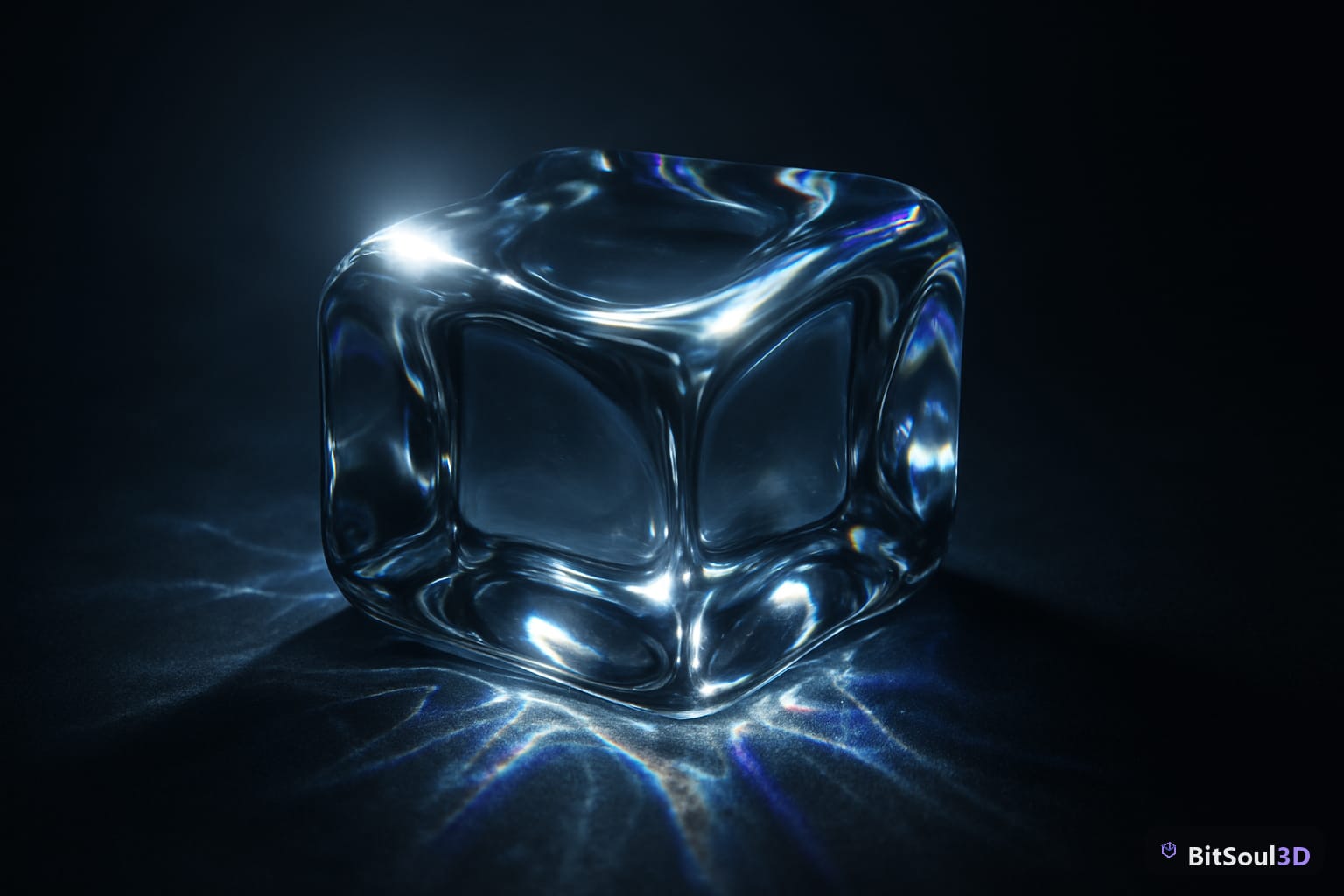
This guide walks through the theory once, then gives you concrete, tested setups for Unity Universal Render Pipeline, Unreal Engine 5, and Godot 4.
Why Transparency Is Hard in Real-Time Rendering
Rasterization-based engines draw geometry by writing color and depth values to a buffer. Opaque geometry writes to both. Transparent geometry only writes color — it cannot write depth, because the pixels behind it need to stay visible. This creates the overdraw sorting problem: if two transparent surfaces overlap, the engine must draw the one farther from the camera first, then the closer one on top. Get the order wrong and you get the classic see-through artifact where a near surface vanishes behind a far one.
GPU hardware solves opaque geometry with a depth pre-pass — reject any fragment that loses the depth test before even shading it. That optimization does not apply to transparent surfaces. Every transparent pixel costs a full fragment shader evaluation, regardless of whether it ends up visible. This is why particle-heavy scenes and glass-filled environments tank performance in ways that look disproportionate to their geometry count.
The three main approaches engines use are: alpha blending (blend source and destination colors by alpha), alpha testing (discard fragments below a threshold, writes depth), and order-independent transparency (sort-free multi-layer compositing). Each has different performance, quality, and compatibility trade-offs — knowing which one to reach for is the skill this guide is about.
Setting Up Glass in Unity URP
Unity Universal Render Pipeline exposes transparency through the Surface Type dropdown in any URP-compatible shader. For glass, the critical path is:
- Create a new Lit material in your project.
- Set Surface Type → Transparent.
- Set Blending Mode → Alpha (not Premultiply — that is for UI).
- Enable Depth Write → Off (the default for transparent; enabling it breaks sorting).
- Set Render Face → Both for glass objects — single-sided glass looks wrong at any angle.
For the actual glass appearance:
- Base Color: pure white at low alpha (R:255, G:255, B:255, A:10–30). The alpha drives transmission, not the color channel.
- Metallic: 0
- Smoothness: 0.95–1.0 for clear glass, 0.5–0.7 for frosted.
- Normal Map: a subtle scratched-glass normal keeps the surface from looking like a soap bubble.
Unity does not have built-in screen-space refraction in URP by default. For refraction, use Shader Graph with a Scene Color node that samples the opaque render pass. Enable Opaque Texture in your URP Asset settings or this node returns black.
| Property | Clear Glass | Frosted Glass | Tinted Glass |
|---|---|---|---|
| Smoothness | 0.95 | 0.45 | 0.90 |
| Base Alpha | 10–20 | 80–120 | 60–100 |
| Normal Strength | 0.05 | 0.80 | 0.10 |
| Refraction Strength | 0.02 | 0.06 | 0.02 |
Setting Up Glass in Unreal Engine 5
UE5 handles translucency through the Material Blend Mode and Lighting Mode properties. For glass:
- Create a new Material.
- Set Blend Mode → Translucent.
- Set Lighting Mode → Surface TranslucencyVolume for performance, or Surface ForwardShading for quality (costlier, better specular).
- Enable Two Sided in Material Properties.
- Wire an Opacity constant (0.05–0.2 for clear glass) into the Opacity input.
For refraction in UE5, connect a Refraction value (1.45–1.52 for most glass types) directly into the Refraction material input. UE5 handles the index of refraction math internally — change the refraction model in Material properties under Refraction Mode → Index of Refraction (not the cheaper pixel offset model).
Important: UE5 Nanite does not support translucent materials. Disable Nanite per-mesh for any transparent surface — a common cause of invisible glass in UE5 scenes.
Setting Up Glass in Godot 4
Godot 4 uses StandardMaterial3D with transparency through the Transparency property group.
- Create a new StandardMaterial3D.
- Set Transparency → Alpha.
- Set Albedo Color with alpha 10–30 (out of 255).
- Enable Cull Mode → Disabled for two-sided rendering.
- Set Roughness: 0.02, Metallic: 0.0.
Godot 4 supports screen-space refraction natively via the Refraction property group in StandardMaterial3D. Enable it and set a refraction scale of 0.05–0.1. For custom refraction behavior, use a ShaderMaterial:
Performance Budgeting for Transparent Materials
Transparent surfaces have no depth culling, so overdraw is cumulative. A scene with five layers of glass in the same screen area is five full fragment shader evaluations per pixel:
- Hard limit: no more than 3–4 transparent layers in any single view frustum region.
- LOD glass: switch distant glass to an opaque tinted surface with an environment reflection probe beyond 15–20m.
- Merge glass geometry: 40 individual window panes as separate meshes means 40 transparency sort operations per frame — merge them into 1–2 draw calls.
- Render queue tuning in Unity: set the Render Queue explicitly (3000 = default transparent; increase for objects that should render on top).
Common Artifacts and How to Fix Them
Black silhouettes on glass: The material writes to the depth buffer. Disable Depth Write for transparent materials.
Z-fighting between parallel glass surfaces: Offset one mesh by 0.001 units, or use alpha test (cutout mode) if the material allows a hard edge.
Glass disappears when viewed through other glass: The sort only handles one transparent layer. Enable multi-layer transparency: UE5 Separate Translucency is on by default; Godot needs the screen-texture hint on the inner glass shader; Unity requires a custom OIT Renderer Feature.
Refraction looks wrong on moving objects: Screen-space refraction grabs the previous frame. For fast-moving glass (doors, vehicles), reduce refraction strength or disable it and rely on normal-map distortion only.
Find ready-to-use glass and transparent material asset packs for Unity, UE5, and Godot at BitSoul Marketplace. Assets ship with PBR-correct material presets already configured for each engine — no per-asset debugging required.
Getting transparency right pays dividends across every project. A correct glass shader in your library means every window, bottle, and crystal you place just works. Browse production-ready assets at BitSoul Marketplace and skip the trial-and-error.
Need drop-in assets for this workflow? Grab the 67-model Weapons Bundle on the BitSoul marketplace and drop them straight into your project.