Baked lighting was the standard for a decade. Lumen breaks that contract: UE5's fully dynamic global illumination system computes indirect light in real time, bouncing light off every surface without a single lightmap. The result looks cinematic out of the box — but only if your 3D assets and project settings are configured to take advantage of it.
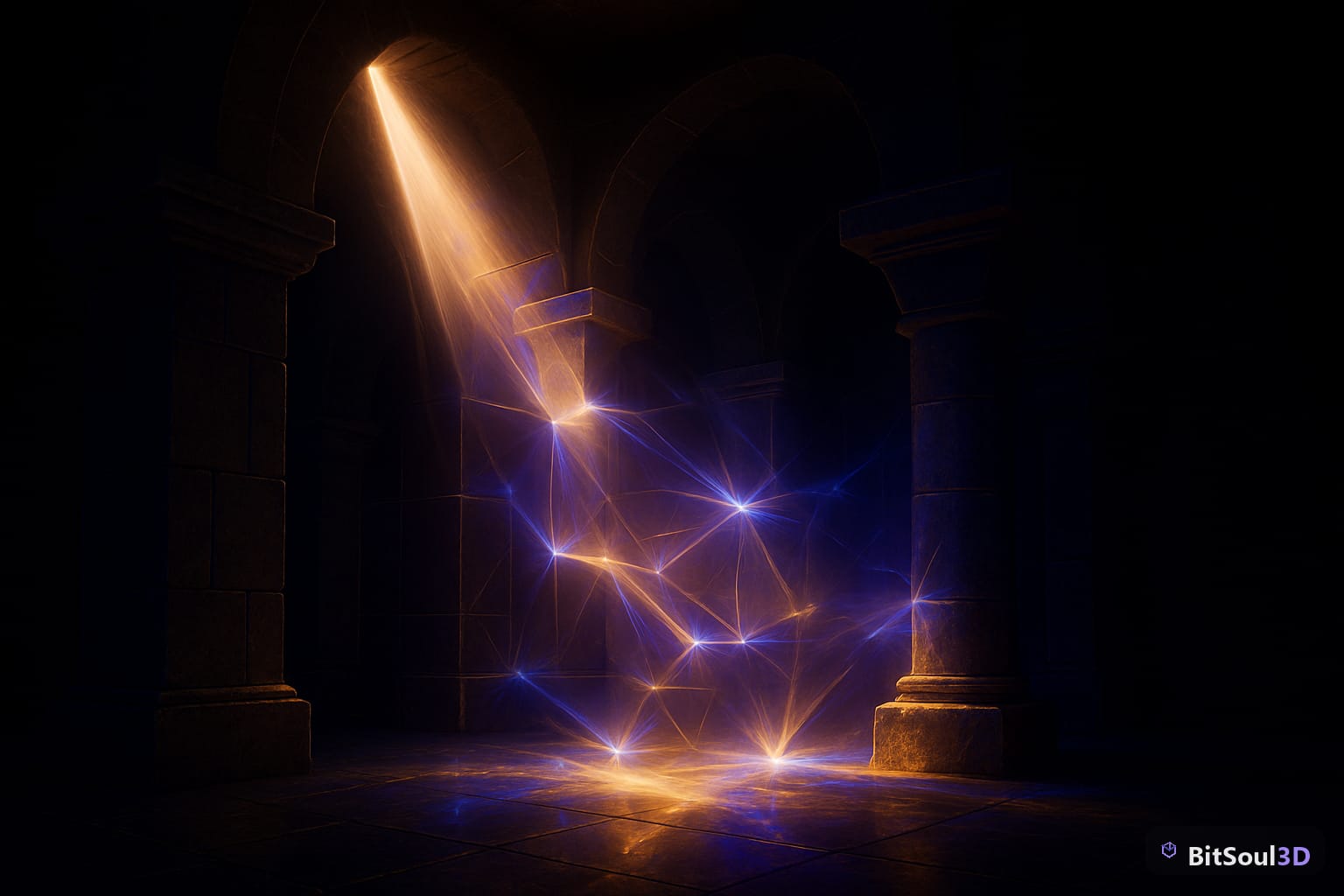
This guide covers everything: what Lumen needs from your meshes and materials, how to enable and tune it, how to choose between hardware and software ray tracing, and how to chase down common artifacts. If you're sourcing ready-to-import assets for your Lumen scene, check the BitSoul marketplace for game-ready GLB and FBX packs optimized for PBR workflows.
What Is Lumen and How It Affects Your 3D Assets
Lumen is UE5's real-time global illumination and reflections system. Unlike previous baked GI solutions, Lumen traces rays against a Scene Representation — a combination of Signed Distance Fields (for software mode) or hardware BVH structures (for hardware RT mode) — and accumulates indirect light every frame.
From an asset perspective, this changes a few assumptions:
- Lightmaps are irrelevant. Lumen doesn't use them. You don't need to UV-unwrap a second channel for baking.
- Emissive surfaces become real light sources. An emissive material on a mesh will actually illuminate surrounding geometry — no extra point lights needed.
- Material properties matter more. Roughness, metallic, and base color all feed Lumen's reflectance computations. Incorrect PBR values produce physically wrong indirect light.
- Surface normals and mesh fidelity are visible. Lumen captures mesh surfaces at varying resolutions via Mesh Distance Fields. Low-res proxies can cause GI bleeding on small or thin geometry.
For assets purchased from the BitSoul marketplace, verify that materials use the PBR metallic workflow before importing — mismatched roughness values are the most common source of blown-out indirect light in Lumen scenes.
Enabling and Configuring Lumen in Your UE5 Project
Lumen ships enabled by default in UE5 projects using the default lit rendering mode, but you should verify the settings in Project Settings → Rendering → Global Illumination:
; DefaultEngine.ini — relevant sections
[/Script/Engine.RendererSettings]
r.Lumen.Enabled=1
r.Lumen.HardwareRayTracing=0          ; 0 = software, 1 = hardware
r.Lumen.Reflections.HardwareRayTracing=0
r.GenerateMeshDistanceFields=1        ; required for software Lumen
For software Lumen (the default), Generate Mesh Distance Fields must be on. This adds build time on large scenes but is mandatory — Lumen uses distance fields to trace rays against scene geometry in screen space and world space.
Key settings to dial in after enabling:
| Setting | Recommended | Effect |
|---|---|---|
r.Lumen.DiffuseIndirect.Allow | 1 | Enables indirect diffuse GI |
r.Lumen.Reflections.Allow | 1 | Enables Lumen reflections |
r.LumenScene.SurfaceCache.MaxAtlasSize | 1024 (default) | Surface cache budget — raise for larger scenes |
r.Lumen.DiffuseIndirect.TemporalFilter | 1 | Reduces flickering in motion |
r.Lumen.MaxTraceDistance | 8000 | Sky/exterior GI reach (units = cm) |
In the Post Process Volume, set Global Illumination Method to Lumen and Reflections Method to Lumen. If you leave these on Plugin or Screen Space, you won't get full Lumen output even with the project settings correct.
Preparing Your 3D Assets for Lumen
Lumen's quality scales directly with how well your assets are set up. Three areas matter most:
1. Mesh Distance Fields
Every Static Mesh needs a valid distance field for software Lumen. Open the mesh in the Static Mesh Editor and check Build Settings → Generate Mesh Distance Field. For complex geometry (foliage, railings, thin surfaces), increase Distance Field Resolution Scale from the default 1.0 to 1.5–2.0. Without this, Lumen will miss those surfaces in GI calculations — they'll appear to receive no indirect light.
2. Emissive Materials
Emissive surfaces in Lumen light the scene, but they need to be flagged correctly:
// In your Material — expose emissive to Lumen
Material.EmissiveColor = BaseColor * EmissiveMask * EmissiveIntensity;
// Check "Use Emissive for Static Lighting" = false (Lumen handles it dynamically)
// Emissive Boost (PostProcess): r.Lumen.DiffuseIndirect.EmissiveBoost = 1.0
Keep emissive multipliers in the 0–20 range. Values above 20 can blow out Lumen's surface cache and cause GI smearing around light sources.
3. Two-Sided Materials and Foliage
Two-sided materials (leaves, fabric, thin panels) require Two-Sided Distance Field Generation enabled per mesh to avoid Lumen treating them as open surfaces. In the Static Mesh Editor, enable Generate Two-Sided Distance Field. Foliage actors should also use Card Representation instead of full distance fields — set this in the Foliage Tool settings to reduce performance cost.
Hardware vs. Software Ray Tracing: Performance Trade-offs
This is the most consequential choice in your Lumen configuration. Software Lumen uses screen-space traces + distance fields and runs on any GPU that supports DX12. Hardware Ray Tracing (HWRT) requires an RTX-class NVIDIA GPU (or equivalent DXR 1.1 hardware) and traces against actual BVH structures, yielding sharper GI and reflections — at significant GPU cost.
When to use Hardware Ray Tracing:
- Cinematic-quality renders or in-game cutscenes
- Scenes with complex reflections (metal props, glass surfaces, wet floors)
- Target platform is PC with RTX 3070+ or equivalent
- Willing to accept 15–40% GPU frame budget cost vs. software mode
When to stay on Software Lumen:
- Shipping on console (PS5/Xbox Series X use software Lumen natively)
- Performance budget is tight (30 fps target, open world)
- Mobile or mid-range PC target
; Switch to hardware RT in project settings or at runtime:
r.Lumen.HardwareRayTracing=1
r.Lumen.Reflections.HardwareRayTracing=1
r.RayTracing.Geometry.StaticMeshes=1
Performance benchmarks (approximate, 1440p, UE5.4):
| Mode | GPU cost (RTX 3080) | GI quality | Console support |
|---|---|---|---|
| Software Lumen, low quality | 2–4 ms | Good | Yes |
| Software Lumen, high quality | 5–8 ms | Very good | Yes |
| Hardware Lumen RT | 8–14 ms | Excellent | No |
| Hardware Lumen + Reflections | 12–20 ms | Best | No |
For most shipped titles targeting both PC and console, software Lumen at high quality is the right call. Reserve hardware RT for PC-exclusive content or cutscene pipelines.
Debugging Lumen GI Issues
Lumen artifacts fall into a few repeating patterns. Here are the most common and their fixes:
Dark patches on geometry (GI leaking): Usually caused by overlapping or backfacing mesh distance fields. Fix: enable Two-Sided Distance Field Generation on the offending mesh, or increase Distance Field Resolution Scale.
Flickering indirect light: Temporal reprojection is failing. Increase r.Lumen.DiffuseIndirect.TemporalMaxFramesAccumulated from 16 to 32. Also check that your camera has no aggressive motion blur or fast cuts without a manual scene clear.
Emissive surfaces not lighting the scene: Check that r.Lumen.DiffuseIndirect.Allow=1 and that the material's Shading Model is not Unlit. Unlit materials have no Lumen surface cache entry and won't emit indirect light.
Reflections showing the wrong frame (ghosting): Lumen reflections use a temporal filter. Lower r.Lumen.Reflections.TemporalWeight toward 0.1 to reduce ghosting at the cost of more noise.
Lumen disabled in Shipping builds: By default, UE5 doesn't strip Lumen from Shipping, but r.Lumen.Enabled can be overridden by scalability settings. Audit your BaseScalability.ini and ensure the sg.PostProcessQuality levels don't zero out Lumen at lower settings if you need it at runtime.
Using the Lumen Scene Visualization (show LumenScene in the console, or Viewport → Show → Visualize → Lumen Scene) is your best debugging tool — it exposes the surface cache, distance field coverage, and final radiance cache in one view.
Get Lumen-Ready Assets From BitSoul
Lumen rewards well-made assets. Messy distance fields, incorrect PBR ranges, and missing emissive setup all degrade GI quality in ways that are slow to diagnose. Starting from production-quality 3D models removes most of that friction.
Browse game-ready environment props, architectural kits, and character meshes at bitsoulhosting.com/marketplace — every asset is validated for engine import with correct material setups ready for Lumen workflows.
Need drop-in assets for this workflow? Grab the Architecture Modern Bundle on the BitSoul marketplace and drop them straight into your project.