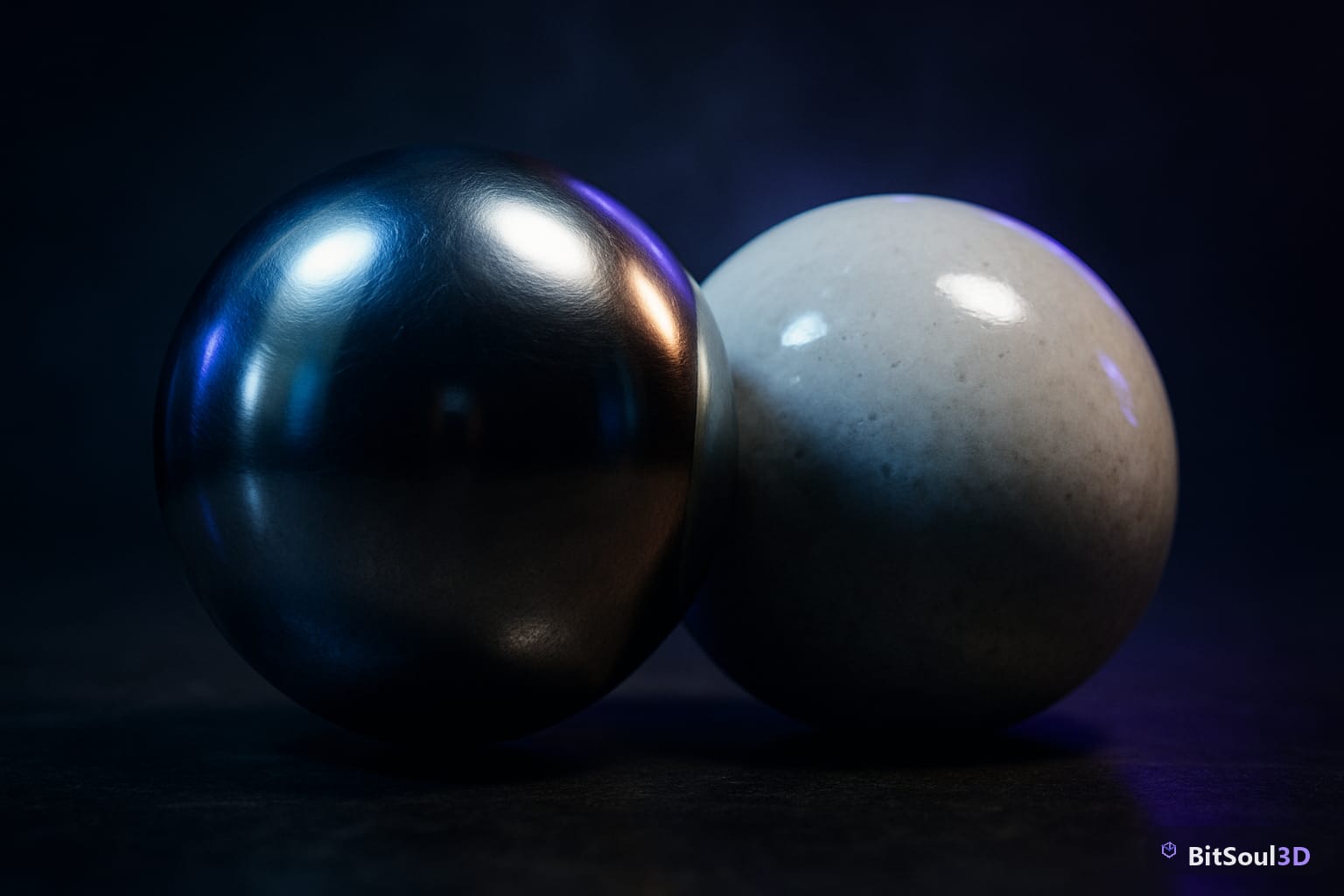
The Hidden Reason Your Assets Look Wrong Across Engines
You export a perfectly crafted asset from Blender, drop it into Unity, and the metal looks flat. You push it to Unreal Engine 5 and the specular highlight burns out. The mesh hasn't changed — the issue is your PBR workflow. Metallic and Specular are two distinct authoring paradigms, and mixing them up is one of the most common and costly mistakes in cross-engine game development.
Metallic vs. Specular: What's the Actual Difference?
At the core, both workflows attempt to describe the same physical phenomenon: how a surface reflects light. They just encode that information differently.
The Metallic workflow uses three primary maps:
- BaseColor — the albedo/diffuse color of the surface
- Metallic — a grayscale mask (0 = dielectric, 1 = metal)
- Roughness — how microscopically rough the surface is
The engine calculates specular F0 (Fresnel-zero, the reflectance at normal incidence) automatically from the Metallic value. Dielectrics default to ~4% F0 (~0.04), metals derive F0 from the BaseColor itself.
The Specular workflow uses:
- Diffuse — the albedo color (metals have no diffuse, so this is black for metals)
- Specular — an explicit F0 map encoding exact reflectance values per pixel
- Glossiness — the inverse of roughness (1 = perfectly smooth)
The key difference: the Specular workflow gives you explicit per-pixel control over F0 values. The Metallic workflow infers them. For stylized assets or materials with unusual physics (e.g. fabrics with retroreflection, subsurface gemstones), the Specular workflow's control is useful. For the vast majority of game assets — metal, wood, concrete, plastic — the Metallic workflow is simpler, more portable, and better supported.
The Metallic Workflow in Practice: Blender, Unity URP, and Godot 4
Blender's Principled BSDF node is built around the Metallic workflow. The Metallic and Roughness inputs map 1:1 to game engine equivalents, which makes export straightforward.
In Blender: author your material using Principled BSDF. When baking for export:
Bake pass: Combined or specific passes
- BaseColor → Diffuse Color (no shadows)
- Metallic → Emit bake from Metallic node input
- Roughness → Emit bake from Roughness node input
- Normal → Normal pass (Tangent space)
Use Emit bakes for Metallic and Roughness to get pure data maps without lighting contamination.
Unity URP natively expects Metallic workflow maps. The Standard Lit shader has direct Metallic and Smoothness slots. Note that Unity uses Smoothness (inverse of Roughness) by default — pack Smoothness into the alpha channel of the Metallic map to save a texture slot:
| Unity Slot | Source Map | Notes |
|---|---|---|
| Albedo | BaseColor | sRGB |
| Metallic (R) | Metallic | Linear |
| Smoothness (A) | 1 - Roughness | Linear |
| Normal | Normal | Linear, DX format |
| Occlusion | AO | Linear |
Godot 4's StandardMaterial3D also defaults to Metallic workflow. Set Metalness and Roughness textures under the ORM pass. Godot 4 expects ORM (Occlusion, Roughness, Metallic) packed in a single texture — R=Occlusion, G=Roughness, B=Metallic — which you can generate in Blender using a MixRGB/Combine RGBA node during bake.
The Specular Workflow in Unreal Engine 5
Unreal Engine 5 defaults to the Metallic workflow in its Material system, but it exposes a Specular input pin that most artists ignore — and that's intentional for typical assets. However, understanding it matters when you're authoring unusual materials or porting Specular-workflow assets from Substance Painter's spec/gloss mode.
In UE5's default PBR model:
- The
Specularpin is a scalar multiplier on the default 0.04 F0 dielectric value - A value of 0.5 (default) maps to the standard 4% reflectance
- Values above or below adjust specular intensity for dielectrics only; it has no effect on pixels where Metallic = 1
When to use the Specular pin in UE5:
// Example: tinted specular for a painted surface with varied clearcoat
// In Material Editor, connect a grayscale texture to Specular pin
// Range 0-1 maps to F0 range 0-0.08 (0%-8% reflectance)
// Most real-world dielectrics: 0.35-0.7 (2.8%-5.6% F0)
If you're importing Specular/Gloss workflow textures (from older Substance pipelines or Unity Standard Specular setup), you need to convert them before they'll look correct in UE5's Metallic-based system. The conversion is non-trivial for mixed metal/dielectric surfaces and is best handled at the texture authoring stage, not in-engine.
Converting Between Workflows Without Losing Quality
Converting Specular/Gloss to Metallic/Roughness is lossy for mixed materials. Here's the practical approach:
Specular to Metallic conversion rules:
- Pixels where Specular map is bright and chromatic: set Metallic = 1, copy Specular to BaseColor
- Pixels where Specular map is dim/achromatic (~0.04 F0): set Metallic = 0, keep Diffuse as BaseColor
- Glossiness: invert to get Roughness (Roughness = 1 - Glossiness)
This works well for assets with clear material separation. For complex mixed-material surfaces, use Substance Painter's built-in workflow conversion (Texture Set Settings > Output Template) rather than doing it manually in image editing software.
Blender tip: If you receive a Specular/Gloss asset and need to re-author it for Metallic engines, use the Principled BSDF Specular input (not the Metallic input). This accepts F0 values directly (0-1 range mapping to 0%-8% reflectance), letting you author the material accurately before baking to Metallic maps.
Which Workflow Should You Use? A Practical Checklist
| Scenario | Recommended Workflow |
|---|---|
| Unity URP, Godot 4, modern Blender pipeline | Metallic |
| Unreal Engine 5 (default) | Metallic |
| Substance Painter export for multiple engines | Metallic (use UE4/Unity presets) |
| High-end film or archviz with unusual dielectrics | Specular (for F0 precision) |
| Porting legacy Spec/Gloss assets | Convert to Metallic at source |
| Stylized games with non-physical sheen effects | Either (engine-specific) |
| Cross-engine asset sold on marketplace | Metallic — maximum compatibility |
Decision guide:
- Is your target engine Unity, Godot 4, or UE5? Use Metallic.
- Are you working with legacy Spec/Gloss textures? Convert to Metallic.
- Do you need exact F0 control for unusual dielectrics? Use Specular workflow in Blender, bake down to Metallic before export.
- Publishing to BitSoul Marketplace? Always deliver Metallic workflow maps — it maximizes compatibility for buyers on any engine.
Test Before You Commit
Before locking in your texture pipeline for a project, create a test sphere in Blender with a pure metal material and a pure plastic/dielectric material. Export using both workflows and import into your target engine. The differences will be visible immediately — catching workflow mismatches at the sphere stage costs five minutes. Catching them after texturing 40 assets costs days.
For assets you plan to sell or distribute through BitSoul Marketplace, standardize on Metallic workflow and include a README stating your bake settings, Blender version, and texture packing convention. Buyers on every major engine will use your assets without conversion work.
The Metallic workflow is the game industry standard. Learn it deeply, know where Specular workflow adds value, and your PBR materials will look correct the first time across every engine you target.
Need drop-in assets for this workflow? Grab the 67-model Weapons Bundle on the BitSoul marketplace and drop them straight into your project.