Skeletal animation handles characters well, but try to animate a torn sail, a collapsing brick wall, or a roiling fireball with bones and you are fighting the wrong tool. Vertex Animation Textures (VAT) solve this by pre-baking every vertex's position and normal into a texture pair, then replaying that simulation entirely inside the material shader—zero skeleton, zero CPU skinning, near-zero runtime cost. Here is how to bake VAT data from Blender and drive it in UE5.
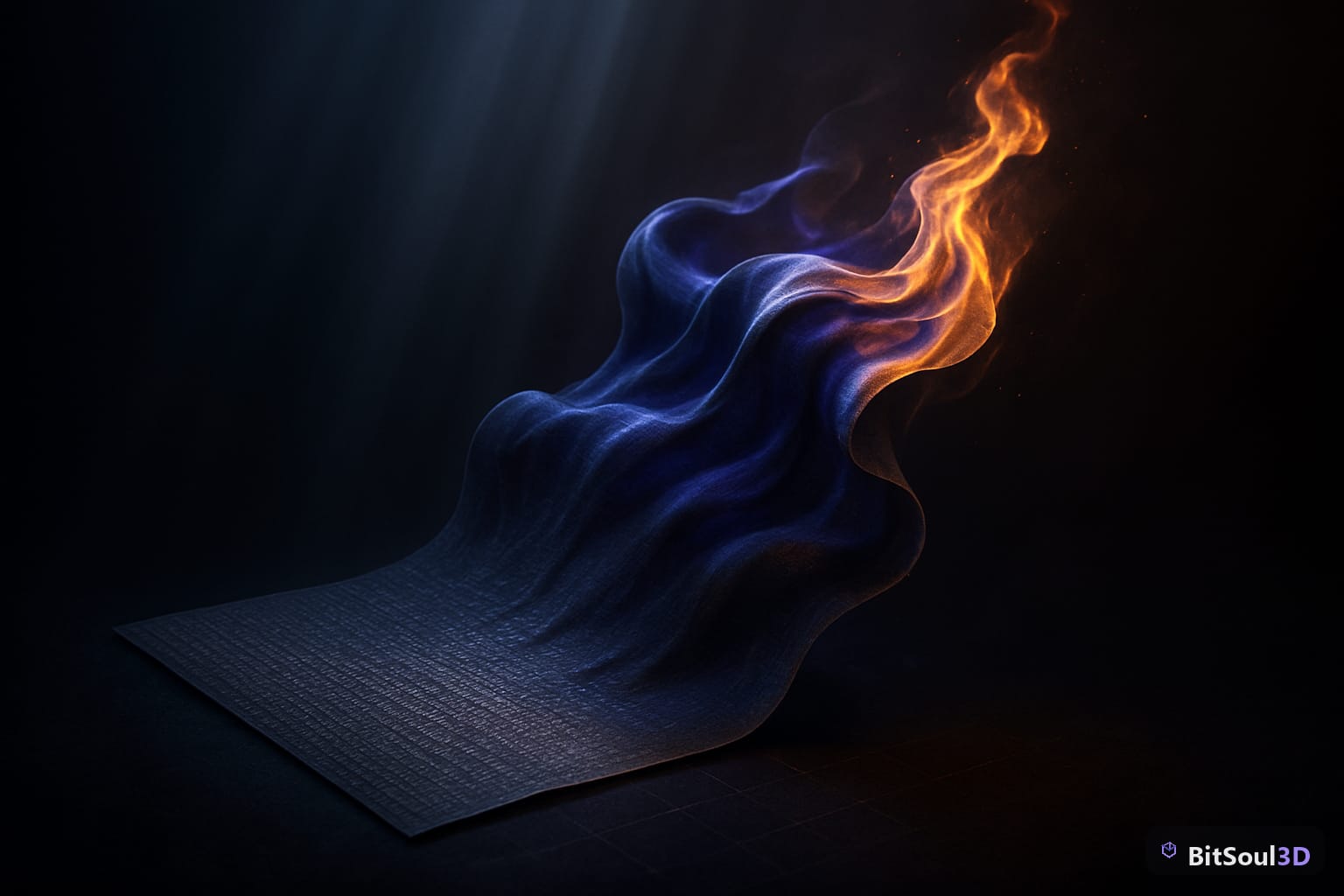
What Are Vertex Animation Textures?
A VAT workflow captures the per-vertex world-space offset of every vertex in a simulation across every frame, then encodes that data into two textures:
- Position map – each pixel stores the XYZ offset from the rest pose for one vertex at one frame (UV.x = vertex index normalized, UV.y = frame/total frames).
- Normal map – same layout, but stores the deformed surface normal so lighting stays correct during playback.
At runtime the mesh sits in its rest pose. A custom material reads from these two textures using World Position Offset, shifts each vertex to its baked position, and scrolls UV.y over time to advance the frame. The GPU does all the work; no skeleton is involved, so you can GPU-instance thousands of cloths, fires, or rubble piles at almost no additional draw cost.
UE5 supports three flavours natively through Houdini Engine's export tools, but any path that produces the two textures works:
| Type | Simulation source | Typical use |
|---|---|---|
| Soft body | Cloth / Flex sim | Flags, curtains, loose clothing |
| Rigid body | RBD destruction | Brick walls, shatter effects |
| Fluid | FLIP / smoke | Fire, water, smoke plumes |
Baking VAT Data in Blender
Blender does not ship a VAT exporter by default, but the open-source SideFX Labs plugin (free, no Houdini licence required) adds a Game Dev Toolset → VAT Exporter operator. Once installed:
- Run your simulation – cloth, rigid body, or fluid baked to keyframes (Object → Apply → Visual Geometry to Mesh on each frame, or use a Bake action).
- Set frame range – the exporter encodes one row per vertex per frame, so keep frame counts reasonable: 64–128 frames for loops, up to 256 for one-shots.
- Export:
Game Dev Toolset → VAT → Export VAT. Choose Soft Body or Rigid Body mode; output is a.fbxrest mesh plus two.exrtextures.
If you prefer a pure Python approach, the core logic is:
import bpy, numpy as np
from PIL import Image

obj = bpy.context.object
mesh = obj.data
vcount = len(mesh.vertices)
frame_range = range(bpy.context.scene.frame_start, bpy.context.scene.frame_end + 1)
frames = len(frame_range)

# Output: width=vcount (padded to power-of-2), height=frames
width = 1 << (vcount - 1).bit_length()
pos_pixels = np.zeros((frames, width, 4), dtype=np.float32)

for row, f in enumerate(frame_range):
    bpy.context.scene.frame_set(f)
    bpy.context.view_layer.update()
    dep = bpy.context.evaluated_depsgraph_get()
    ev = obj.evaluated_get(dep)
    em = ev.to_mesh()
    for vi, v in enumerate(em.vertices):
        p = obj.matrix_world @ v.co
        pos_pixels[row, vi] = (p.x, p.y, p.z, 1.0)
    ev.to_mesh_clear()

# Save as 32-bit EXR using imageio or cv2
# (omitted for brevity; write pos_pixels to HDR/EXR)
Export the rest mesh as GLB or FBX with UV channel 1 reserved for VAT lookup (U = vertex index / width, V = 0 at rest pose).
Importing VAT into Unreal Engine 5
- Import the rest mesh as a Static Mesh (not Skeletal). Disable collision auto-generation if it is a VFX asset.
- Import the two EXR textures. In the Texture Editor: set Compression = HDR (RGBA16F), disable sRGB, set Filter = Nearest for position textures (you want exact pixel values, not bilinear blending).
- In the Material editor, change Blend Mode → Translucent if your mesh needs it (fire, smoke), or keep Opaque for cloth.

Building the VAT Shader in UE5
Connect the following nodes in the Material Graph:
TextureObjectParameter (PositionMap)
  → TextureSample (UV = float2(VertexID/TextureWidth, Time * FrameRate / TotalFrames))
  → ComponentMask (RGB)
  → Add (with rest-pose vertex position)
  → WorldPositionOffset
Key parameters to expose as Material Parameters:
| Parameter | Type | Description |
|---|---|---|
VAT_PositionMap | Texture Object | HDR position texture |
VAT_NormalMap | Texture Object | HDR normal texture |
VAT_TextureWidth | Scalar | Matches texture width in pixels |
VAT_TotalFrames | Scalar | Total baked frame count |
VAT_FrameRate | Scalar | Playback FPS (often 24 or 30) |
VAT_PositionBias | Vector3 | Offset baked to move origin |
VAT_PositionScale | Scalar | Range scale encoded during bake |
Decode the normal with the same UV, unpack from [0,1] to [-1,1], and feed into Vertex Normal WS offset. This keeps your mesh correctly lit as it deforms.
For the VertexID node to work you must enable Use Full Precision UVs in the Static Mesh editor, and the mesh must have the VAT UV channel as UV1 (not UV0, which should hold your standard albedo UVs).
VAT Use Cases and Performance Budget
VAT shines specifically where traditional animation is expensive or impractical:
- Cloth / flags – a 128-vertex flag with 64 frames fits in a 128×64 HDR texture (64 KB at RGBA16F). GPU instance it 500 times: 500 draw calls collapse to 1.
- Rigid destruction – chunk count drives vertex count. A wall of 50 bricks at 8 verts each = 400 vertices, trivial texture size. Trigger playback with a Timeline node in Blueprint.
- Fluid VFX (fire, smoke) – combine with a particle system that spawns static mesh instances; VAT handles the shape, a simple emissive + opacity gradient handles the look.
Practical budgets:
| Asset type | Max vertices | Recommended frames | Texture size |
|---|---|---|---|
| Cloth panel | 512 | 64 | 512×64 RGBA16F |
| Destruction chunk set | 1024 | 48 | 1024×48 RGBA16F |
| Fire flipbook mesh | 256 | 96 | 256×96 RGBA16F |
Keep total animation texture memory under 4 MB per distinct VAT asset on mobile, 16 MB on PC/console.
Where to Get Pre-Built Simulation Meshes
Sourcing high-quality rest meshes optimised for VAT workflows takes time. The BitSoul marketplace carries environment props, destruction sets, and VFX meshes in GLB format with clean topology—ready to drop into Blender for simulation and baking. Grab a destruction wall kit or a cloth flag set, run your sim, and have a polished VAT asset in an afternoon instead of a week. Browse the full library at bitsoulhosting.com/marketplace and filter by polygon count to find meshes that fit your vertex budget above.
VAT is one of the highest-leverage techniques in a game artist's toolkit: a single afternoon of baking work converts a heavy CPU simulation into a GPU-friendly texture that runs at almost no cost and instances freely. Set up the material function once, save it as a Material Function asset in UE5, and every future VAT import is a matter of swapping textures and dialling in frame counts.
Build with real assets: grab the 98-model Character Pack on the BitSoul marketplace and drop them straight into your project.