Animation retargeting is one of the most underrated skills in a game developer toolkit. Buy a motion-capture pack, drop it on your custom character, and watch the arms clip through the torso, the feet float above the ground, and the spine twist like a broken marionette. The rig does not match. Here is how to fix that across Blender, Unity, and UE5.
Understanding Bone Hierarchies and Naming Conventions
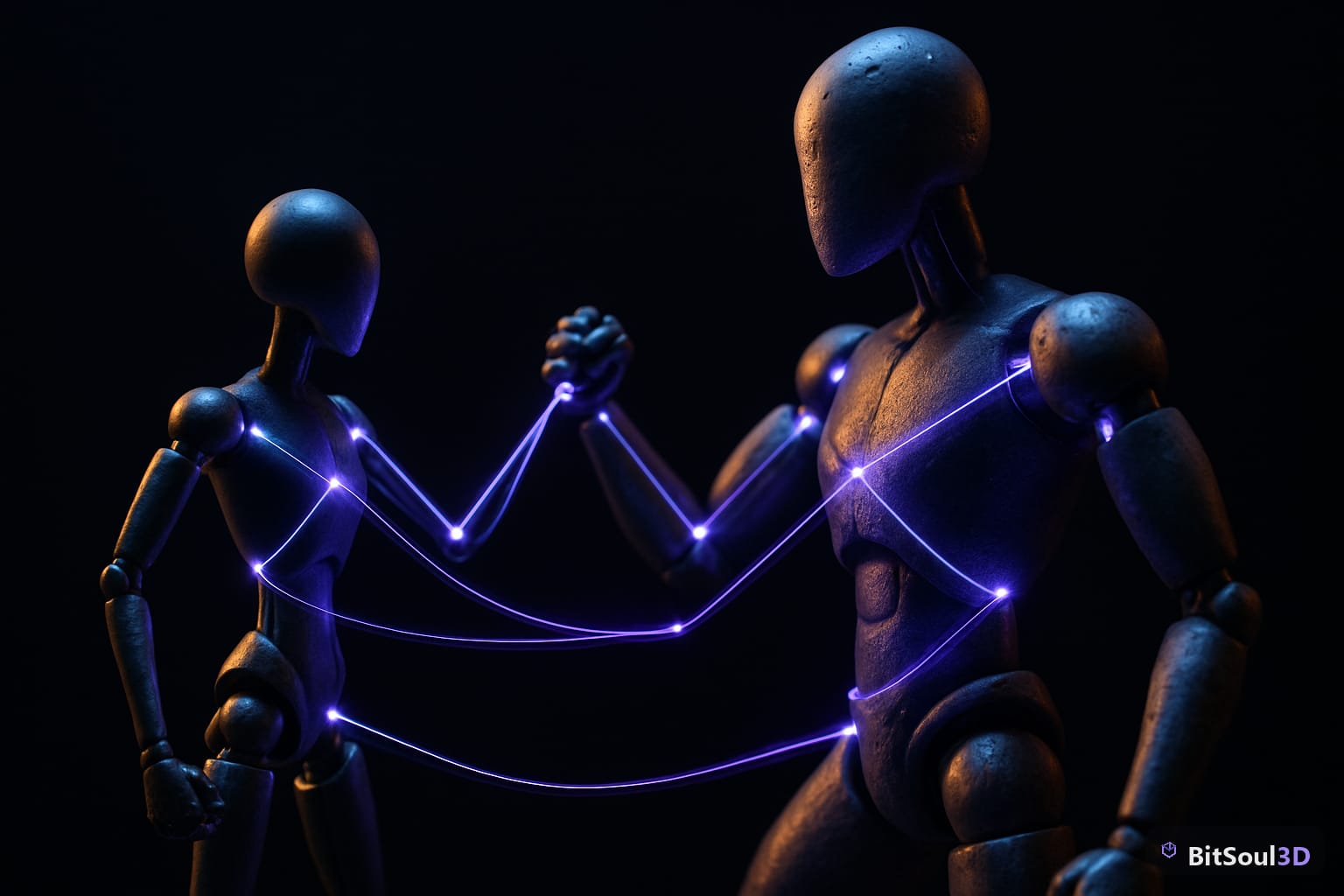
Before you touch a single keyframe, you need to understand why retargeting fails. Every skeletal rig is a hierarchy of bones with parent-child relationships. When you apply an animation from Rig A to Rig B, the engine maps bone names and transforms. If bone names do not match, or if the rest pose differs, the math breaks down immediately.
The two most common causes of broken retargeting are mismatched rest poses and non-standard naming. One rig uses a T-pose, the other an A-pose — the rotation offset propagates through every child bone. Meanwhile, LeftArm vs Left_Arm vs mixamorig:LeftArm are treated as entirely different bones.
Before attempting any retarget, audit both rigs:
# Blender Python: print all bone names and rest pose rotations
import bpy

armature = bpy.data.objects['Armature']
for bone in armature.pose.bones:
    print(f"{bone.name}: {bone.rotation_quaternion}")
Standardize naming to a convention before you export. Mixamo rigs use mixamorig: prefixes — strip these before importing into Unity or Unreal. In Blender, use the Search and Replace feature in the Outliner or a quick Python rename loop.
Retargeting Animations in Blender with the Action Editor
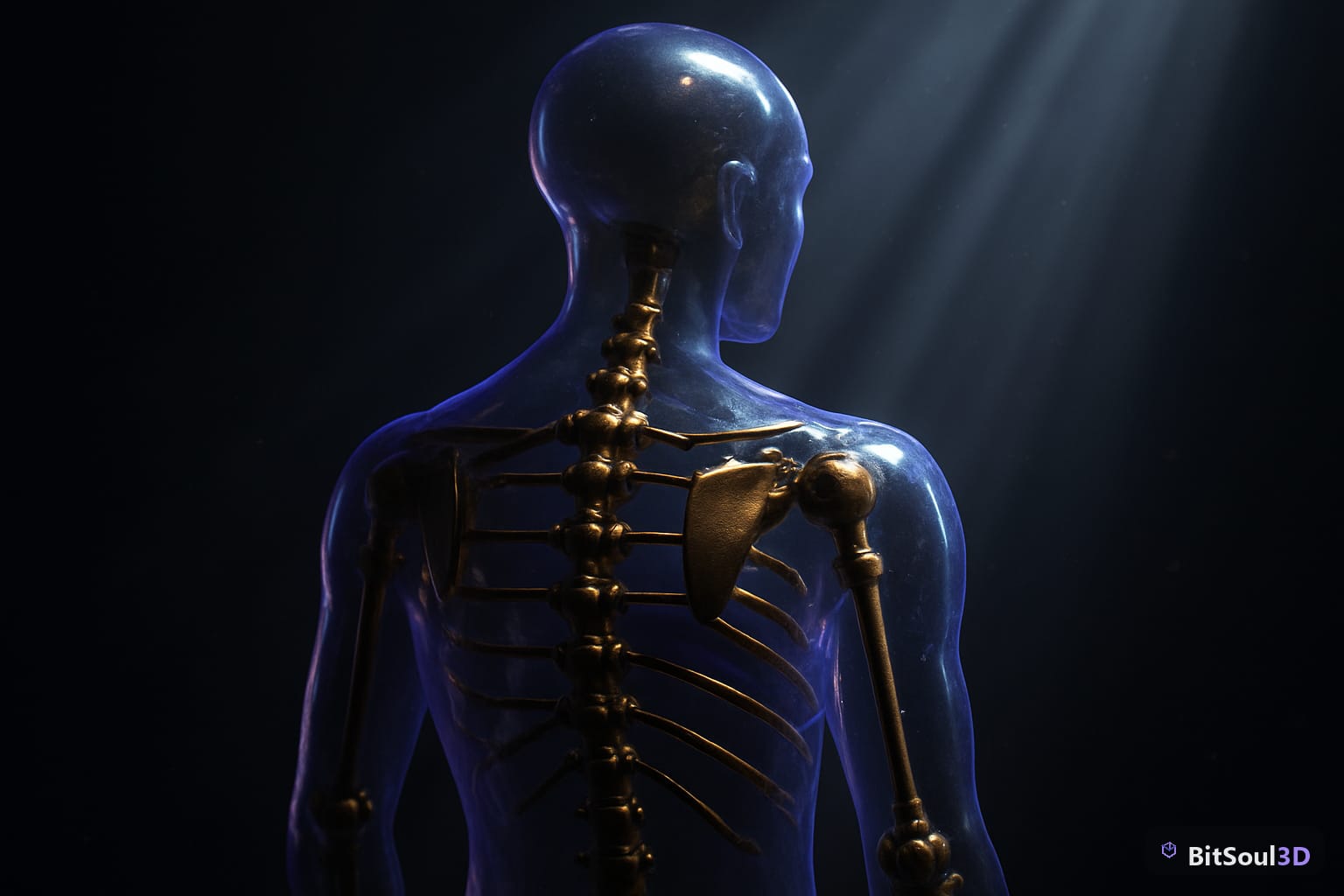
Blender does not have a one-click retargeting tool, but its constraint system makes it powerful and precise. The workflow: use Copy Rotation constraints on the target rig bones, baked to a new action.
Import both rigs into the same Blender scene. Select the target rig, enter Pose Mode, and select all bones. For each bone that has a counterpart on the source rig, add a Copy Rotation constraint — and Copy Location for root and hips — pointing to the corresponding source rig bone. Match rest poses first: if source is A-pose and target is T-pose, add a rotation offset in the constraint to compensate. Once the poses align, go to Pose > Animation > Bake Action with Visual Keying and Clear Constraints enabled.
# Bake action via Python for automation
import bpy

bpy.ops.nla.bake(
    frame_start=1,
    frame_end=120,
    only_selected=True,
    visual_keying=True,
    clear_constraints=True,
    bake_types={'POSE'}
)
The result is a clean action on your target rig with no external dependencies. For bulk retargeting of many animations, the Rokoko Retargeting add-on (free) automates constraint creation based on bone mapping tables — worth it if you are processing more than a handful of clips.
Retargeting in Unity with the Humanoid Avatar System
Unity Mecanim was designed explicitly for retargeting. The key is the Humanoid Avatar — a standardized bone mapping that lets any humanoid animation drive any humanoid character.
Import your character FBX. In the Inspector, go to Rig > Animation Type > Humanoid. Click Configure Avatar. Unity auto-maps bones; manually fix any that are wrong, typically fingers, twist bones, and jaw. Ensure the Avatar Definition is set to Create From This Model. Import your animation FBX separately, also set to Humanoid. Now any Humanoid animation clip plays correctly on any Humanoid character.
The Humanoid system handles rest pose differences automatically via the Avatar T-pose normalization step.
| Issue | Fix |
|---|---|
| Floating feet | Enable Foot IK in the Animator component |
| Twisted spine | Check thorax/chest bone assignment in Avatar |
| Wrong scale | Ensure FBX scale is 1.0 at import, not 100x |
| Missing finger animation | Map finger bones manually in Avatar Configure |
For non-humanoid assets — quadrupeds, creatures, vehicles — Unity Generic rig type supports retargeting via the Animation Rigging package using Multi-Aim Constraint and Two Bone IK Constraint.
Retargeting in Unreal Engine 5 with IK Retargeter
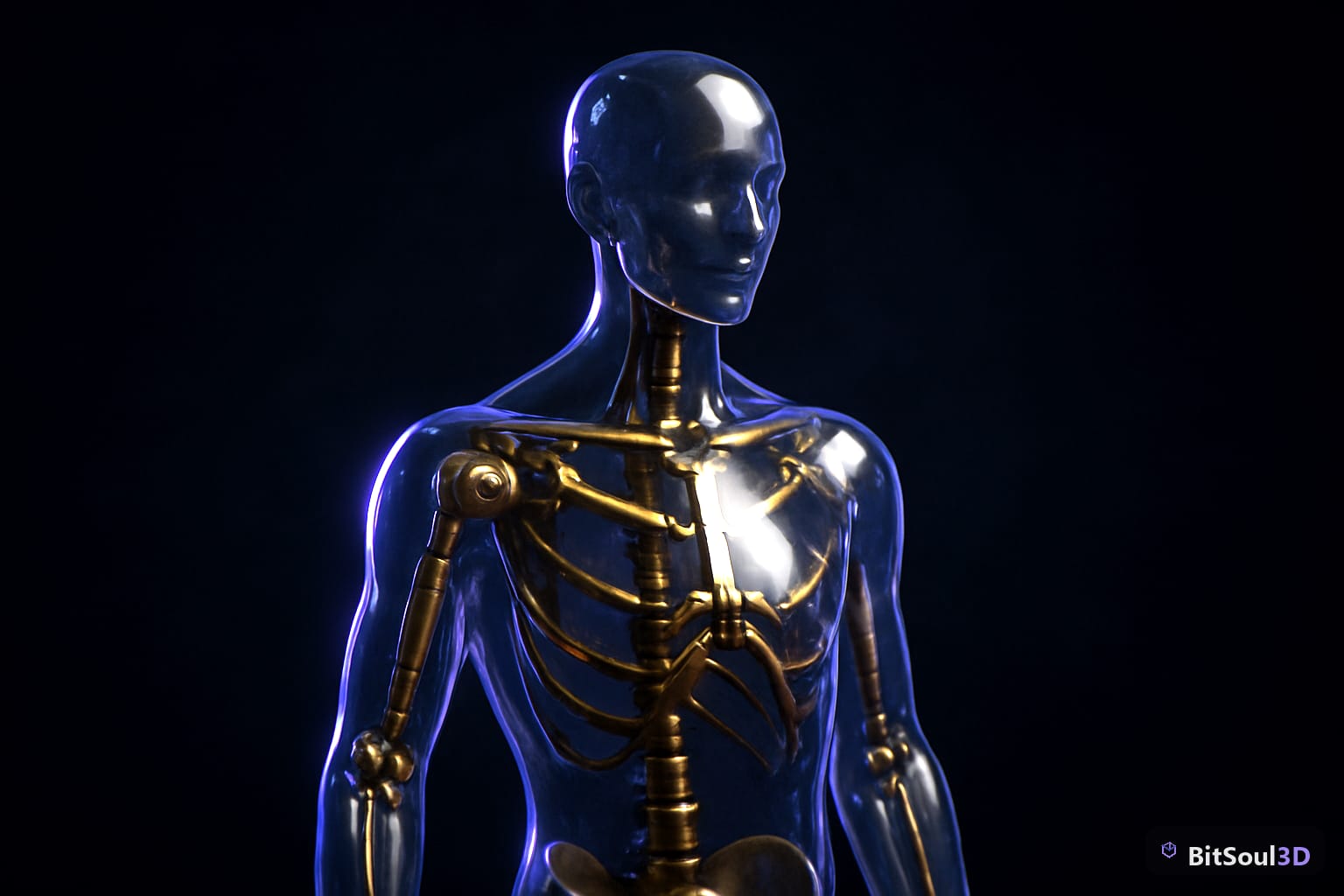
UE5 IK Retargeter is the most capable retargeting tool in any major engine. It uses an IK Rig definition on both source and target, then maps chains between them.
Create an IK Rig asset for the source skeleton — for example, Manny from the Starter Content. Add IK Goals for hands and feet, and define Full Body IK solver chains for spine, arms, and legs. Create a matching IK Rig asset for your target character skeleton. Create an IK Retargeter asset, assign source and target IK Rigs, then use Edit Retarget Pose mode to manually align rest poses. Set chain mapping — UE5 auto-maps by name similarity, but always verify spine and head chains manually.
// C++ access to retargeter at runtime (UE5.3+)
#include "Retargeter/IKRetargeter.h"

UIKRetargetProcessor* Processor = NewObject<UIKRetargetProcessor>();
Processor->Initialize(SourceSkeleton, TargetSkeleton, RetargeterAsset, TargetMesh);
Processor->RunRetargeter(DeltaTime);
The IK Retargeter also supports live retargeting at runtime — useful for procedural animation systems where you want to drive a custom rig from a library rig in real-time.
Common Pitfalls and How to Fix Them
Even with perfect bone mapping, retargeting produces artifacts. Root motion not transferring: ensure root motion is enabled in both the source clip and the target Animator or Character Movement Component. In Blender, your root bone must have location keyframes, not just the hip bone.
Bone roll mismatch: Blender bone roll can differ between rigs even if positions match. Fix with Recalculate Roll > Global +Z Axis on both rigs before exporting. Scale issues: a character exported at 100x scale has bones 100x apart — normalize with Apply Scale in Blender before export, or set FBX export scale to 0.01. Shoulder and clavicle popping: most humanoid rigs have a clavicle bone, many motion-capture datasets do not. Add a Copy Rotation constraint from the shoulder to a driven clavicle bone with 0.5x influence to simulate natural movement.
The best time to invest in clean retargeting infrastructure is before you have 200 animation clips to process. Set up your bone naming conventions, rest pose standards, and IK Rig templates once, and every asset from the BitSoul marketplace slots in cleanly from day one.
Wrapping Up
Animation retargeting is a multiplier: done right, one quality motion-capture library drives every character in your project. The investment is upfront — consistent naming conventions, matched rest poses, properly configured Avatar or IK Rig assets — but the payoff is a pipeline where swapping characters or adding new animations takes minutes, not days.
Whether you are working in Blender with constraint-baking, Unity Mecanim, or UE5 IK Retargeter, the fundamentals are the same: normalize your rest poses, map your bone chains explicitly, and always bake to clean actions before export.
Browse production-ready rigged characters and animation-compatible assets at BitSoul marketplace — every asset is tested for clean export and Humanoid-compatible bone structures.
This post is part of the Ultimate Guide to Free 3D Game Assets — BitSoul's complete reference for formats, texturing, rigging, optimization, and engine integration.
Build with real assets: grab the 98-model Character Pack on the BitSoul marketplace and drop them straight into your project.