Skeletal animation in Blender is straightforward—until you try to export it to Godot 4 and your character stands in a T-pose wondering what went wrong. The Blender-to-Godot pipeline via GLTF/GLB is powerful, but it has sharp edges: action naming conventions, NLA editor setup, rest pose mismatches, and bone roll differences all bite developers who don't know the rules.
This guide walks you through the complete workflow: armature setup, action management in the NLA editor, shape key export, and GLTF export settings that produce clean, engine-ready assets every time.
Why GLTF/GLB Is the Right Format for Godot 4
Godot 4's importer was rebuilt around GLTF 2.0. Unlike FBX—which requires Godot to run a conversion layer—GLB is parsed natively with full support for skeletal animations, morph targets (shape keys), multiple animations per file, and PBR material properties.
Key advantages over FBX for this pipeline:
| Feature | FBX | GLB |
|---|---|---|
| Native Godot 4 support | Partial (via FBX2glTF) | Full |
| Multiple animations | Requires Actions baked | NLA tracks export cleanly |
| Shape keys / morph targets | Unreliable | Fully supported |
| PBR materials | Manual reassign often needed | Auto-mapped |
| File size | Larger (ASCII option) | Compact binary |
| Open standard | No (Autodesk) | Yes (Khronos) |
The takeaway: use GLB. FBX is a legacy fallback for pipelines that require it.
Setting Up Your Armature Correctly in Blender
Before animating, your armature needs to follow conventions Godot expects.
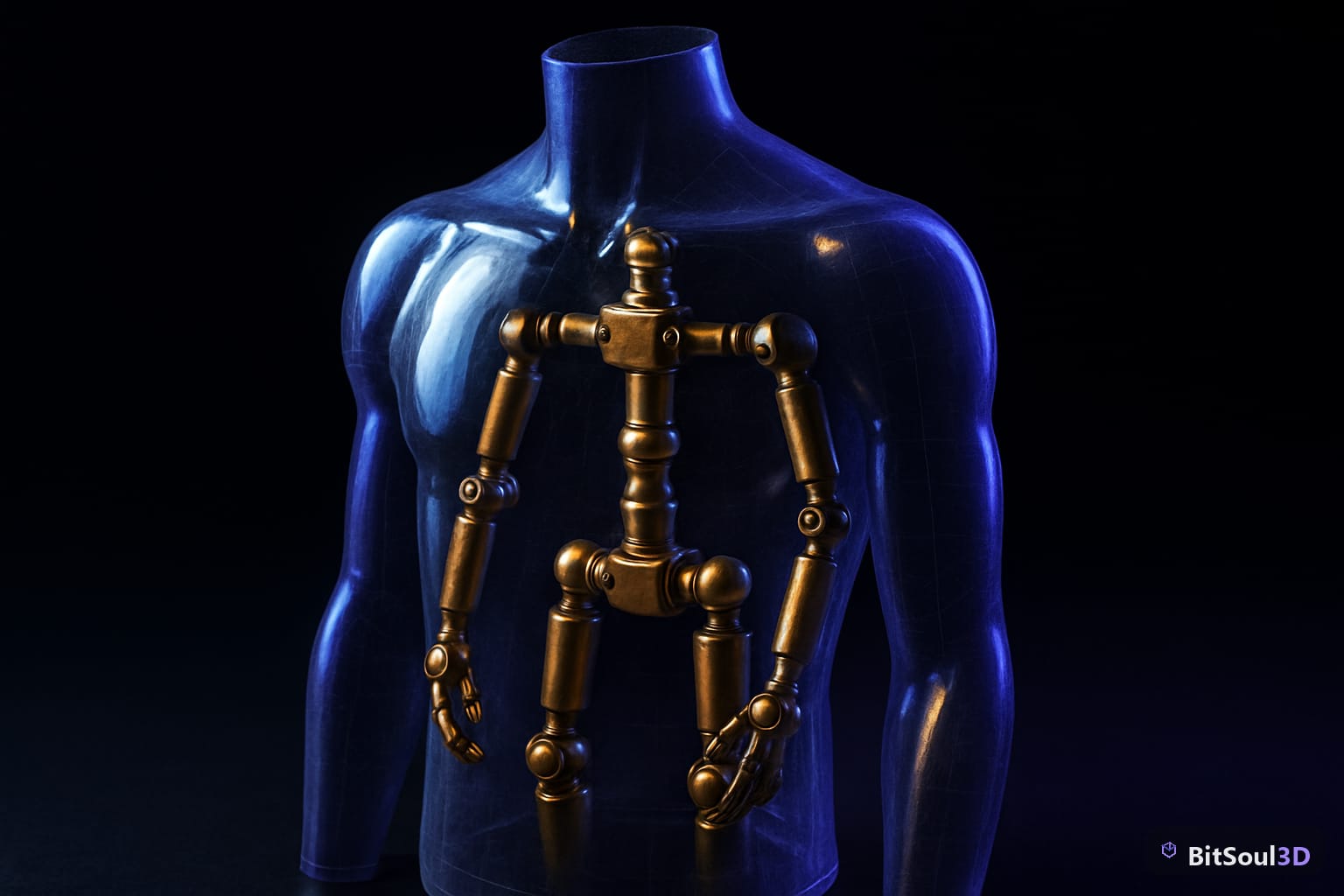
Bone roll and axis alignment are the most common source of broken animations. In Blender, select all bones in Edit Mode and run Armature > Bone Roll > Recalculate Roll > Global +X Axis. This aligns bone axes consistently and prevents Godot from interpreting rotations incorrectly.
Rest pose matters. Your mesh's rest pose in Blender becomes the reference frame Godot uses. Never apply a visual pose and call it the rest pose mid-project—this shifts bone transforms and breaks every animation referencing the old rest state.
Naming conventions: Godot 4's Humanoid skeleton retargeting expects bone names like Hips, Spine, LeftUpperArm, etc. (Mixamo/standard naming). If you're building a custom rig, be consistent—Godot 4 also supports SkeletonProfileHumanoid automap if your names are close enough.
Managing Actions in the NLA Editor
This is where most Blender-to-Godot exports break. Blender stores animations as Actions, but the GLTF exporter reads from the NLA (Non-Linear Animation) editor. If your actions aren't pushed to NLA strips, they won't export correctly—or at all.
Workflow for each animation clip:
- Create or select your Action in the Action Editor (e.g.,
char_idle,char_run,char_attack). - In the NLA Editor, click the Push Down button (downward arrow) next to the action. This creates an NLA strip.
- Name the strip to match the action—Godot uses the strip name as the
AnimationPlayerclip name. - Mute all strips except one when you want to preview/edit a specific action. Unmute all before export.
Critical: Do NOT leave a stashed or active action outside the NLA. The exporter will pick up the currently active action as an additional unnamed clip, causing duplicates in Godot.
# Blender Python: Push all actions to NLA for the active armature
import bpy

obj = bpy.context.object  # Must be the armature
if obj.type == 'ARMATURE':
    for action in bpy.data.actions:
        # Assign action, then push to NLA
        obj.animation_data.action = action
        track = obj.animation_data.nla_tracks.new()
        track.name = action.name
        strip = track.strips.new(action.name, int(action.frame_range[0]), action)
        print(f"Pushed: {action.name}")
Run this script once to batch-push all actions to NLA if you've been working in the Action Editor only.
Exporting Shape Keys (Morph Targets) for Facial Animation
Godot 4 supports morph targets via GLTF, but Blender's export settings need to be correct.
In the GLTF export dialog (File > Export > glTF 2.0):
- Include > Mesh > Shape Keys: ✅ enabled
- Include > Mesh > Shape Key Normals: ✅ enabled (prevents flat shading on morph transitions)
- Animation > Shape Keys: ✅ enabled
Shape key animations must be keyframed on the mesh object, not the armature. In Godot, they appear as a separate AnimationPlayer track targeting the MorphTarget properties on the MeshInstance3D.
GLTF Export Settings Checklist
Use this checklist every time you export for Godot 4:
- ☑ Format: glTF Binary (.glb) — single file, no texture references to lose
- ☑ Remember Export Settings: on — saves your config per .blend file
- ☑ Include > Selected Objects: off (export everything unless you're batching)
- ☑ Mesh > Apply Modifiers: on — bakes subdivision, mirror, etc. before export
- ☑ Mesh > Vertex Colors: on if used for ambient occlusion baking
- ☑ Armature > Export Deformation Bones Only: on — strips helper/control bones Godot doesn't need
- ☑ Animation > Export: on
- ☑ Animation > Mode: NLA Tracks — this is the critical setting
- ☑ Animation > Group by NLA Track: on — each strip becomes a named clip
- ☑ Animation > Optimize Animation Size: on — removes redundant keyframes, cuts file size 20–40%
The single most important setting is Animation Mode: NLA Tracks. Without it, Blender either exports all actions merged or only the active one.
Importing and Using Animations in Godot 4
After importing your GLB, Godot creates an AnimationLibrary resource attached to the scene's AnimationPlayer. Each NLA strip becomes a named animation clip.
# GDScript: Play animation by name from imported GLB
extends CharacterBody3D

@onready var anim_player: AnimationPlayer = $AnimationPlayer

func _ready():
    # List available animations
    for anim_name in anim_player.get_animation_list():
        print(anim_name)  # Should print: char_idle, char_run, char_attack, etc.

    anim_player.play("char_idle")

func transition_to(anim_name: String, blend_time: float = 0.2):
    anim_player.play(anim_name, -1, 1.0, false)
    # For blending, use AnimationTree with AnimationStateMachine
For production characters, connect the AnimationPlayer to an AnimationTree with a StateMachine node—this gives you blend trees, transition conditions, and one-shot animations without manually managing playback state in GDScript.
Hosting and Distributing Your Animated Assets
Once your pipeline is solid, keeping assets organized and accessible across your team matters. BitSoul provides hosted 3D asset storage with direct GLB delivery—your animated characters stay version-controlled and shareable without bloating your repository. Whether you're a solo dev iterating fast or a small studio sharing assets across branches, BitSoul keeps your pipeline clean.
The Blender-to-Godot 4 animation pipeline rewards developers who understand how the NLA editor and GLTF exporter interact. Get the armature setup right, push every action to an NLA strip, and use the correct export settings—then your animations arrive in Godot exactly as authored, ready to wire into an AnimationTree and ship.
This post is part of the Ultimate Guide to Free 3D Game Assets — BitSoul's complete reference for formats, texturing, rigging, optimization, and engine integration.
Build with real assets: grab the 98-model Character Pack on the BitSoul marketplace and drop them straight into your project.