Emissive materials are one of the most effective ways to make game assets feel alive — glowing UI panels, electrified weapons, neon signage, energy cores, and sci-fi consoles all rely on them. Yet most tutorials treat emissive as a single slider rather than a full pipeline. This guide covers the complete workflow: baking emissive maps in Blender, enabling physically correct bloom in Unity URP, and tuning HDR emissive intensity in Unreal Engine 5.
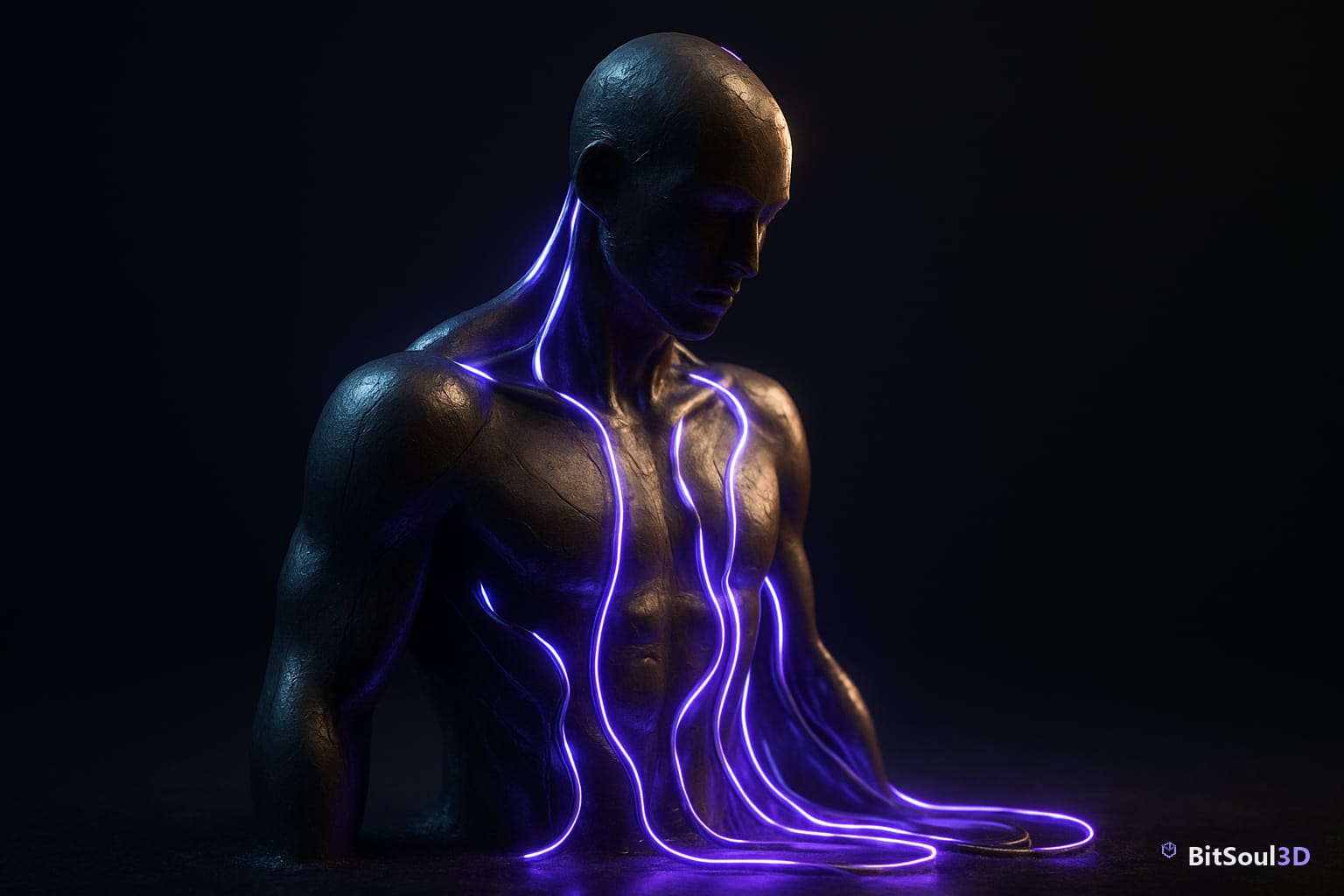
What Makes a Good Emissive Material
Emissive materials differ from every other PBR channel in one critical way: they add light energy to the scene rather than reflecting it. That means your emissive values must be authored in HDR (values above 1.0) to produce convincing bloom and light spill at runtime — a flat 0–1 range will look painted-on and dead under any real-time renderer.
A strong emissive material has three components:
- An emissive color map — defines which texels emit light and what color they emit
- An emissive mask — often packed into a spare channel (usually the alpha of your albedo or a dedicated channel in your ORM texture) to control emissive regions without a full extra texture sample
- An HDR intensity multiplier — a scalar applied at runtime to drive the brightness above 1.0 for bloom response
The most common mistake is authoring emissive at LDR brightness and then wondering why bloom doesn't trigger. Both Unity's URP bloom and Unreal's Post Process Volume use luminance thresholding — anything below the threshold gets no bloom, regardless of glow settings. Author emissive textures at 1.0 normalized, then multiply by 3–20x in your material to push values into the HDR range where bloom activates.
Baking Emissive Maps in Blender
Blender's Cycles baking pipeline supports emissive output directly through the Bake → Emit pass. Here's the correct node setup for a game-ready bake:
# Blender Python — Set up emissive bake target on selected object
import bpy

obj = bpy.context.active_object
mat = obj.data.materials[0]
nodes = mat.node_tree.nodes

# Create an Image Texture node to receive the bake
bake_node = nodes.new('ShaderNodeTexImage')
bake_node.image = bpy.data.images.new(
    'emissive_bake', width=2048, height=2048, float_buffer=True
)
nodes.active = bake_node  # Must be active (selected) for bake target

# Set bake type and run
bpy.context.scene.render.engine = 'CYCLES'
bpy.context.scene.cycles.samples = 64  # Low samples sufficient for emissive
bpy.ops.object.bake(type='EMIT')
Key settings for the bake itself:
| Setting | Recommended Value | Notes |
|---|---|---|
| Color Space | Linear / Non-Color | Avoid sRGB for emissive — it compresses HDR values |
| Bit Depth | 16-bit EXR or 32-bit float | Preserves values above 1.0 |
| Samples | 32–64 | Emissive has no indirect noise; low samples are fine |
| Margin | 4–8px | Prevents emissive color bleeding at UV seams |
| Output Format | EXR (game) or PNG (web) | EXR if your engine reads HDR textures natively |
After baking, do not compress emissive maps to BC1/DXT1 — that format discards the alpha channel and introduces banding. Use BC6H (HDR-aware) in Unreal or RGBA DXT5/BC3 in Unity, or keep emissive as uncompressed R16G16B16 if your budget allows.
Setting Up Bloom and Emissive in Unity URP
Unity's Universal Render Pipeline handles emissive through the Material Emission property plus a Post Process Volume with Bloom enabled. The pipeline requires two things to work correctly: the material must have emission enabled and the URP renderer asset must have post-processing checked.
// C# — Set emissive color and intensity at runtime (useful for animated glow)
using UnityEngine;

public class EmissivePulse : MonoBehaviour
{
    [SerializeField] private Material mat;
    [SerializeField] private Color baseEmissiveColor = Color.cyan;
    [SerializeField] private float minIntensity = 1f;
    [SerializeField] private float maxIntensity = 8f;
    [SerializeField] private float pulseSpeed = 2f;

    void Update()
    {
        float t = Mathf.PingPong(Time.time * pulseSpeed, 1f);
        float intensity = Mathf.Lerp(minIntensity, maxIntensity, t);
        // HDR color — multiply by intensity to push into bloom range
        mat.SetColor("_EmissionColor", baseEmissiveColor * intensity);
    }
}
For static assets sold on the marketplace, bake the emission GI contribution using Contribute Global Illumination in the mesh renderer settings. This ensures your neon signs and glowing panels actually illuminate nearby surfaces in baked lighting scenarios — buyers using Mixed or Baked lighting modes will see realistic light spill without additional setup.
Bloom settings in a URP Post Process Volume that work well for game assets:
| Parameter | Value | Effect |
|---|---|---|
| Threshold | 0.9 | Anything above 0.9 luminance blooms |
| Intensity | 0.3–0.6 | Subtle; avoids the vaseline-smear look |
| Scatter | 0.7 | Wider glow spread, more realistic for neon |
| Tint | White | Leave neutral unless you want a global color cast |
Emissive Intensity and HDR in Unreal Engine 5
Unreal's material system exposes emissive as a single Emissive Color input pin that accepts HDR values natively. Unlike Unity, you don't need to "enable emission" separately — any value plugged into Emissive Color is active. The challenge is calibrating intensity so your asset looks correct across different post-process exposure settings.
The practical rule: multiply your normalized emissive texture by a scalar parameter, then expose that scalar as a Material Instance parameter. A range of 5–25 covers most use cases:
- 5–8: Subtle glow (dim emergency lighting, faint screen glows)
- 10–15: Strong neon/signage (visible bloom in default scene exposure)
- 20–50: Intense energy FX (plasma cores, muzzle flashes, magical effects)
For Lumen compatibility, set "Used with Lumen" in the material's Usage flags. Lumen's screen-space GI will pick up emissive contribution automatically — your glowing asset will cast soft dynamic light on nearby geometry without a single point light placed in the scene.
Use the Emissive Boost parameter in your Post Process Volume's Bloom section to globally amplify emissive bloom without touching individual materials — useful for cinematic moments where you want everything to flare.
Marketplace Tips: Selling Assets with Emissive Materials
Emissive materials add significant perceived value to marketplace assets, but only if they're set up in a way buyers can actually use. Follow these conventions to avoid negative reviews:
Expose everything as Material Instance parameters. Buyers customize emissive color and intensity constantly — hardcoding values in the material body is a support ticket waiting to happen. Use ScalarParameter for intensity and VectorParameter for color in Unreal; expose _EmissionColor as a serialized field in Unity.
Include an on/off boolean switch. Some buyers need to disable emissive entirely for specific scenes. A simple StaticBoolParameter feeding a Select node in Unreal, or a [Toggle] keyword in Unity's shader, lets them toggle emission in Material Instance without editing the parent material.
Document your intensity range. In your asset README or product description, state the tested emissive intensity range and the bloom settings used in your preview renders. Buyers running different post-process configurations need this to reproduce your showcase look.
Test in all three engines before listing. Emissive intensity that looks right in Unreal may be blown-out in Unity and non-existent in Godot without per-engine adjustments. Ship separate material files for each engine, or clearly document the intensity adjustments needed. You can browse professionally authored examples with correct emissive setups at the BitSoul marketplace.
Emissive Checklist
- Author emissive textures at normalized (0–1) brightness; apply HDR multiplier in-engine
- Bake in Blender using
type='EMIT', 16/32-bit float output, BC6H compression - Unity URP: enable "Emission" on material + add Bloom to Post Process Volume, threshold 0.9
- Unreal Engine 5: multiply emissive texture by scalar param (10–15 for neon), enable Lumen usage flag
- Expose color and intensity as Material Instance parameters
- Add boolean on/off switch for buyers who need it
- Document intensity range and bloom settings in asset listing
Ready to publish your emissive-mapped assets? Browse game-ready 3D assets built for real pipelines at the BitSoul marketplace.
Need drop-in assets for this workflow? Grab the 82-model Vehicle Bundle on the BitSoul marketplace and drop them straight into your project.