Physically based rendering is the standard for modern game assets — but the split between metallic and specular workflows trips up even experienced artists. Pick the wrong one and your assets will look subtly wrong in every engine you import into, no matter how carefully you painted your textures.
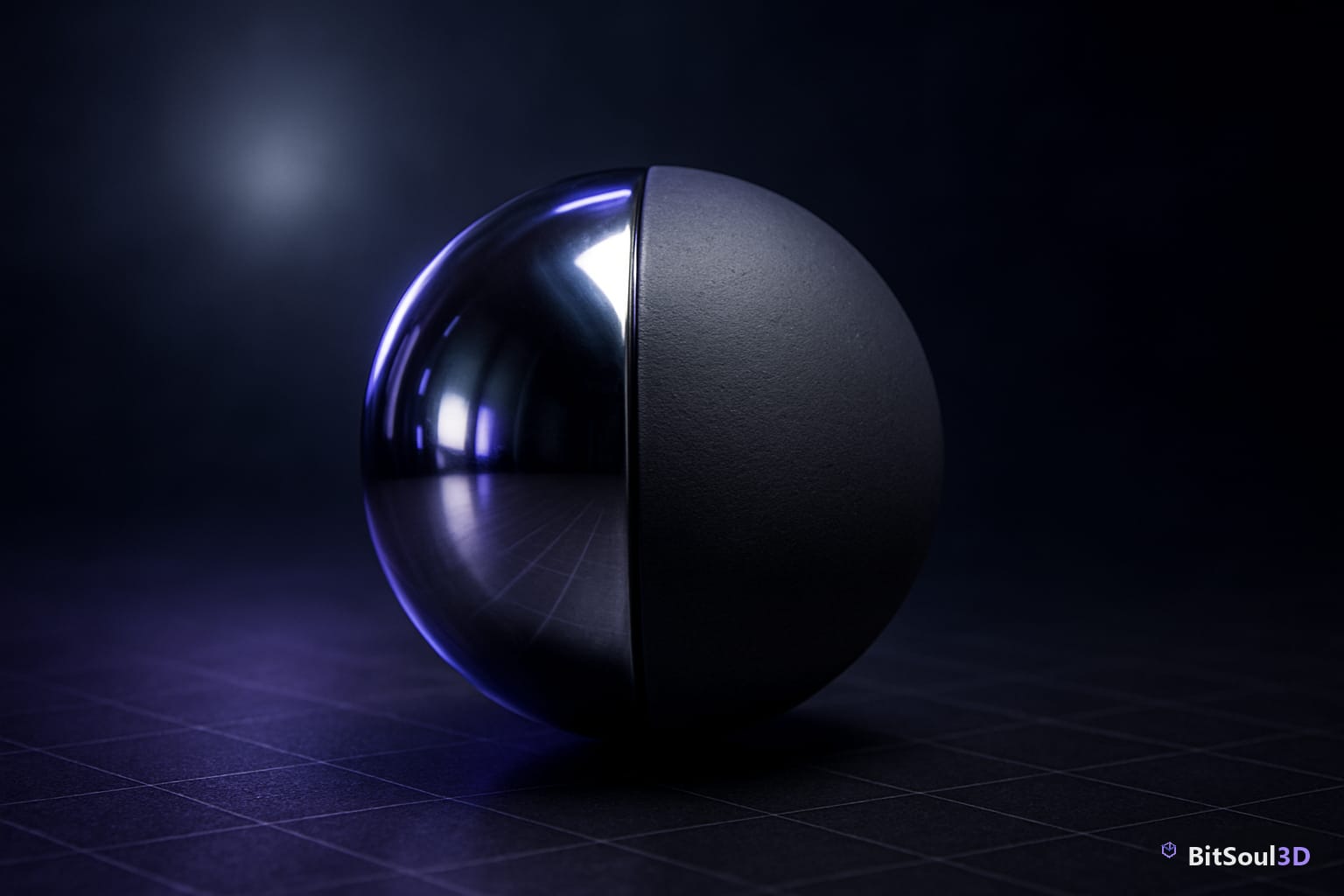
This guide cuts through the confusion: what each workflow actually encodes, when to use each, and exactly how Unity, Unreal Engine 5, and Godot 4 expect your maps to be set up.
What the Two Workflows Actually Encode
Both workflows simulate the same underlying physics — how light splits into diffuse (scattered) and specular (reflected) components. They just expose different parameters to the artist.
Metallic workflow uses three core maps:
- Base Color — the raw surface color for dielectrics (non-metals), or the specular tint for metals
- Metallic — a greyscale mask:
0= dielectric,1= metal. No in-between values in real materials; mid-greys are reserved for worn/dirty transitions - Roughness — how microscopically rough the surface is (
0= mirror,1= fully diffuse)
Specular workflow uses:
- Diffuse (or Albedo) — surface color for the diffuse component only
- Specular — an RGB map defining exactly how the surface reflects light, per-channel
- Glossiness (or Smoothness) — the inverse of roughness
The key difference: metallic workflow derives the specular reflectance from the base color + metallic value using physically correct constants (metals ~0.7–1.0 F0, dielectrics ~0.04). The specular workflow lets you set it manually, which is more flexible but easier to break energy conservation.
When to Use Metallic Workflow
Use metallic workflow as your default for game assets. It is:
- Physically correct by construction — you cannot accidentally give a plastic surface gold-like reflectance
- Simpler to iterate — one greyscale metallic map instead of an RGB specular map
- Natively expected by Unity's Standard shader, Unreal Engine 5's default M_Lit/M_Surface materials, and Godot 4's StandardMaterial3D
The only time metallic workflow struggles is with complex layered dielectrics — for example, a lacquered wood with a clear coat. Here you're trying to encode two separate specular responses (wood fiber + lacquer) that metallic can't easily express.
// Metallic workflow textures (Unity naming convention)
AlbedoMap      -> _MainTex / _BaseMap
MetallicMap    -> _MetallicGlossMap  (R = metallic, A = smoothness)
NormalMap      -> _BumpMap
OcclusionMap   -> _OcclusionMap
For Unreal Engine 5, the metallic map plugs directly into the Metallic pin of the material graph; roughness into Roughness. GLB/GLTF exports from Blender use metallic-roughness by default, so this workflow also gives you web-ready assets without re-export.
When to Use Specular Workflow
Specular workflow earns its place when:
- You are working with Substance Painter's Specular/Glossiness export preset for a legacy pipeline
- Your target engine or renderer requires explicit specular control (older Unity 4/5 pipelines, some stylized renderers)
- You need to represent gem stones, skin SSS approximation, or layered varnishes where the standard dielectric F0 (4% reflectance) does not fit
In Unity, the Standard (Specular setup) shader accepts a Specular map and Smoothness. Unreal Engine 5's Specular pin in the default material also allows specular override — but Unreal warns that deviating from the default 0.5 value (which equals ~4% reflectance, i.e., standard dielectric) will break energy conservation unless you know what you are doing.
In Godot 4, StandardMaterial3D is metallic-workflow only. To use specular workflow in Godot you need a custom ShaderMaterial. Unless you have a strong reason, stay on metallic.
Correct Values for Common Materials
Getting metallic and specular values right is more important than resolution. Here is a quick reference:
| Material | Metallic | Roughness | Notes |
|---|---|---|---|
| Brushed steel | 1.0 | 0.4-0.6 | Base color = steel grey |
| Polished gold | 1.0 | 0.05-0.1 | Base color = gold tint |
| Plastic (matte) | 0.0 | 0.7-0.9 | Specular from engine default (4%) |
| Rubber | 0.0 | 0.95-1.0 | Near-zero specular |
| Painted metal | 0.0-0.05 | 0.5-0.7 | Paint is dielectric; only bare scratches are metallic |
| Carbon fiber | 0.0 | 0.2-0.4 | NOT metallic — dielectric with anisotropic micro-facets |
| Chrome | 1.0 | 0.0-0.05 | Mirror-like; base color = near-white |
The most common mistake: marking carbon fiber, black plastic, or matte lacquer as metallic because they look dark and shiny. Shininess comes from low roughness, not high metallic values.
Engine-Specific Import Settings
Unity 6 / URP / HDRP
- Default Standard uses metallic workflow. Set Metallic source to "Metallic Alpha" to pack metallic (R) and smoothness (A) into one texture.
- HDRP uses a separate Mask Map: R = Metallic, G = AO, B = Detail Mask, A = Smoothness. Re-pack in Photoshop or Substance before importing.
Unreal Engine 5
- Use a channel-packed ORM texture (R = Occlusion, G = Roughness, B = Metallic) to save texture samples. This is the Unreal convention; Blender's GLTF exporter supports this packing with the Export Materials option set to PBR Extensions.
- The Specular pin defaults to 0.5 and should be left alone for standard assets.
Godot 4
- StandardMaterial3D maps the Metallic property to both a texture and a scalar multiplier. Set the scalar to 1.0 and drive everything from the texture.
- Roughness works identically. Godot reads GLTF metallic-roughness maps natively — no conversion needed on import from Blender.
Practical Checklist Before Export
Use this checklist before shipping any asset to the BitSoul marketplace:
- Metallic map is strictly 0 or 1 (no mid-grey except deliberate edge wear)
- Base color for metals encodes the specular tint, not an albedo
- Roughness range is physically plausible (very few real surfaces are below 0.05 or above 0.98)
- No negative-space errors: metal areas have no diffuse color baked in
- ORM packing matches the target engine convention (Unity HDRP vs. Unreal vs. Godot)
- GLTF/GLB exported with metallic-roughness (not specular-glossiness extension)
- Preview renders checked in a neutral grey HDRI to spot reflection errors
Buyers on BitSoul expect drop-in assets — correct PBR values mean your asset works in any scene on first import.
Conclusion
The metallic workflow is the right default for virtually all game assets in 2026. It is physically consistent, supported natively by every major engine, and simpler to author. Reserve specular workflow for edge cases: legacy pipelines, layered dielectrics, or engines that require it.
Get your values right, pack your textures correctly for the target engine, and your materials will hold up under any lighting. Ready to ship? Upload your PBR-ready assets to the BitSoul marketplace and reach buyers across Unity, Unreal Engine 5, and Godot 4.
This post is part of the Ultimate Guide to Free 3D Game Assets — BitSoul's complete reference for formats, texturing, rigging, optimization, and engine integration.
Need drop-in assets for this workflow? Grab the 98-model Character Pack on the BitSoul marketplace and drop them straight into your project.