Virtual Shadow Maps in UE5 solve a problem that's plagued game artists for years: dynamic shadows that look sharp up close and disintegrate into blocky artifacts at distance. Enabled by default in UE5's Lumen pipeline, virtual shadow maps replace the old Cascaded Shadow Map system with a virtualized paging approach that allocates shadow resolution on-demand — but only if your 3D assets are set up correctly.
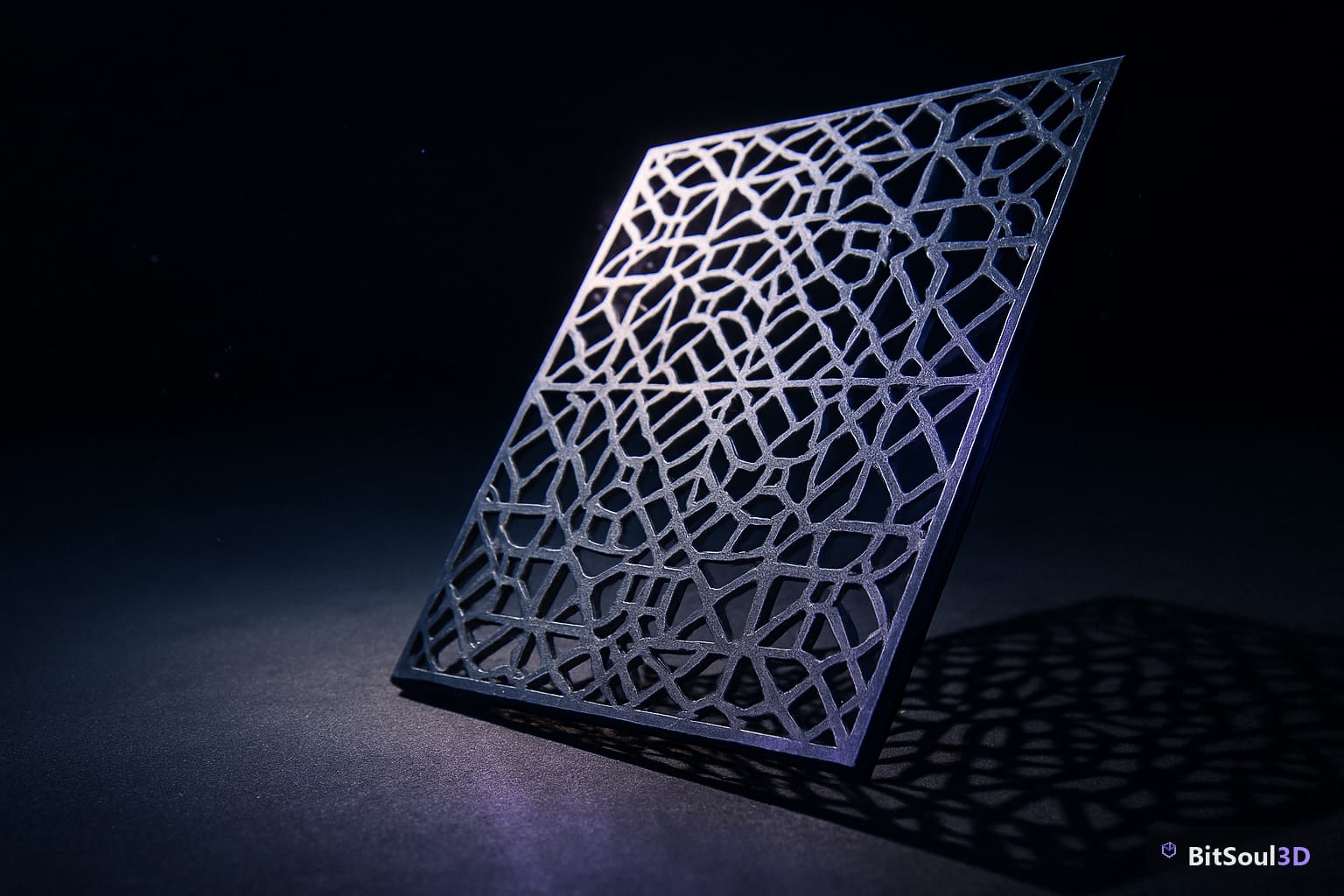
Why Virtual Shadow Maps replace CSMs in UE5 projects
Cascaded Shadow Maps divided the view frustum into fixed depth slices, each with its own shadow render. The result was acceptable for terrain but brutal for medium-distance props: cascade seams, resolution drops at 10–15 meters, and heavy per-frame re-renders even for fully static geometry.
Virtual Shadow Maps (VSMs) replace this with a virtualized texture atlas — a massive 16k×16k virtual page pool that allocates resolution where the camera actually looks. Key differences:
- Page caching: static geometry caches its shadow pages until it (or a nearby light) moves, cutting redundant shadow renders to near-zero
- Per-object resolution: a small crate 3 meters away gets the same shadow sharpness as a building 50 meters out
- Single pass: no cascade splits, no visible seams, consistent quality across the full view distance

The trade-off is VRAM: the physical page pool grows with scene complexity. This is why asset prep matters before you hit the VSM memory wall.
Preparing GLB assets for Virtual Shadow Map compatibility
Enable LODs on every significant mesh. VSMs scale page allocation per-LOD — a mesh at 80% screen coverage gets high-res shadow pages; at 5% screen coverage, low-res pages. Without LODs, distant props burn VRAM holding full-resolution shadow pages they never visibly need.
Avoid unnecessary double-sided materials. Double-sided materials force UE5 to render shadow geometry twice per page. Reserve them for thin foliage planes and paper geometry. Solid props should use single-sided materials with correct outward-facing normals.
Set shadow casting per component. In the Static Mesh Component Details panel:
- Cast Shadow: enabled for all props with gameplay impact
- Cast Hidden Shadow: disable on LOD0 meshes once LOD1 is active
- Affects Distance Field Ambient Occlusion: enable for large anchor props, disable for small scatter clutter
Nanite-first for high-poly imports. Assets above roughly 100k triangles should have Nanite enabled on import. Nanite meshes integrate directly with VSMs' page caching system. Non-Nanite meshes fall through to the legacy shadow path and miss the caching benefit entirely — a meaningful performance difference in dense scenes.
Per-mesh VSM settings and Nanite interaction
Open any Static Mesh actor → Details → Rendering. The critical VSM controls:
| Property | Default | Recommendation |
|---|---|---|
| Cast Shadow | true | Keep enabled unless purely decorative |
| Cast VSM Indirect Shadow | true | Enable for movable props near Lumen surfaces |
| Shadow Cache Invalidation Behavior | Bounds | Use Always only for animated deforming meshes |
| Lighting Channels | 0 | Use channels 1–2 for hero assets needing separate shadow budgets |
For non-Nanite meshes, add r.Shadow.Virtual.NonNanite.IncludeInCoarsePages=1 to DefaultEngine.ini so they contribute to the far-shadow cache instead of being dropped.
Self-shadow bias is the other common pain point: flat surfaces show acne artifacts at grazing light angles. Tune Shadow Bias and Shadow Slope Bias per material rather than globally — a polished metal floor and a rough stone wall need different tolerances.

Profiling and tuning Virtual Shadow Maps at scale
Open the GPU Visualizer (Ctrl+Shift+,) and look for ShadowDepths and VSMCacheUpdate in the Render category. VSMCacheUpdate should drop to near-zero between frames once the scene is static — if it stays high, a light or mesh is invalidating the page cache every tick.
Key console variables for tuning:
; DefaultEngine.ini — Virtual Shadow Map tuning
r.Shadow.Virtual.Enable=1
r.Shadow.Virtual.ResolutionLodBiasLocal=-1
r.Shadow.Virtual.Cache.StaticSeparate=1
r.Shadow.Virtual.MaxPhysicalPages=4096
r.Shadow.Virtual.Cache.InvalidateUseHZB=1
r.Shadow.Virtual.NonNanite.IncludeInCoarsePages=1ResolutionLodBiasLocal: negative values sharpen local light shadows. Use -2 for hero close-up scenes, leave at 0 for open-world distant directional lights.
MaxPhysicalPages: default 2048 suits small-to-medium scenes. Raise to 4096–8192 for open-world projects if VRAM budget allows — each page is ~8 KB, so 4096 pages adds roughly 32 MB, which is negligible on discrete GPUs.
Cache.StaticSeparate: separates static and dynamic page caches so a single moving NPC doesn't bust the entire static scene shadow cache on every frame.
Use stat shadowrendering and stat GPU in the console to measure render cost before and after tuning. A well-prepped scene — full LODs, Nanite on heavy meshes, cache isolation enabled — should see ShadowDepths under 1 ms on mid-range hardware.
Start with shadow-ready 3D assets from the BitSoul marketplace — every GLB in the 747 library ships with proper LOD chains and clean single-sided materials, so virtual shadow maps in UE5 work correctly the moment you import them.
This post is part of the Ultimate Guide to Free 3D Game Assets — BitSoul's complete reference for formats, texturing, rigging, optimization, and engine integration.
Need drop-in assets for this workflow? Grab the 70-model Food Bundle on the BitSoul marketplace and drop them straight into your project.