Texel density is the single most overlooked setting in game asset texturing. Get it wrong and your scene looks broken: a crate with razor-sharp detail sitting on a blurry floor, a wall that shifts resolution mid-surface. Texel density — the number of texture pixels per meter of 3D surface — is what keeps every asset in a scene reading at the same visual fidelity. This guide covers what it is, how to pick a target, and how to measure and fix it in Blender before export.
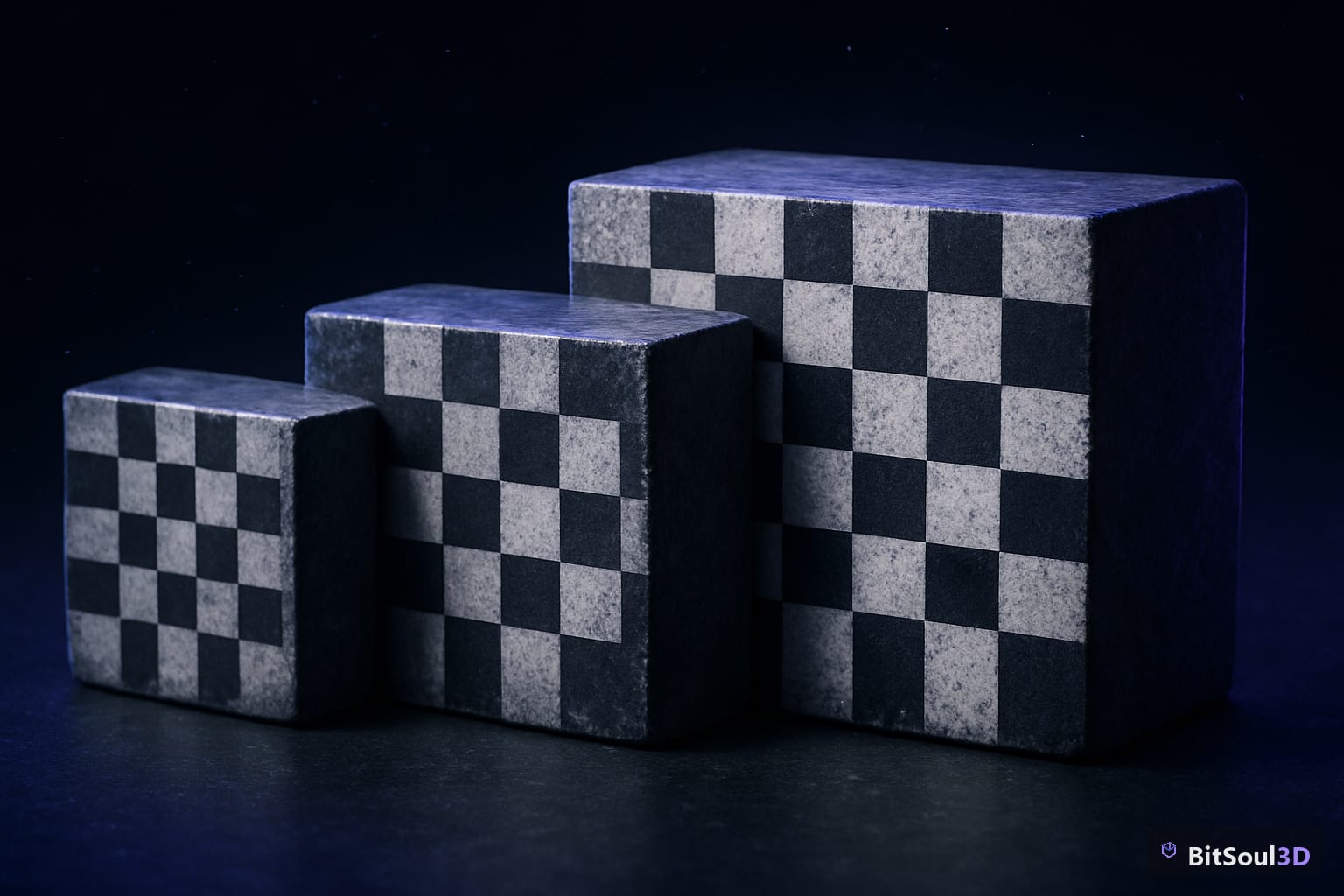
What texel density is and why it matters
Texel density is measured in pixels per meter (px/m) or pixels per centimeter. A 1024×1024 texture applied to a 2-meter cube gives you 512 px/m. Apply that same texture to a 10-meter wall and you drop to ~102 px/m — five times blurrier, even though the texture file is identical.
This is why artists check assets with a checker pattern: if the squares are larger on one object than its neighbor, their densities don't match, and the mismatch will be obvious the moment both assets share a camera frame.
Inconsistent texel density causes three concrete problems:
- Visual seams in fidelity — adjacent assets at different densities make the lower-res one look like a placeholder
- Wasted memory — over-dense textures on background props burn VRAM that hero assets need
- Unstable mip behavior — mismatched densities mip down at different camera distances, causing visible pop
Choosing the right texel density for game assets
There is no universal number — the right texel density depends on platform, camera distance, and asset role. These are the targets most production teams converge on:
| Asset role | Target density | Typical texture |
|---|---|---|
| First-person hero (weapons, hands) | 1024 px/m | 2K–4K |
| Player character | 512–1024 px/m | 2K |
| Interactive props | 512 px/m | 1K–2K |
| Environment / architecture | 256–512 px/m | Tiled 1K–2K |
| Distant background | 64–128 px/m | 512 or atlas |
| Mobile / VR (all roles) | halve the above | — |
Two rules of thumb. First, set density by closest camera approach, not object size — a small prop the player inspects up close needs more density than a huge building seen from 50 meters. Second, pick one environment density and lock it project-wide; hero assets can exceed it, but nothing should fall below it within the same camera range. The free GLB packs on the BitSoul marketplace are textured around the 512 px/m interactive-prop standard, which makes them safe to drop next to most mid-range environment work.
Measuring and fixing texel density in Blender
Blender has no built-in texel density readout, but the math is simple: UV area vs. mesh surface area. This script prints the density of the active object:
import bpy, bmesh, math

obj = bpy.context.active_object
TEX_SIZE = 1024  # texture resolution in px

bm = bmesh.new()
bm.from_mesh(obj.data)
uv = bm.loops.layers.uv.active

mesh_area = sum(f.calc_area() for f in bm.faces)
uv_area = sum(
    abs(sum(
        (l.link_loop_next[uv].uv.x - l[uv].uv.x) * (l.link_loop_next[uv].uv.y + l[uv].uv.y)
        for l in f.loops
    )) / 2
    for f in bm.faces
)

density = TEX_SIZE * math.sqrt(uv_area / mesh_area)
print(f"{obj.name}: {density:.0f} px/m")
bm.free()
For day-to-day work, the free Texel Density Checker add-on does the same thing interactively and can rescale UV islands to a target value in one click.
To fix an off-target asset you have three levers: rescale the UV islands (changes density without touching the texture), swap the texture resolution (1K → 2K doubles density), or re-unwrap with better UV space coverage — an unwrap using only 60% of the 0–1 space is throwing away density for free.
Keeping texel density consistent across a full scene
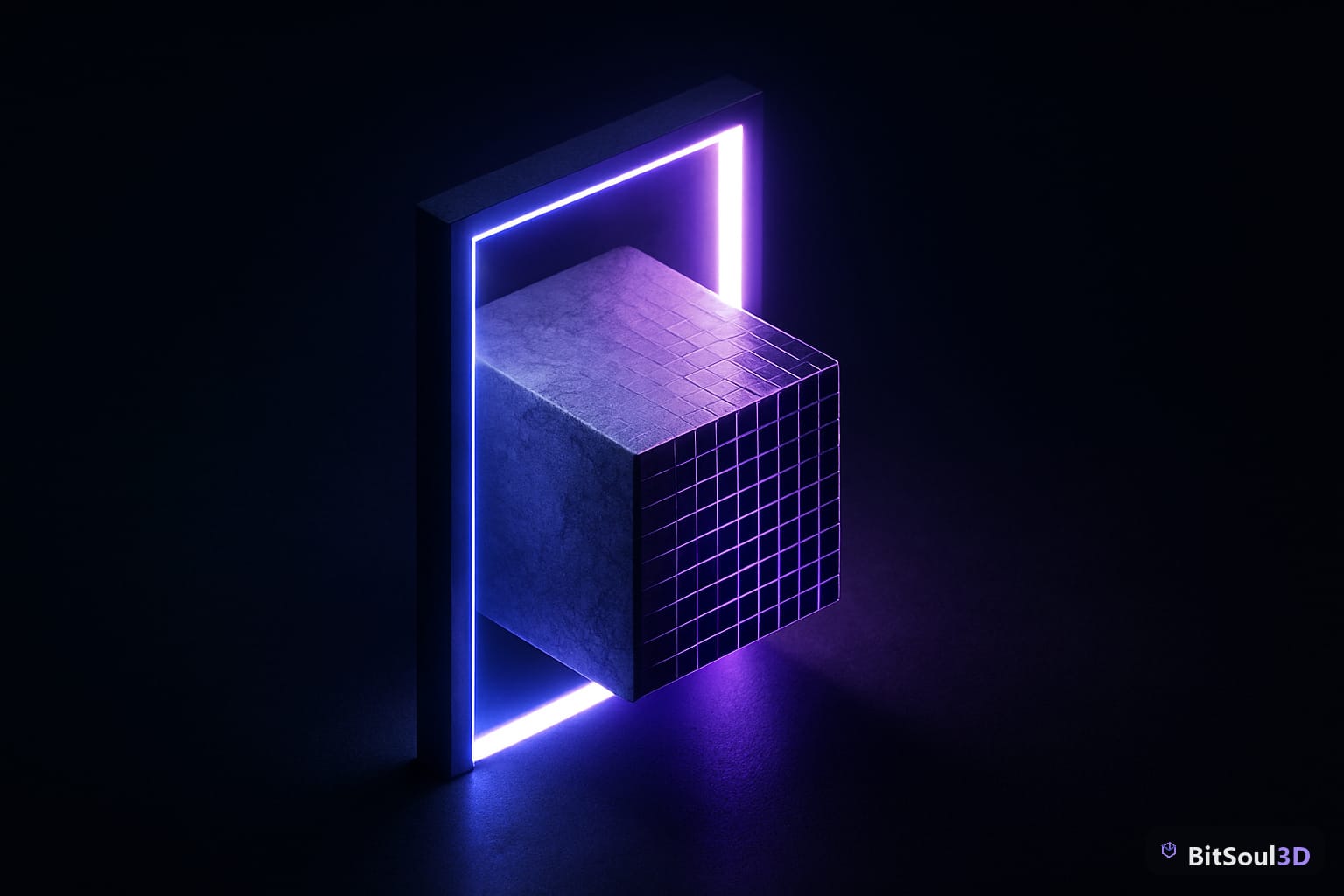
Consistency is a pipeline habit, not a one-time fix. Before any asset ships to the engine, run this checklist:
- Apply scale (
Ctrl+A) — density math is meaningless on an object with non-uniform scale - Assign a checker material and compare square size against a project reference asset
- Verify the number with the script or add-on against your project target
- Check UV coverage — islands should fill the 0–1 space with consistent padding
- Document the target in your asset naming or folder convention so the whole team exports to the same standard
When sourcing external assets, audit them the same way you audit your own. Every model on the BitSoul marketplace ships as game-ready GLB with unwrapped UVs, so a quick checker-material pass is all it takes to confirm an asset slots into your project's texel density budget — browse 747 free models and test the workflow on a real prop today.
This post is part of the Ultimate Guide to Free 3D Game Assets — BitSoul's complete reference for formats, texturing, rigging, optimization, and engine integration.
Need drop-in assets for this workflow? Grab the 70-model Food Bundle on the BitSoul marketplace and drop them straight into your project.