Your metallic surfaces render flat gray, roughness looks inverted, and ambient occlusion either does nothing or darkens the whole model — and the texture file looks fine in Photoshop. That's a channel-packed ORM texture, and the fix is almost always about which channel your engine expects where, not the texture itself.
ORM packing puts three grayscale maps into one RGB file: red for ambient occlusion, green for roughness, blue for metallic. One texture instead of three cuts VRAM roughly in half and drops your material's texture lookups from three to one — worth doing on every prop. But Unity, Unreal Engine 5, and Godot don't agree on which channel means what by default, and neither do the marketplaces and AI generators you're pulling assets from.
Why the same texture looks different in every engine
Unreal's default Mask (ORM) setup reads red as AO, green as roughness, blue as metallic — the industry-standard order. Unity's Standard and URP/HDRP Lit shaders expect a Metallic Smoothness map instead: red for metallic, alpha for smoothness, not roughness, and it's a separate alpha channel, not blue. Feed Unity a raw ORM texture without conversion and metallic surfaces come out matte gray because Unity is reading your AO channel as metallic. Godot 4's ORMMaterial3D matches Unreal's R/G/B order, but only if you assign the texture as orm_texture — dropping it into the base metallic_texture slot reads a single channel and ignores the rest.
The gotcha that costs the most time: smoothness and roughness are inverted values (smoothness = 1 - roughness). A texture packed with roughness in the alpha channel will make Unity surfaces look wet and mirror-like where they should look brushed and matte, and there's no error, warning, or red text anywhere — it just looks wrong.

Fixing it in each engine
In Unreal, wire the packed texture into a Constant3Vector-less setup: connect it once, then use a BreakOutFloat3Components node (or a Mask node with R/G/B checked individually) to split it, feeding R to Ambient Occlusion, G to Roughness, and B to Metallic on your Material output. No conversion needed if the source is already R=AO/G=Rough/B=Metal.
In Unity, you can't just plug in an ORM map — URP's Lit shader has no ORM input slot. Two options: write a small conversion pass that repacks metallic into RGB and inverted roughness into alpha, or use a custom shader graph node that samples the ORM texture once and routes channels manually, skipping Unity's built-in Metallic Smoothness slot entirely.
// Unity Shader Graph custom function node: unpack ORM, invert roughness to smoothness
void UnpackORM_float(float3 orm, out float ao, out float smoothness, out float metallic)
{
    ao = orm.r;
    smoothness = 1.0 - orm.g; // Unity wants smoothness, not roughness
    metallic = orm.b;
}
Godot is the least painful once you know the slot name. Create a StandardMaterial3D, set metallic_texture_channel to match your packing (usually CHANNEL_BLUE), and assign the same texture to both ao_texture and roughness_texture with their respective channel enums set to red and green. Godot reads roughness directly — no inversion needed, unlike Unity.
| Engine | Expects | AO | Roughness/Smoothness | Metallic | Gotcha |
|---|---|---|---|---|---|
| Unreal Engine 5 | ORM (R/G/B) | Red | Green (roughness) | Blue | Works as-is if source is standard ORM |
| Unity (URP/HDRP) | Metallic Smoothness | Not built in | Alpha (inverted: smoothness) | Red | No native ORM slot; needs a custom node or repack |
| Godot 4 | Per-channel enums | Configurable | Configurable (roughness, not inverted) | Configurable | Must set channel enum per map, not just assign texture |
Repacking when the source doesn't match
When an asset arrives with separate AO, roughness, and metallic files instead of one ORM texture — common with marketplace downloads and AI-generated models — you need to pack them yourself before any of the above applies. A channel packer node graph in Blender's Shader Editor (Separate Color nodes feeding a Combine Color node) does this without leaving your DCC:
# Blender: batch-repack three grayscale images into one ORM texture
import bpy
ao, rough, metal = [bpy.data.images[n] for n in ("ao.png", "rough.png", "metal.png")]
w, h = ao.size
orm = bpy.data.images.new("orm_packed", w, h)
orm.pixels = [v for i in range(w * h) for v in
              (ao.pixels[i*4], rough.pixels[i*4], metal.pixels[i*4], 1.0)]
orm.filepath_raw = "//orm_packed.png"
orm.file_format = "PNG"
orm.save()
Watch color space on export: AO, roughness, and metallic are all data, not color, so the packed file must be imported as Non-Color (Blender/Unreal) or with sRGB unchecked (Unity), or every value in the texture gets gamma-corrected and every material reads wrong even with channels mapped correctly.
Gotchas that survive correct channel mapping
Mipmaps blur channel boundaries at a distance, which is usually invisible for AO and roughness but visibly bleeds metallic edges on trim sheets with hard metal/non-metal borders — pad those borders by a few pixels before packing. Compression makes this worse: BC7 preserves channels independently, but BC3/DXT5 shares bits between color and alpha in a way that can introduce faint banding in the metallic channel on flat surfaces. And if you're pulling a model that already ships with a packed ORM map, check the product description before assuming R/G/B order — it varies enough between sources that guessing costs you a re-export.
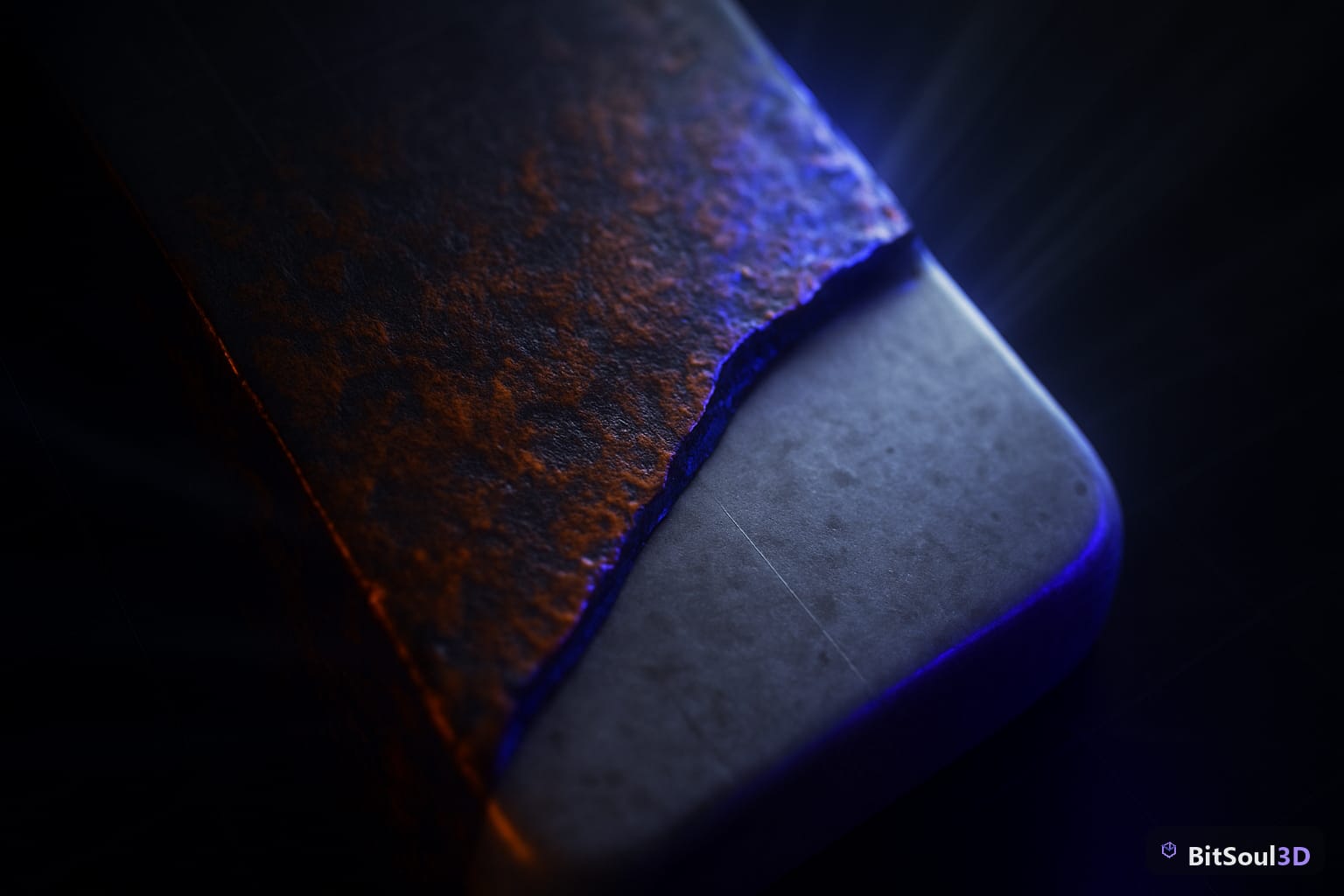
A worn metal asset is the fastest way to see whether your channel mapping is right, since rust and scratches expose every roughness and metallic transition at once. The Rusted Playground ships with a standard ORM map, so it's a clean reference to diff your engine's output against — swap it into your material setup and if the rust patches read as rough/non-metallic and the bare metal reads smooth/metallic, your channels are wired correctly. For related import fixes, see how KTX2 compression support varies by engine and why Godot's glTF importer can flatten normal maps on the same kind of packed-texture assets.
This post is part of the Ultimate Guide to Free 3D Game Assets — BitSoul's complete reference for formats, texturing, rigging, optimization, and engine integration.