
You import a GLB character, open Rig, switch Animation Type to Humanoid, and Unity either grays out Configure or throws "Avatar Rig Configuration mismatch." The FBX path never does this. The reason: glTFast's ScriptedImporter doesn't expose the same rig-mapping UI as Unity's native FBX importer, and it can't reliably guess a bone hierarchy that wasn't exported with Unity's naming and pose conventions in mind. Fix the skeleton before it reaches Unity and Humanoid mode configures on the first try.
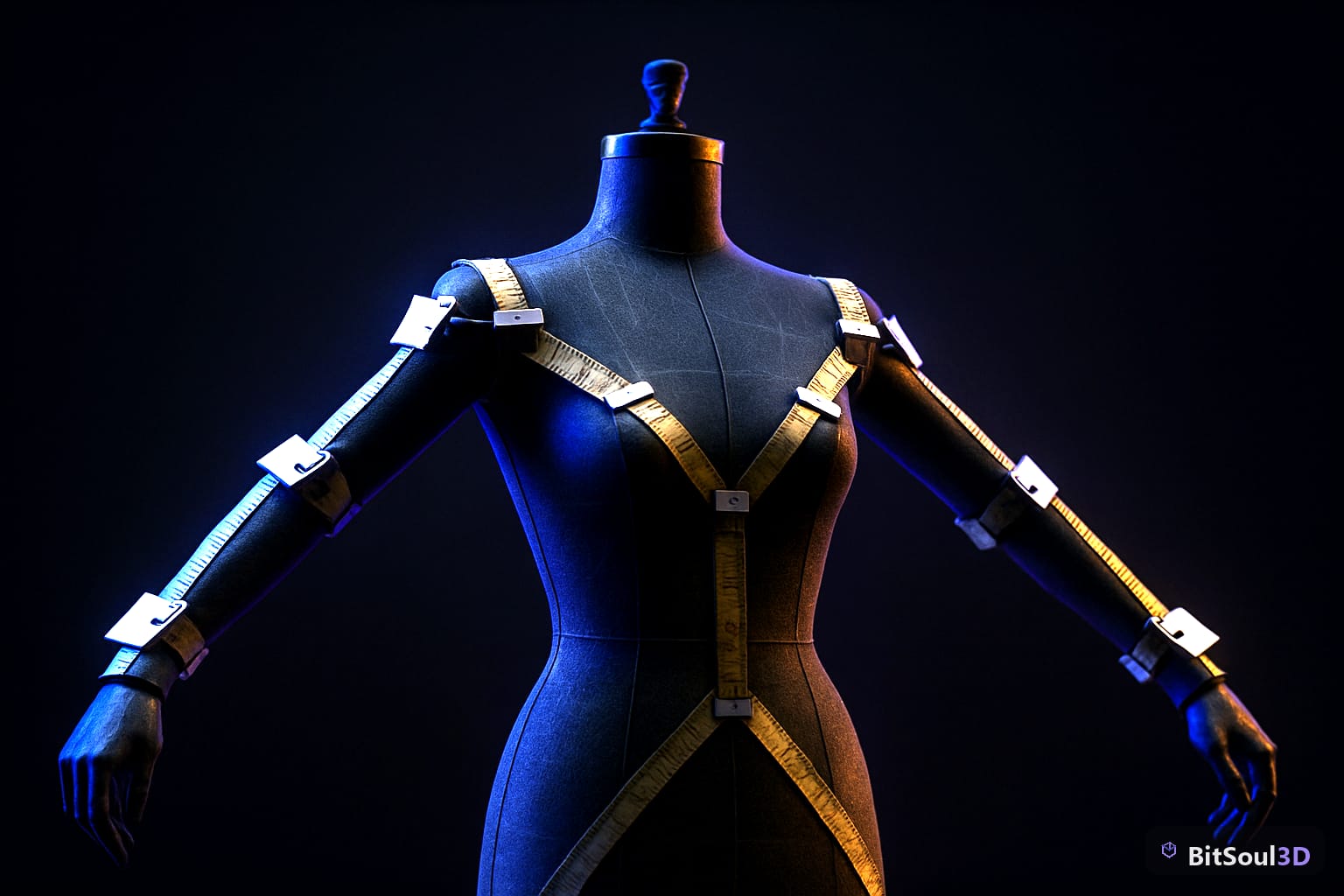
Why GLB skips straight to a broken avatar

Unity's Humanoid retargeting needs 15 required bone mappings (hips, spine, head, both upper/lower arms and legs, hands, feet) resolved from a hierarchy it recognizes, plus a body roughly in T-pose or A-pose at bind time. FBX exporters from Blender, Maya, and 3ds Max have matured alongside Unity's importer for over a decade, so the mapping heuristic almost always lands. glTFast (the importer behind Unity's built-in glTF/GLB support) was built for lightweight, fast loading, not rig authoring — it imports bones as plain transforms and leaves Humanoid detection to Unity's generic bone-name matcher, which fails silently the moment a bone is named mixamorig:LeftArm instead of LeftUpperArm, or when the armature has more than one root transform under the mesh.
Three failure patterns account for almost every "can't configure Humanoid" report:
Bone names don't match Unity's expected humanoid names or Mixamo's convention (which Unity does partially recognize). A root bone that isn't a single unambiguous parent of the whole skeleton — common when Blender exports an empty as the armature's parent alongside the mesh. The character isn't close enough to T-pose or A-pose at the moment of export, so Unity's avatar wizard can't compute the rest pose even after bone names resolve correctly.
Fix it at the source: clean the rig in Blender before export
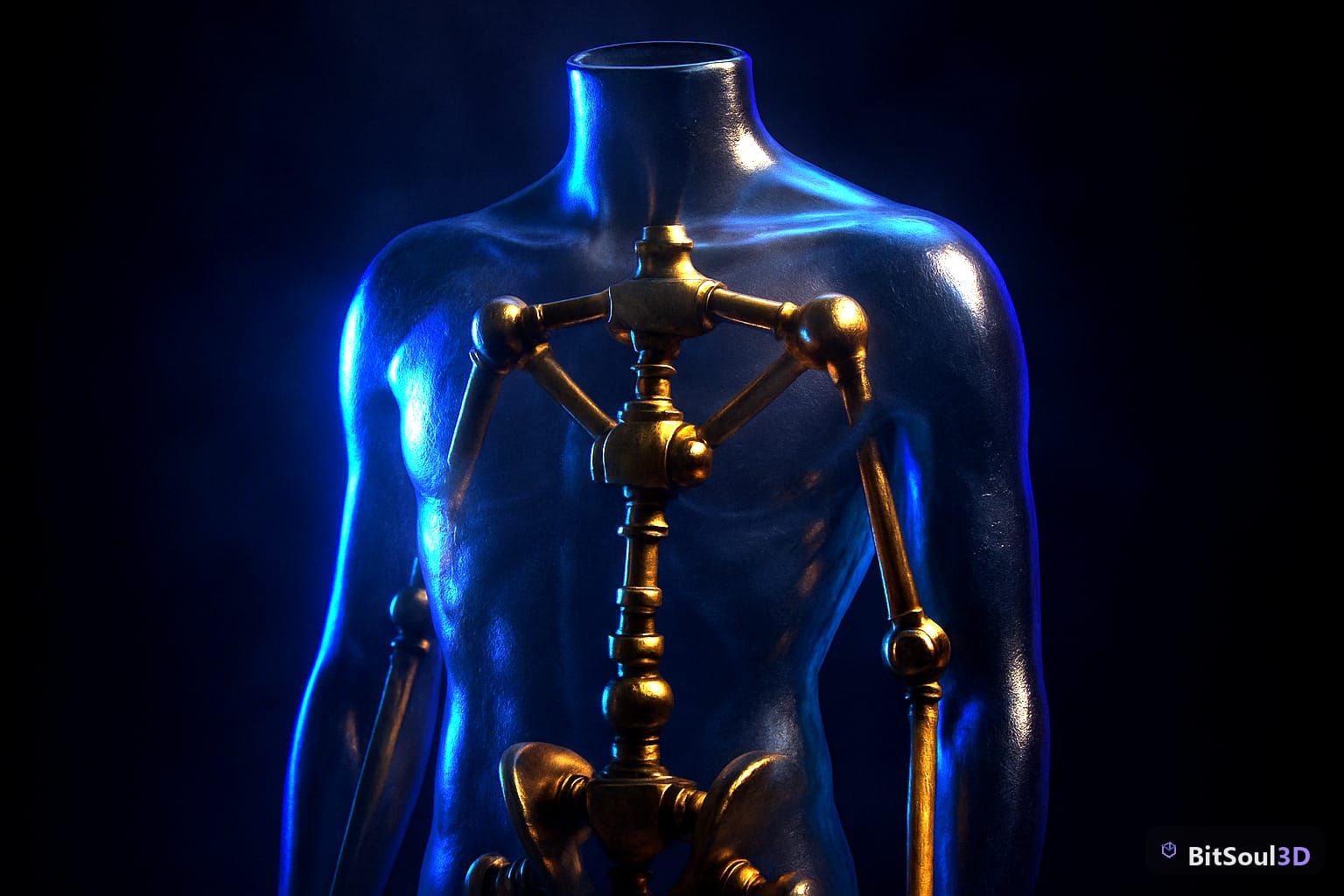
Renaming and re-parenting after the GLB lands in Unity is possible but fragile — you're fighting the importer every time you re-export. Do it in Blender, where you have full control over bone names and rest pose, then export once.
# Run in Blender's Script tab before exporting to GLB.
# Maps common Mixamo/generic names to Unity Humanoid-friendly names.
import bpy
rename_map = {
    "mixamorig:Hips": "Hips", "mixamorig:Spine": "Spine",
    "mixamorig:LeftArm": "LeftUpperArm", "mixamorig:LeftForeArm": "LeftLowerArm",
    "mixamorig:RightArm": "RightUpperArm", "mixamorig:RightForeArm": "RightLowerArm",
    "mixamorig:LeftUpLeg": "LeftUpperLeg", "mixamorig:LeftLeg": "LeftLowerLeg",
}
arm = bpy.data.objects["Armature"]
for bone in arm.pose.bones:
    if bone.name in rename_map:
        bone.name = rename_map[bone.name]
After renaming, select the armature, enter Pose Mode, and use Pose > Apply Pose as Rest Pose only once the character is manually posed into a clean T-pose (arms at roughly 90° from the spine, palms down). Skipping this step is the single most common cause of "Avatar Rig Configuration mismatch" even when every bone name is correct — Unity's wizard computes muscle ranges from the rest pose, and a bent-elbow rest pose produces nonsensical ranges it refuses to accept.
If Blender access isn't an option: map it manually in Unity
When you only have the GLB and can't touch the source rig, Unity still lets you build a Human Avatar by hand from the Rig tab's bone mapping UI, dragging each transform onto its slot. It's tedious for one character and worth scripting if you're doing it across a batch of imported NPCs:
// Builds a HumanDescription from a manual bone-to-transform map,
// bypassing glTFast's auto-detection entirely.
var human = new HumanBone[] {
    new HumanBone { humanName = "Hips", boneName = "Hips" },
    new HumanBone { humanName = "Spine", boneName = "Spine" },
    new HumanBone { humanName = "Head", boneName = "Head" },
    // ...remaining 12 required bones
};
var desc = new HumanDescription { human = human, skeleton = BuildSkeletonBones(root) };
var avatar = AvatarBuilder.BuildHumanAvatar(modelRoot, desc);
avatar.name = "GeneratedAvatar";
This works but only fixes the mapping — it doesn't fix a bad rest pose. If Configure Avatar still throws errors after mapping every bone, the pose is the problem, not the names.
Comparison: FBX vs GLB for Humanoid rigs in Unity
| FBX import | GLB import (glTFast) | |
|---|---|---|
| Humanoid auto-detection | Reliable, decade-tuned heuristic | Falls back to generic bone-name matching, frequently fails |
| Rig tab UI | Full bone mapping wizard | Present but often has nothing to map onto |
| T-pose enforcement | Built into importer wizard | Must be correct before export — no in-Unity correction |
| Best for | Rigged, animated characters | Static or generically-rigged (non-Humanoid) props and NPCs |
| Workaround needed | Rarely | Rename bones + apply rest pose in Blender, or manual AvatarBuilder |
If a character is going through Mecanim retargeting, animator controllers, or IK, exporting FBX instead of GLB avoids this entire class of bug — glTFast's GLB path is better suited to static or Generic-rig characters where you're driving animation from baked clips rather than retargeted Humanoid motion. BitSoul3D's Wasteland Mercenary ships as a Humanoid-clean rig specifically to sidestep this — bones are pre-named and pre-posed to Unity's expected convention, so Configure Avatar succeeds without touching Blender.
Gotchas
A skeleton mixing Humanoid-mappable bones with extra non-standard bones (tails, extra fingers, weapon sockets) still configures fine as Humanoid — Unity ignores unmapped transforms, it just won't retarget them. Don't delete them expecting that to fix an error; the error is almost always pose or naming, not extra bones. Root motion breaks if your root bone isn't the actual top of the hierarchy — check that Hips has no parent bone above it besides the armature object itself. And if you already exported dozens of GLBs with the wrong convention, it's cheaper to fix the Blender file once and batch re-export than to hand-map each one in Unity — the Python rename script above takes under a minute per file once your name mapping is confirmed correct on the first character.
A free account's two monthly downloads cover evaluation; commercial use is included with paid memberships — see pricing.
Related: why glTFast models turn pink in Unity builds, Godot GLTF import renames bones and breaks animation, fixing Blender shape keys that break GLTF import into Unreal Engine.
This post is part of the Ultimate Guide to Free 3D Game Assets — BitSoul's complete reference for formats, texturing, rigging, optimization, and engine integration.