Fracturing a crate, pillar, or wall into flying shards at runtime is one of Unreal Engine 5's most impressive capabilities — and with Chaos Destruction baked into the engine, you no longer need a plugin or middleware to pull it off. This guide walks through importing a GLB prop, fracturing it, wiring the Field System, and tuning performance so your destructible props stay inside frame budget on both PC and console.
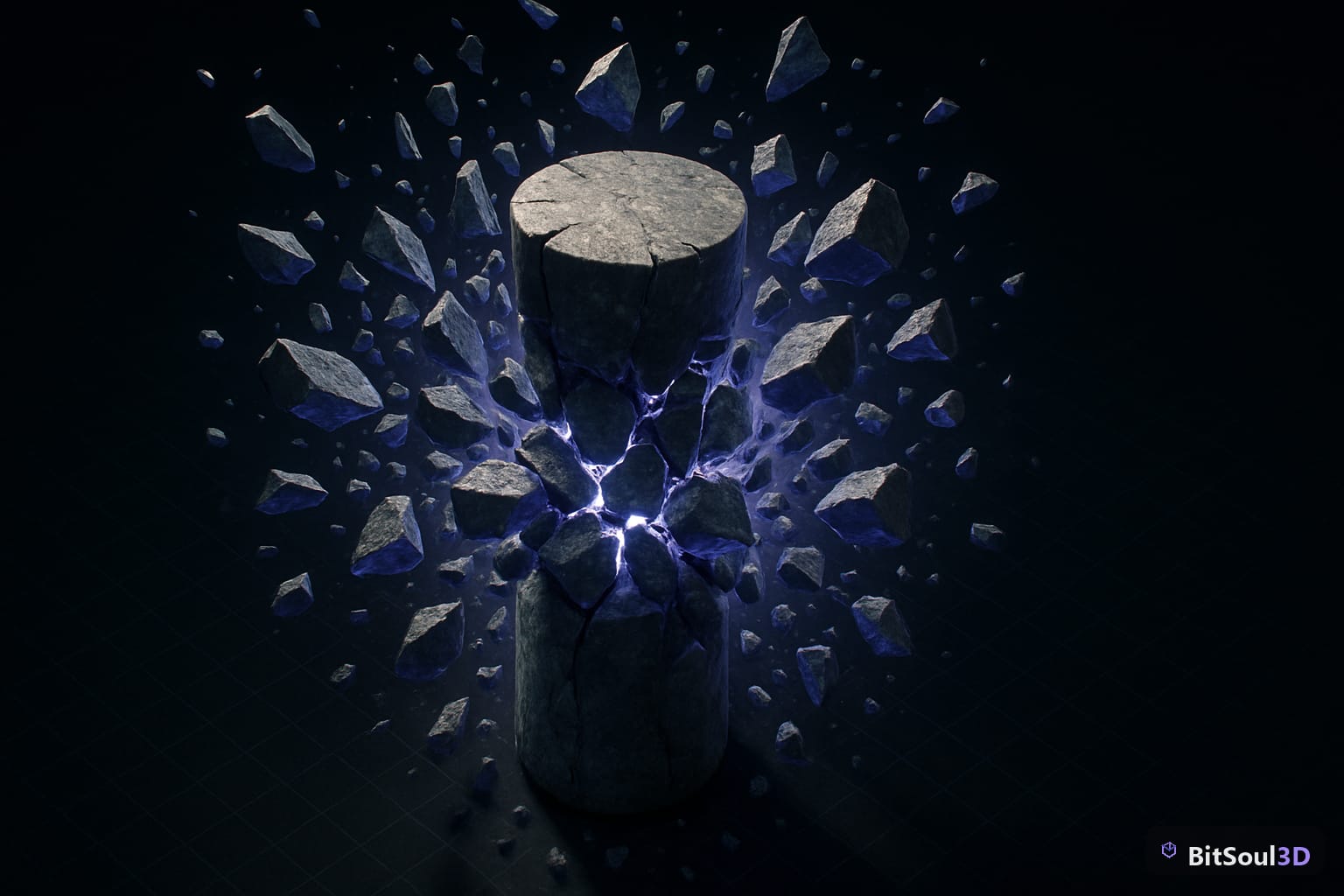
What Chaos Destruction brings to game props
Chaos is UE5's natively integrated rigid-body physics and destruction framework. Unlike the old Apex Destruction plugin (deprecated in UE5), Chaos is driven by the same physics thread as Chaos Cloth and Chaos Vehicles, which means it shares the same CPU budget and is optimised for modern multi-core hardware.

For game props — crates, barrels, columns, walls, vehicles — Chaos offers three fracture types:
- Uniform Voronoi — random cell shatter, best for brittle materials (concrete, ceramics)
- Clustered Voronoi — grouped cells that break in stages, ideal for reinforced objects
- Planar / Slice — straight-cut planes, good for wood planks or layered rock
Each fractured mesh is stored as a Geometry Collection asset, a specialised UE5 asset type that bundles every shard transform, bone hierarchy, and simulation cache.
A key advantage: Geometry Collections bake their simulation into the asset, so you can author break thresholds, anchor clusters, and initial damage events entirely in the editor without a single line of Blueprint or C++.
Preparing your static mesh for Chaos fracture
Chaos operates on the engine's internal mesh representation, but your source mesh quality determines shard quality. Before you fracture:
Import checklist
| Requirement | Why it matters |
|---|---|
| Manifold (watertight) geometry | Open edges produce floating shard faces |
| Vertex count < 50k per prop | High-poly meshes multiply per-shard |
Collision set to No Collision on source | Geometry Collection generates its own collision |
Mobility: Movable | Static mobility blocks the Chaos solver |
| Material has an Interior slot | Needed for procedural interior face material |
If you're importing GLB assets from BitSoul's marketplace, most props ship as manifold, game-ready geometry. After importing, open the Static Mesh Editor, check Normals display, and confirm there are no red open-edge warnings. Then set the collision preset to No Collision — the Geometry Collection will generate per-shard simple collision automatically.
To assign an interior material, add a second material slot to the Static Mesh (name it Interior). Create a simple Opaque material with a flat colour or cracked-surface texture — this face will be visible only on freshly exposed shard interiors during a break event.
// Quick interior material setup in Material Editor
Base Color: Texture Sample (cracked concrete or raw wood)
Roughness: 0.85
Metallic: 0.0
Normal: flat (no normal map needed for interior faces)
Creating the Geometry Collection and Field System
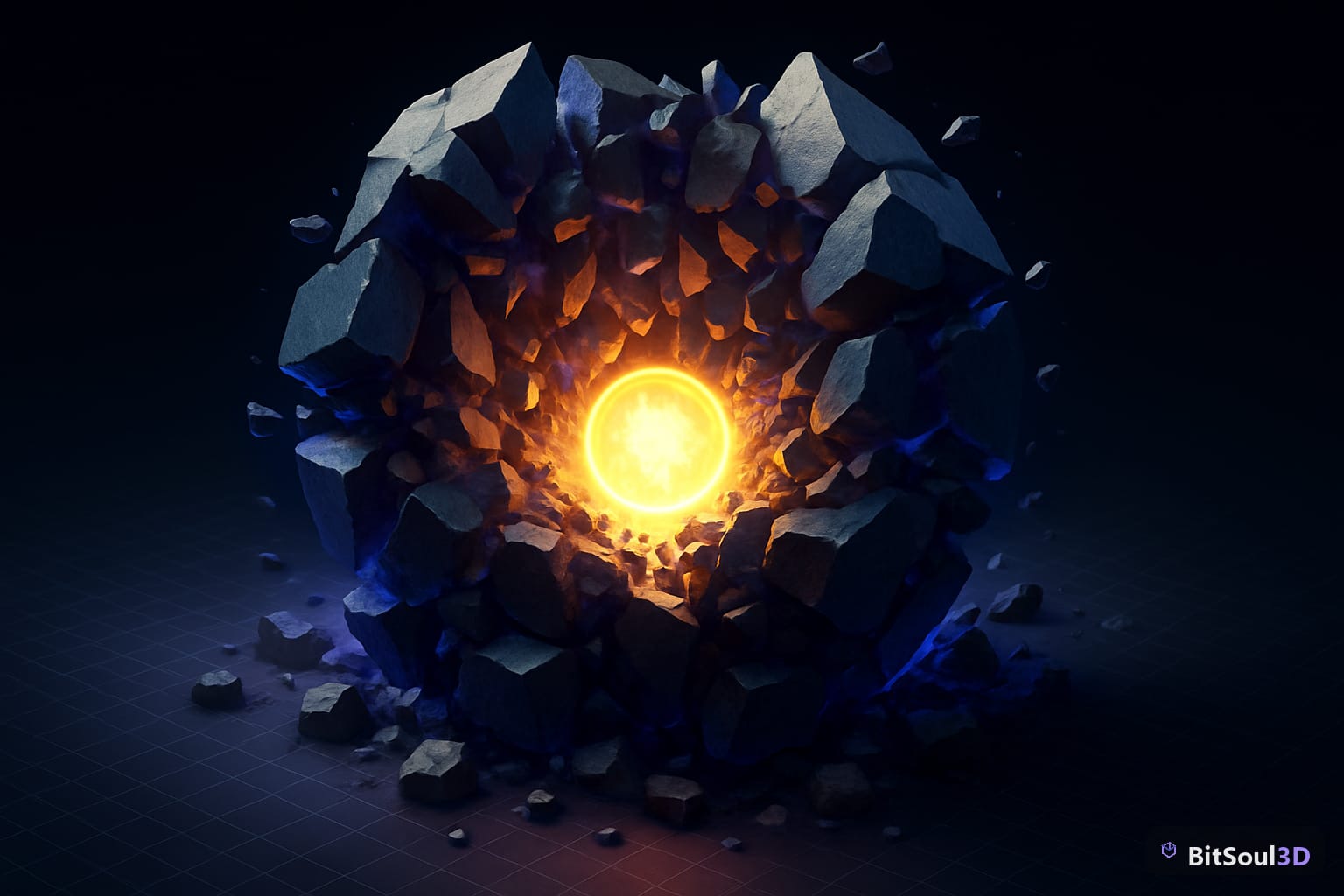
With your mesh prepped, the fracture workflow is:
- Right-click the Static Mesh in Content Browser → Fracture Mesh → Create Geometry Collection
- Open Fracture Mode (Mode dropdown, top-left of viewport)
- Select fracture type. For a concrete crate: Cluster Voronoi, 15–25 Voronoi sites, 3 cluster levels
- Click Fracture — preview shards appear colour-coded by cluster level
- In the Hierarchy panel, select root cluster → set Damage Threshold (e.g.
5000for a sturdy prop,500for glass) - Click Generate Collision — this bakes convex hulls per shard
- Save the Geometry Collection
To trigger breaks at runtime you need a Field System Actor. In the Level:
1. Place FieldSystemActor in level
2. Add Component → RadialFalloffField
   - Magnitude: 500000  (force applied at epicentre)
   - Radius: 200 cm
   - Falloff Type: Linear
3. Add Component → RadialIntMask
   - Interior Value: 1   (marks sleeping bodies for activation)
   - Exterior Value: 0
   - Radius: 200 cm
4. In Blueprint, call ApplyPhysicsField on impact event:
   Target = FieldSystemActor
   TimeSeconds = 0
   bOverrideReset = false
   FieldNode = LinearForce (from RadialFalloff)
For projectile or melee impact, fire this Blueprint call from your weapon's OnComponentHit event, passing the hit location as the field origin. The Geometry Collection responds automatically because its Enable Clustering flag is on by default.
Anchor fields for wall sections
Free-standing props shatter fully. For wall sections or pillars that should stay partially intact, add an AnchorField component to the Field System Actor:
- Set its Box Extent to cover the bottom third of the wall
- Set Interior Value: 1 — this permanently anchors those clusters
- Set Exterior Value: 0 — clusters above the box break freely
This creates the realistic effect of a wall crumbling from an impact point while the base remains standing.
Performance budgeting for fractured props
Chaos is powerful but expensive. Each active Geometry Collection runs rigid-body integration every physics tick. Budget conservatively:
Per-platform budgets (rough guidelines)
| Platform | Max simultaneous active GCs | Max shards per GC |
|---|---|---|
| PC (mid-range) | 8–12 | 80–120 shards |
| Console (PS5/XSX) | 6–10 | 60–80 shards |
| Mobile / VR | 2–4 | 20–30 shards |
Key optimisation flags in the Geometry Collection:
- Enable Sleeping:
true— shards sleep after settling, nearly zero CPU cost - Sleep Threshold:
0.1— lower = sleeps faster after impact - Maximum Level: cap cluster depth to 2 for most props (3 only for large environment pieces)
- Removal Duration:
5.0seconds — cleans up sleeping shards after they settle, reclaims actors - Cache Mode:
Record and Playfor scripted destruction cutscenes;Nonefor runtime gameplay
You can also use GeometryCollectionComponent::SetDamageThreshold at runtime to make props less brittle at distance (a poor man's physics LOD) — combine this with your LOD distance settings from BitSoul props to keep GPU and CPU costs tightly coupled.
For large environment pieces (multi-piece wall, floor section), replace Geometry Collections with Field-driven Chaos Clusters using ApplyPhysicsField on a per-cluster basis — this lets you simulate only the clusters near the impact point rather than the whole mesh.
// Blueprint: selective cluster break
function OnImpact(HitLocation, HitActor)
  HitGC = HitActor as GeometryCollectionComponent
  if HitGC:
    HitGC.ApplyExternalStrain(
      ObjectIndex = HitGC.GetClosestClusterIndex(HitLocation),
      Location = HitLocation,
      Radius = 150.0,
      PropagationDepth = 2,
      PropagationFactor = 0.5,
      Strain = 8000.0
    )
This targets strain at the exact cluster under the hit point and propagates two levels up the hierarchy — breaking nearby sub-clusters without waking the entire Geometry Collection.
Chaos Destruction in UE5 rewards careful prop prep and budget discipline. Import clean manifold geometry, fracture with appropriate shard counts for your platform, anchor what shouldn't fall, and cap active collections to stay inside frame time. With the Geometry Collection baking most of the heavy work at edit time, runtime cost is dominated by sleeping count — and with aggressive sleep settings, most props cost almost nothing between breaks.
Browse engine-ready props built for destruction workflows at BitSoul's marketplace — manifold geometry, single-material setups, and consistent scale make them drop-in ready for Chaos fracture.
This post is part of the Ultimate Guide to Free 3D Game Assets — BitSoul's complete reference for formats, texturing, rigging, optimization, and engine integration.
Need drop-in assets for this workflow? Grab the 94-model Animal Bundle on the BitSoul marketplace and drop them straight into your project.