Photogrammetry software reconstructs dense 3D meshes from overlapping photographs — no expensive scanner hardware required. A DSLR, a mirrorless camera, or even a recent smartphone can capture enough data to produce game-ready geometry. The challenge is not the capture; it's knowing how to process, clean, and export the result as a production-quality GLB file.
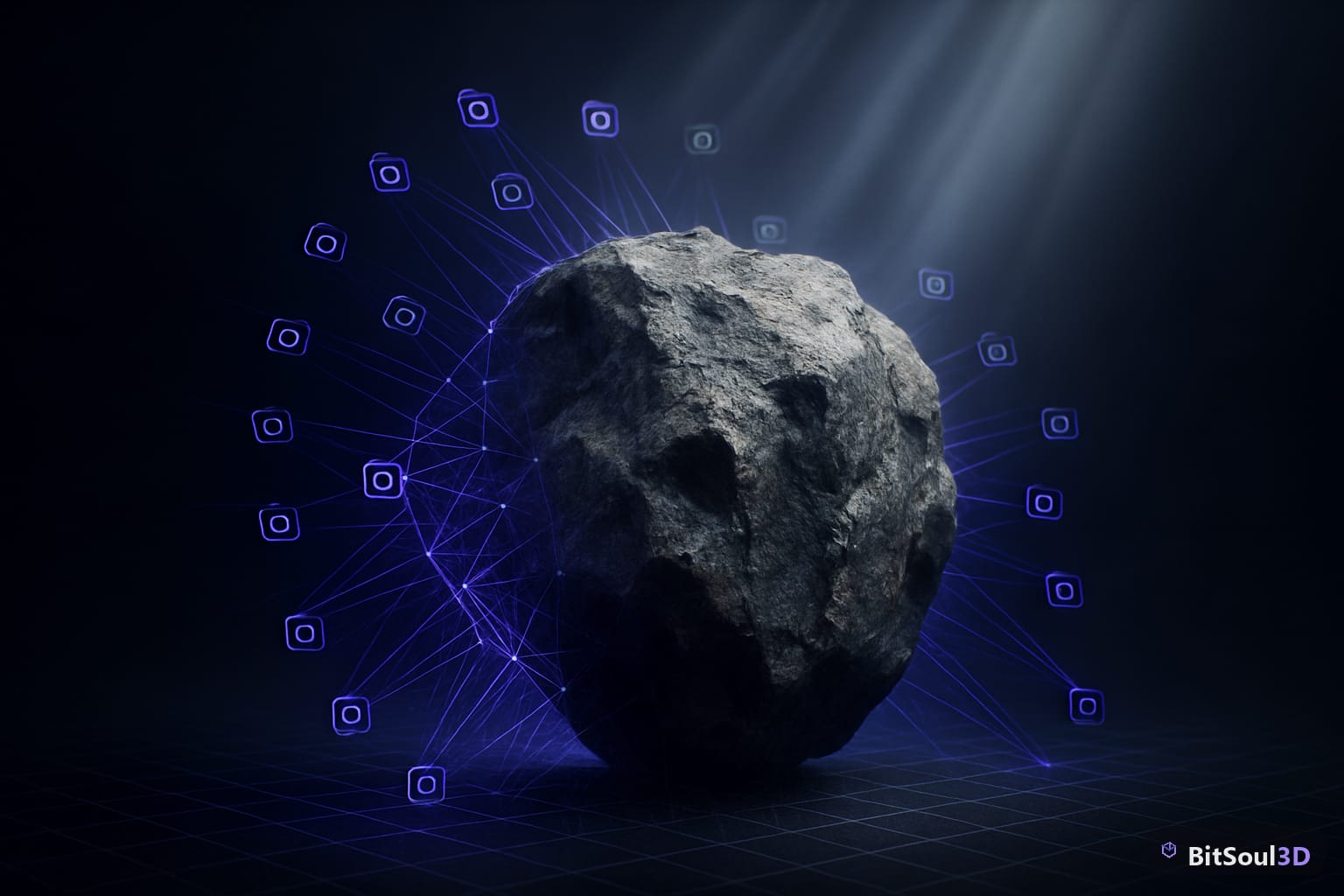
What photogrammetry captures (and what to expect from raw output)
Photogrammetry works by finding matching features across dozens or hundreds of overlapping images, computing camera positions, and projecting a dense point cloud that gets triangulated into a mesh. The process excels at capturing complex surface topology — cracked concrete, chipped stone, bark, rust, fabric — where hand-modeling would take hours.
Raw output from even good software is rarely production-ready:
- Triangle density is uneven — dense where surfaces overlap well, sparse or broken in occluded areas
- Mesh noise appears as bumpy, granular surfaces where feature matching was ambiguous
- Holes form in reflective, transparent, or uniformly dark surfaces (glass, metal, matte black paint)
- Texture baking is captured at capture resolution, not optimized for real-time VRAM budgets
Knowing these limitations upfront shapes how you shoot and how much cleanup to budget.
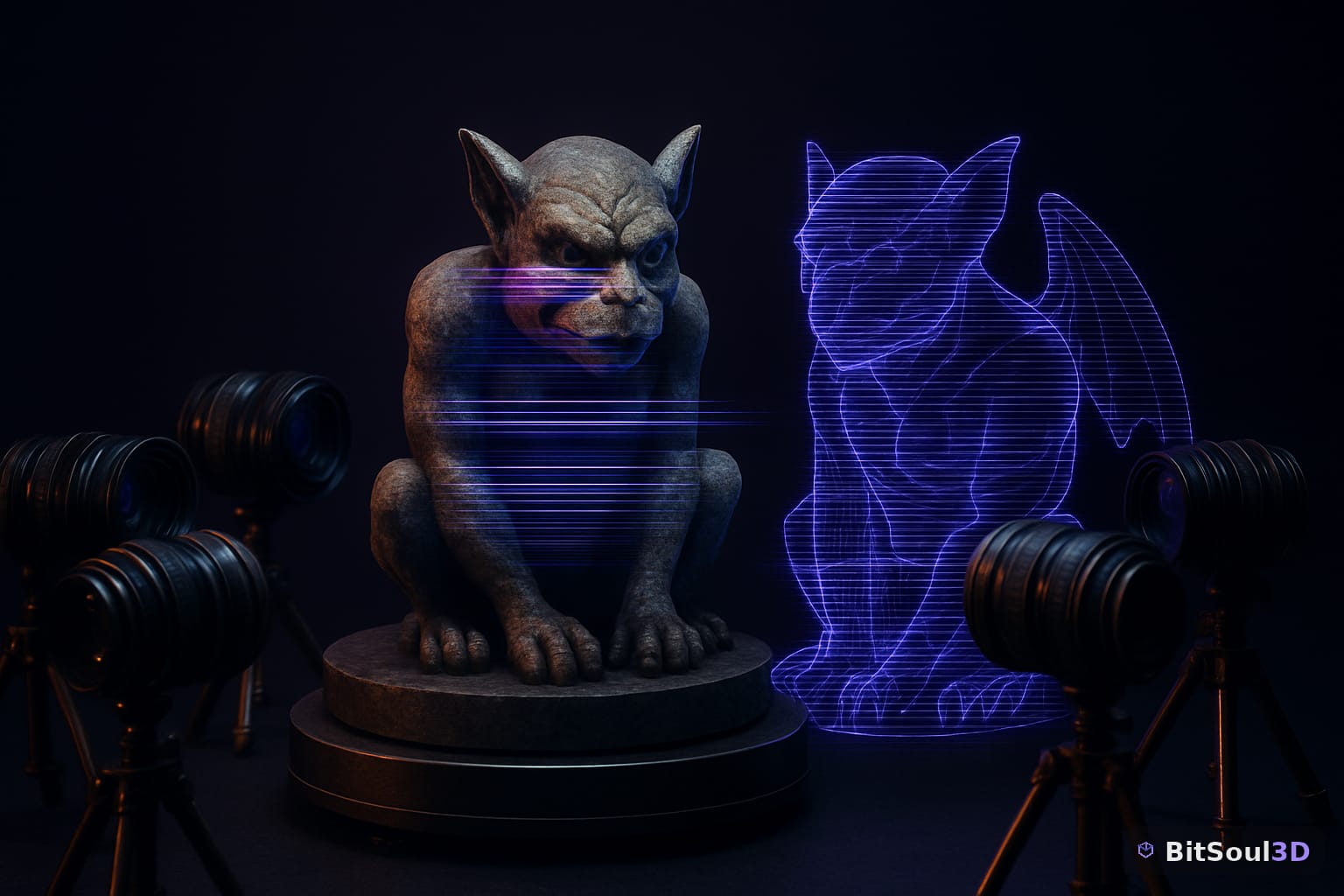
Capture checklist for clean results:
| Factor | Target | Why |
|---|---|---|
| Photo overlap | 70–80% | More SIFT keypoints per area |
| Lighting | Overcast or diffuse | Eliminates specular blowout |
| Subject movement | None | Misaligned frames break reconstruction |
| Reflective surfaces | Matt spray coat | Prevents holes |
| Image count | 60–150 for small props | Enough for full-coverage point cloud |
Tools: Meshroom, RealityCapture, and Polycam compared
Meshroom (free, open-source) — runs the AliceVision pipeline on a CUDA GPU with no export limits. Best for desktop workflows on small to mid-size props. Export as OBJ or FBX from the Texturing node, then convert to GLB in Blender.
RealityCapture — the industry-standard reconstruction engine with per-export pricing (PPI model) or a flat subscription. Fastest processing for large scenes, handles aerial data and LiDAR fusion, and exports GLB natively. The benchmark for exterior environments and large prop sets.
Polycam — mobile-first iOS/Android app that uses the LiDAR sensor on Pro iPhones and iPads for rapid scans, or photo-based mode for any device. Outputs GLB directly. Best for on-set or location capture without a laptop.
Pipeline recommendation by asset scale:
  Small prop (under 30 cm)  → Polycam photo mode → Blender cleanup → GLB
  Mid prop or environment   → Meshroom + Blender cleanup → GLB
  Large exterior scene      → RealityCapture → Blender or Maya cleanup → GLB
Cleaning and optimizing the photogrammetry mesh in Blender
Raw photogrammetry meshes typically land between 500k and 5M triangles. Game budgets rarely allow more than 5k–30k triangles for props or 50k–200k for hero environment pieces. Closing that gap takes a structured cleanup pass.
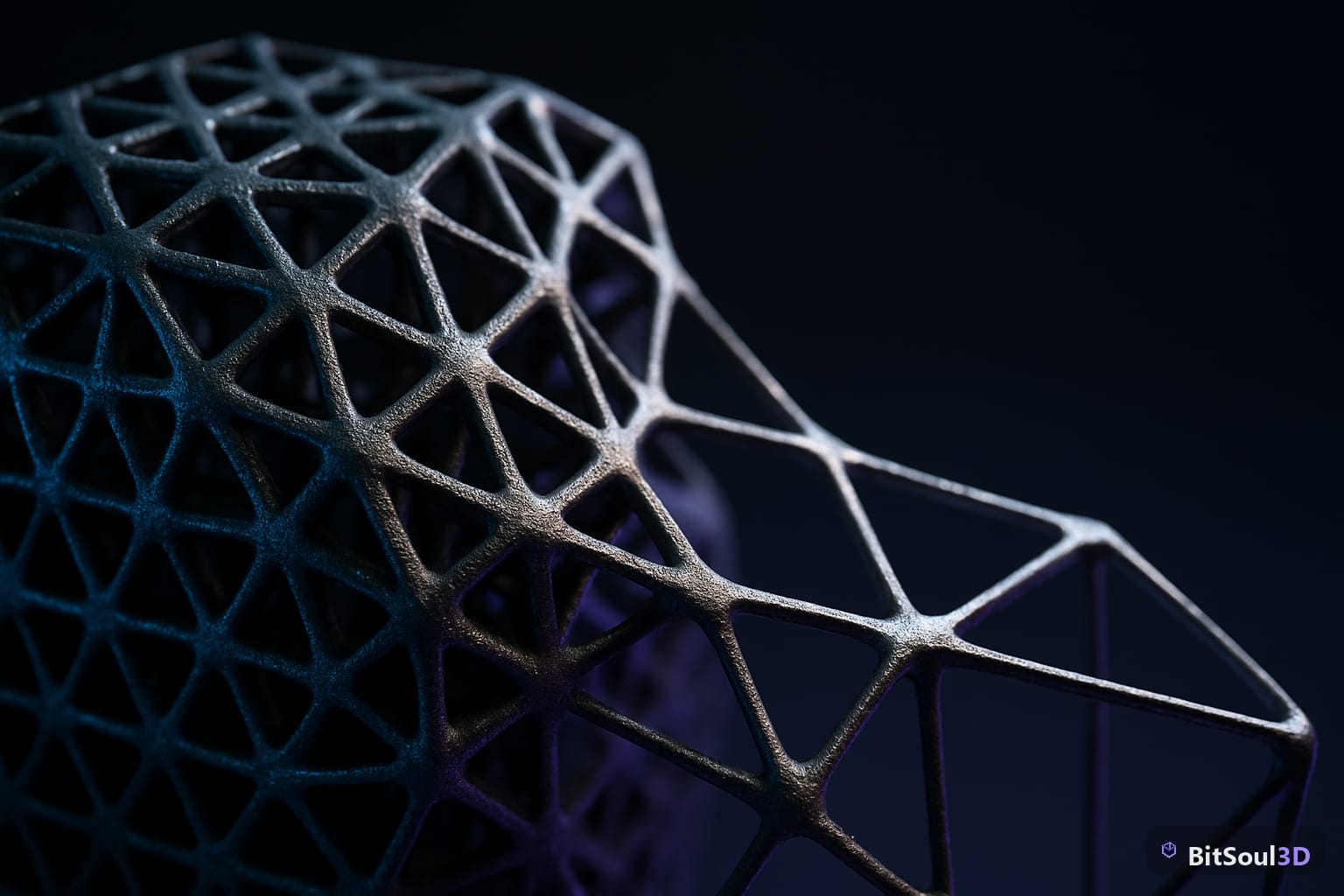
Cleanup workflow in Blender:
- Import — drag in the OBJ or FBX; disable auto-smooth to inspect true normals first
- Decimate — add a Decimate modifier at Ratio 0.1–0.3 for a first-pass reduction; watch edge flow on curved surfaces
- Voxel Remesh — for heavily noisy meshes, set voxel size to your target density and remesh before decimating; this produces cleaner topology at the cost of UV data
- Smooth sculpting — in Sculpt Mode, run the Smooth brush over granular surface noise without destroying silhouette detail
- Retopology — for hero assets, draw clean quad topology over the scan using PolyBuild or RetopoFlow, then bake AO, normals, and albedo from high-poly to low-poly
- UV unwrap — Smart UV Project for background props; manual seams for assets needing precise texel density
- Bake textures — in Cycles, bake Combined, Normal, and AO from the high-poly to the retopologized mesh at 2048 × 2048
Pack roughness and metallic into a single ORM texture to reduce draw calls. Browse photogrammetry-ready assets and pipeline references at bitsoulhosting.com/marketplace.
Exporting to GLB and importing into Unity, Unreal Engine 5, and Godot 4
From Blender, use File → Export → glTF 2.0 (.glb/.gltf) with these settings:
# GLB export settings — Blender 4.x
Format: GLB (binary, single file)
Geometry:
  Apply Modifiers: on
  Tangents: on        # required for correct normal map rendering
  Normals: on
Materials: Export
Animation: off        # static props only
Engine import notes:
- Unity 2021.3+ — drop the GLB into the Assets folder; Unity imports natively. Set the albedo texture to Albedo type and the ORM texture to Default with sRGB disabled.
- Unreal Engine 5.1+ — use File → Import → glTF (the glTF importer plugin is enabled by default). UE5 auto-creates a Material Instance; replace the imported albedo with a BC7-compressed texture for production builds.
- Godot 4 — drag the GLB into the FileSystem dock. Godot auto-generates
.importmetadata. On the resultingStandardMaterial3D, set roughness_texture_channel to match your ORM channel packing.
Photogrammetry-sourced environment and prop assets — already cleaned, retopologized, and GLB-ready — are free to download at bitsoulhosting.com/marketplace.
This post is part of the Ultimate Guide to Free 3D Game Assets — BitSoul's complete reference for formats, texturing, rigging, optimization, and engine integration.
Build with real assets: grab game-ready electronics 3D models on the BitSoul marketplace and drop them straight into your project.