
Your ORM texture — the single file packing ambient occlusion, roughness, and metallic into red, green, and blue channels — reads correctly in Godot 4.6 and Unreal Engine 5.7, then shows inverted highlights and flat, plasticky metal the moment you drop it into Unity's HDRP Mask Map slot. The texture isn't broken. glTF's ORM convention and Unity's Mask Map convention don't share a channel order, and nothing in either import pipeline warns you about it.
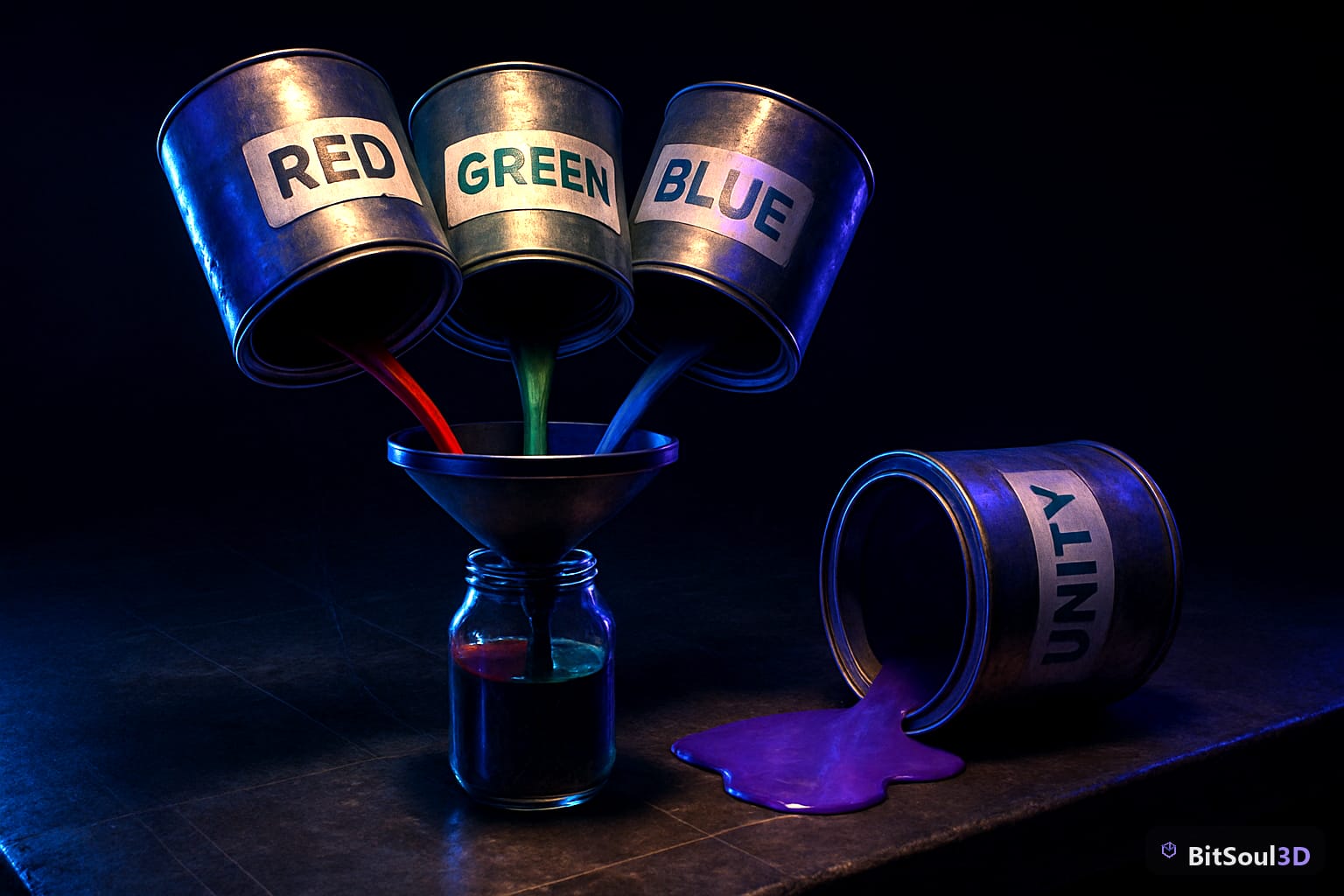
Why the ORM texture channel order breaks in Unity
glTF fixes the layout by spec: the metallicRoughnessTexture puts roughness in green and metallic in blue, and when an occlusionTexture points at the same image, its red channel carries ambient occlusion. That gives you R = AO, G = roughness, B = metallic — one greyscale texture, one sample instead of three. Godot's ORM Material 3D mode reads it that way natively, and Unreal Engine 5's default material setup expects the exact same R-AO, G-roughness, B-metallic order when you break the texture out with a BreakOutFloat3Components node.
Unity's HDRP Lit shader uses a different pack entirely, called a Mask Map, in MODS order: red is metallic, green is ambient occlusion, blue is a detail mask, and alpha is smoothness — not roughness, the inverse of it. Feed a glTF-standard ORM texture straight into that slot and Unity reads your AO channel as metallic, your metallic channel as a detail mask, and gets no smoothness data at all, so it defaults to a flat 0.5 gloss. That's the "looks fine everywhere except Unity" bug reported across HDRP projects pulling in glTF assets from Blender, Substance, or a marketplace.
| Engine / pipeline | R | G | B | A |
|---|---|---|---|---|
| glTF spec / Godot ORM / UE5 default | Occlusion | Roughness | Metallic | unused |
| Unity HDRP Mask Map (MODS) | Metallic | Occlusion | Detail mask | Smoothness (inverted roughness) |
| Unity URP Lit (Metallic Map) | Metallic | — | — | Smoothness |
URP's simpler Metallic Map isn't ORM at all — it's a single metallic channel plus smoothness in alpha, with AO wired to a separate texture slot on the Lit shader. If you're bringing in a combined ORM file, URP needs the same red-channel remap as HDRP, minus the detail mask.
Fix Unity's Mask Map without re-baking your texture
Don't re-export the texture per engine. Remap it once, on import, and keep the glTF-standard ORM as your source of truth — it's the one that already works in Godot, UE5, and Blender's viewport.
A quick sanity check before you touch anything: confirm which channel actually holds data. Flat AO (all 255) is the single most common cause of this bug, independent of the engine mismatch.
from PIL import Image
img = Image.open("orm_texture.png").convert("RGB")
r, g, b = img.split()
for name, ch in [("R-AO", r), ("G-rough", g), ("B-metal", b)]:
    print(name, ch.getextrema())  # (0,0) or (255,255) means the channel is empty
If R comes back (255, 255), the AO channel was never packed — that's usually a Blender export issue, not an engine issue, because the Principled BSDF has no native AO input for the glTF exporter to find (covered in Blender 5.0 glTF export: what breaks in Unity, Godot, UE5). You have to wire an AO Image Texture node into the exporter's glTF Settings group manually, or the exporter writes a flat white channel and calls it done.
Once the source ORM is confirmed correct, remap it into a Mask Map asset at Unity import time with an editor script rather than by hand in Photoshop every time an artist re-exports:
// Editor tool: reads glTF ORM (R=AO,G=Rough,B=Metal), writes HDRP Mask Map (MODS)
Color[] px = ormTexture.GetPixels();
for (int i = 0; i < px.Length; i++) {
    var c = px[i];
    px[i] = new Color(c.b, c.r, 0f, 1f - c.g); // R:metal G:AO B:unused A:smoothness
}
maskMap.SetPixels(px);
maskMap.Apply();
Set the resulting texture's Texture Type to Default with sRGB (Color Texture) unchecked — the same rule applies in Unreal, where the equivalent setting is Compression Settings: Masks. Both engines store this as raw greyscale channel data, and running it through an sRGB or color-compression codec shifts the values enough to visibly darken your AO and clip your roughness curve. That corruption looks identical to a channel-order mismatch, which is why teams often "fix" the wrong problem twice.
For a live test case, Ornate Plate Knight ships with a full glTF-standard ORM map across its armor plating and is a good stress test since worn metal edges expose every channel at once — flat AO, banding on the roughness gradient, and inverted metallic all show up immediately on the pauldrons. A free account's two monthly downloads cover evaluation; commercial use is included with paid memberships.
Gotchas
Detail masks on Unity's blue channel don't map to anything in the source ORM — leave that value neutral (0) unless you're deliberately adding a detail texture, or you'll bake a phantom detail-blend into every surface. Metallic data in a masks-compressed texture also gets the worst bit precision of the three channels on some compression formats, so a metallic map with a hard black/white split (most game props) hides banding better in that channel than a roughness gradient would, which is part of why UE5's default order puts metallic in blue rather than red. And if your source model was authored in Substance Painter or Armor Paint with the Unreal export preset, you're already getting the glTF-standard order for free — the mismatch only bites you at the Unity end of the pipeline, so fix it there once, in the importer, not at the source.
If you're scripting this for a whole asset library at once — Draco-compressed batches included — the same channel math applies whether the mesh compression is on or off; see Which engines actually load Draco-compressed GLB files for the compression side, and Marmoset Toolbag 5.03 fixes the UV bug that corrupts your bake if your ORM bake is coming out of Marmoset rather than Substance.
This post is part of the Ultimate Guide to Free 3D Game Assets — BitSoul's complete reference for formats, texturing, rigging, optimization, and engine integration.
Need drop-in assets for this workflow? Grab the 94-model Animal Bundle on the BitSoul marketplace and drop them straight into your project.