Rigged humanoid characters are the highest-value free asset category on any marketplace — and the most dangerous to import blindly. Before you plug a GLB into your project, you need to know whether the skeleton matches your engine's expectations, whether the mesh is game-ready, and whether the LOD chain will hold up at distance. This post walks through every check on a real free humanoid from BitSoul's marketplace, so you can repeat the process on any character you download.
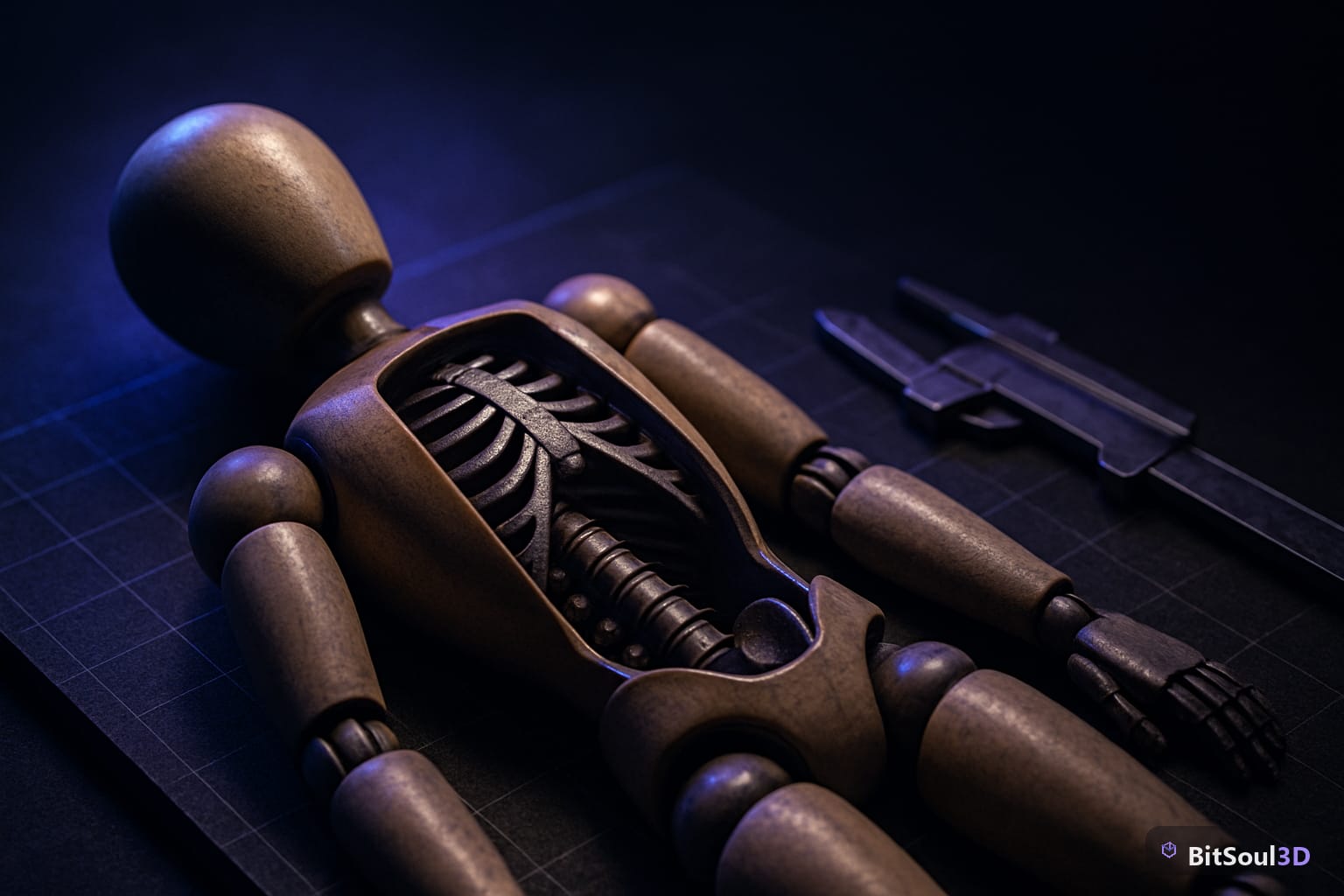
Anatomy and topology audit
Open the GLB in Blender before importing into any engine. Enable Overlays → Statistics to see triangle count, then switch to Edit Mode and enable Face Orientation (Overlay menu) to catch flipped normals immediately — blue faces are outward-facing, red are inverted.
For a humanoid, run these checks in order:
Topology
- Quads throughout deforming areas (shoulders, knees, elbows) — triangles are fine for hard-surface detail but will produce pinching under skeletal deformation
- Edge loops that follow muscle anatomy: circumferential loops around the eye, mouth, and collar; horizontal loops across the shoulder and knee cap
- No poles with more than 5 edges at deformation joints
- Triangle budget: mobile target ≤ 5,000 tris; PC/console ≤ 15,000 tris; hero character ≤ 30,000 tris
Skeleton
- Bone count: ≤ 65 bones for Unity standard humanoid avatar; ≤ 75 for UE5 Mannequin mapping; Godot has no hard limit but keep it ≤ 80 for GPU skinning
- Root bone at world origin, Y-up, no scale baked onto bones
- Naming: check whether bone names match UE5 Mannequin (
spine_01,hand_l) or Unity's humanoid descriptor (Spine,LeftHand) — mismatches require remapping - No broken parent chains: in Blender's Outliner, every bone should have a clean hierarchy from Root → Pelvis → Spine → … with no orphaned bones
Weights
- In Weight Paint mode, check each deformation bone. Shoulders and hips should blend smoothly across 3–4 bones; fingers should be nearly single-bone weighted
- Use Weights → Limit Total (4 influences max) then Clean (threshold 0.01) to trim any micro-weights that cause GPU skinning artifacts
# Blender Python: list all vertex groups with total weight < 0.01
import bpy
obj = bpy.context.active_object
for vg in obj.vertex_groups:
    total = sum(
        next((g.weight for g in v.groups if g.group == vg.index), 0)
        for v in obj.data.vertices
    )
    if total < 0.01:
        print(f"Low-weight group: {vg.name} ({total:.4f})")
LOD chain setup for the humanoid mesh

A humanoid with no LODs is a performance time bomb. Even at 10,000 triangles, rendering 50 NPCs with no LOD reduction will saturate the GPU on any mid-range device. Set up a 3-level chain in Blender using the Decimate modifier, then validate each level.
Recommended triangle budgets by LOD level:
| LOD | Distance | Triangle Budget | Bone Limit |
|---|---|---|---|
| LOD0 | 0–5 m | Full (10–15 k) | Full rig |
| LOD1 | 5–20 m | 40% reduction | Full rig |
| LOD2 | 20–60 m | 70% reduction | Simplified rig |
| LOD3 / Billboard | 60 m+ | 8 tris (sprite) | None |
For LOD2 and beyond, reduce the skeleton to pelvis + spine chain + one bone per limb. UE5 calls this a Skeletal Mesh LOD bone reduction; Unity calls it Avatar Mask; Godot handles it via SkeletonIK3D removal on distant instances.
Generating LODs in Blender
- Duplicate the mesh (
Shift+D,Esc) and rename toCharacterName_LOD1 - Add Decimate modifier → Collapse mode → set Ratio to 0.6 for LOD1, 0.3 for LOD2
- Apply modifier, then run Mesh → Clean Up → Merge by Distance (threshold 0.001) to remove duplicate verts introduced by decimation
- Manually fix any broken weight painting on the decimated mesh — decimation does not preserve weight distribution perfectly around poles
Export each LOD as a separate GLB or as a combined GLB with separate mesh objects if your engine supports multi-mesh LOD import (UE5 and Godot 4 both do).
Engine import: Unity, UE5, and Godot 4
Unity URP
- Import the GLB via Assets → Import New Asset
- Select the imported asset → Rig tab → set Animation Type to Humanoid → Configure → verify all required bones are mapped (missing assignments show in red)
- In the Model tab, enable Read/Write only if you need runtime mesh access; disable it otherwise to halve GPU memory
- LODs: create a LOD Group component on the root GameObject, drag each LOD mesh into the corresponding slot, set transition distances
Unreal Engine 5
- Drag the GLB into the Content Browser — UE5 imports skeleton, mesh, and animations as separate assets automatically
- Open the Skeletal Mesh editor → Asset Details → check LODs section; if empty, go to LOD Settings → Import LOD and import each LOD GLB
- For retargeting to the UE5 Mannequin, open IK Retargeter → assign source skeleton (your import) and target skeleton (SK_Mannequin) → map chains
Godot 4
- Drop the GLB into
res://assets/characters/— Godot's import system handles it automatically - Select the
.glbin the FileSystem dock → Import tab → set Import As to Scene → enable Skeleton 3D → click Reimport - LODs: in the Import tab, enable Generate LODs with your target triangle reduction ratios
- Verify in the scene tree: expand the imported scene and confirm
AnimationPlayer,Skeleton3D, andMeshInstance3Dnodes are all present
Validation checklist before committing to your project
| Check | Tool | Pass Condition |
|---|---|---|
| Normal orientation | Blender Face Orientation overlay | 100% blue |
| Weight limit | Weights → Limit Total | Max 4 per vertex |
| Bone count | Blender Outliner | ≤ 65 for Unity humanoid |
| UV coverage | UV Editor | No overlapping islands on baked channels |
| LOD transitions | Engine LOD preview | No visible pop at set distances |
| Skinning artifacts | Engine pose test | No mesh tearing at 90° joint flex |
| Texture memory | Engine profiler | ≤ 4 MB for mobile, ≤ 16 MB for PC |
Running this checklist takes under 30 minutes per asset. Skip it and you will spend far longer debugging skinning artifacts or LOD pop in production.
All humanoid characters in the BitSoul marketplace are distributed as GLB files ready for this workflow. Download one, open it in Blender alongside this guide, and run every check before your first engine import.
This post is part of the Ultimate Guide to Free 3D Game Assets — BitSoul's complete reference for formats, texturing, rigging, optimization, and engine integration.
Build with real assets: grab the 98-model Character Pack on the BitSoul marketplace and drop them straight into your project.