Godot 4.6 makes Jolt the default physics engine for new 3D projects, and if you're building levels out of imported GLB props, some of your colliders are about to get smaller than the mesh they're wrapping. A door sinks slightly into its frame. A sword blade lets a hit pass through before the collider registers. A shield edge looks rounded off from three feet away. None of that is a bad import — it's Jolt's convex radius doing exactly what it's designed to do, and on anything thin it does it too well.
Why Jolt physics reshapes your imported colliders
Godot added Jolt as an alternative 3D physics engine back in 4.4. In 4.6 — released January 26, 2026 — it became the default for newly created 3D projects. Existing projects aren't touched: whatever physics engine a project was configured with stays that way through the upgrade, and switching is a manual choice in Project Settings, not something that happens under you on update.
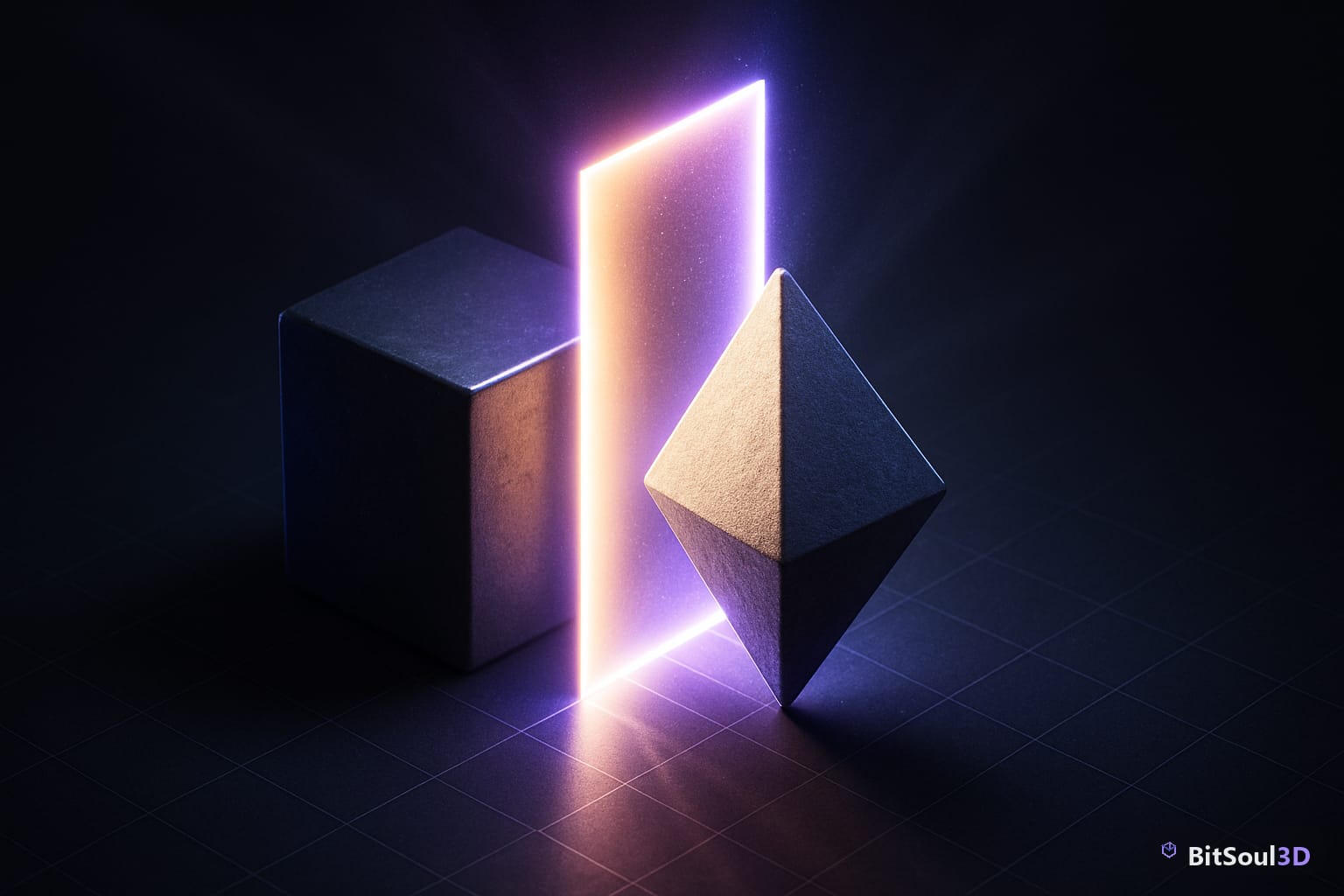
The two engines pad collision margins in opposite directions. GodotPhysics, the Bullet-derived engine most existing projects still run, adds a shell around a convex shape — the shape grows very slightly and its corners round off. Jolt's convex radius rounds corners differently: it shrinks the shape first, then applies the same kind of shell on top. Corners still round, but the shape doesn't grow back to its original size. On a wall, a crate, or a character mesh, that difference is invisible. On anything a few centimeters thick or less — door panels, blades, shield faces, signage — the shrink can eat a meaningful fraction of the shape, and you get a visible gap or a hit that doesn't register.
Godot renamed the relevant project setting for exactly this reason: collisions/use_shape_margins is now collisions/collision_margin_fraction, where a value of 0 disables margin shrinking entirely.
Fix thin GLB colliders in Advanced Import Settings
Right-click the GLB in the FileSystem dock and choose Advanced Import Settings. Select the thin mesh on the left, open its Subresources panel, and set Generate Collision to Yes. The Shape Type dropdown has three relevant options: Trimesh follows the exact mesh silhouette and only works on static bodies, Generated Convex runs VHACD to build one or more convex hulls, and Simple Convex wraps the whole mesh in a single hull. Trimesh doesn't use a convex radius at all, so it's unaffected by any of this — Generated Convex and Simple Convex are the shape types that shrink under Jolt.
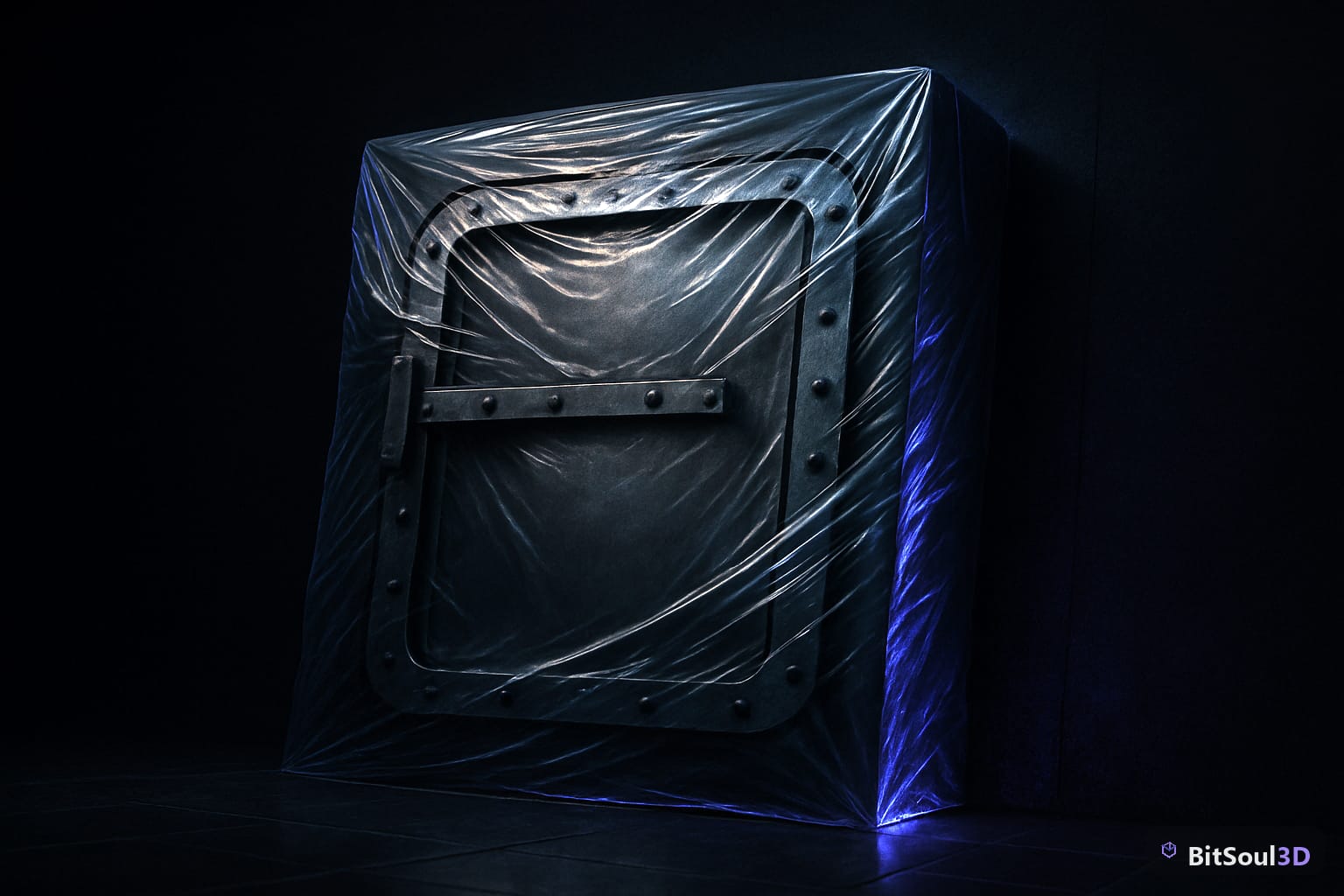
Test on something deliberately thin before trusting the pipeline across a whole level. The Blast Door model is a reasonable stress test — a flat panel with real thickness variation across the frame. Reimport it with Simple Convex collision, drop a RigidBody3D on top in a Jolt-enabled project, and watch whether it clips through or floats on a visible gap. If it does, either raise Collision Margin Fraction under Project Settings → Physics → 3D → Jolt Physics → Collisions, or go back to the source mesh in Blender and thicken the thin axis slightly before re-exporting — a millimeter or two is usually enough.
To confirm which engine a project is actually running, at runtime or from an editor script:
var engine_name = ProjectSettings.get_setting("physics/3d/physics_engine")
if engine_name == "Jolt Physics3D":
    print("Running on Jolt — recheck collision_margin_fraction on thin meshes")
Worth wiring into a debug overlay if you're distributing an asset pack or plugin that has to behave the same under both engines.
Gotchas beyond collision shape
Collision shrink is the first thing people notice; it's not the only thing that changes.
| Behavior | GodotPhysics | Jolt |
|---|---|---|
| Convex margin | Shell added, shape grows slightly | Shape shrinks first, shell added after |
| Trimesh colliders | Static bodies only | Static bodies only |
| Joint solving | More permissive | Stricter — some setups need re-tuning |
| Ragdoll constraints | Tolerant of loose limits | Needs tighter, more explicit limits |
| Default scope | Existing projects (unchanged on upgrade) | New 3D projects in 4.6+ |
Joints are the second-most common surprise. A hinge or slider that "sort of worked" under GodotPhysics's more permissive constraint solving can pop, jitter, or over-rotate under Jolt's stricter one — worth a manual pass on doors, levers, and any vehicle parts built on joints. Ragdolls need the same scrutiny: physical bones that stayed put under GodotPhysics can go loose or twitchy until their constraint limits are tightened individually instead of left at defaults.
One more thing that isn't new to Jolt but trips people up while they're already mid-debug: trimesh colliders never work on RigidBody3D nodes in either engine, only on static and kinematic bodies. If a dynamic prop refuses to collide at all rather than just shrinking slightly, check the shape type before blaming the physics engine switch.
None of this locks you in. The physics engine is a per-project setting — Project Settings → Physics → 3D → Physics Engine — so it's worth testing thin colliders and joint-heavy rigs on a duplicate project before deciding whether a shipping title moves to Jolt or waits for a later pass.
For the rest of the GLB import pipeline: reimporting in Godot 4.5 renamed nodes and broke materials covers the node-naming side, and the Blender to Godot 4 GLB export and import pipeline covers getting export settings right before any of this becomes a physics problem. Checking a mesh's thin-axis dimensions before it ever reaches Godot is faster in 3D Studio's inspector than burning an import cycle to find out — and if poly count is what's making a mesh awkward to test in the first place, checking GLB poly count in the browser is the same idea applied to triangles instead of thickness.
This post is part of the Ultimate Guide to Free 3D Game Assets — BitSoul's complete reference for formats, texturing, rigging, optimization, and engine integration.
Need drop-in assets for this workflow? Grab the 82-model Vehicle Bundle on the BitSoul marketplace and drop them straight into your project.