
Emissive glTF materials look dim in Unity? Here's the real fix
Your neon sign, reactor core, or lava texture glows fine in Blender, exports as GLB, and comes into Unity looking like a dim gray light instead of a light source. The cause almost never has anything to do with your texture — it's a single clamp baked into the glTF 2.0 spec, and whether your import path respects the extension that undoes it.
The short version: glTF's core material model clamps emissiveFactor to [0.0, 1.0] per channel — that's a spec-level accident the Khronos Group has publicly acknowledged. Anything you set above 1.0 in Blender's Principled BSDF gets silently capped unless the file also carries the KHR_materials_emissive_strength extension, and not every importer reads that extension the same way.
The 1.0 clamp glTF forgot to remove
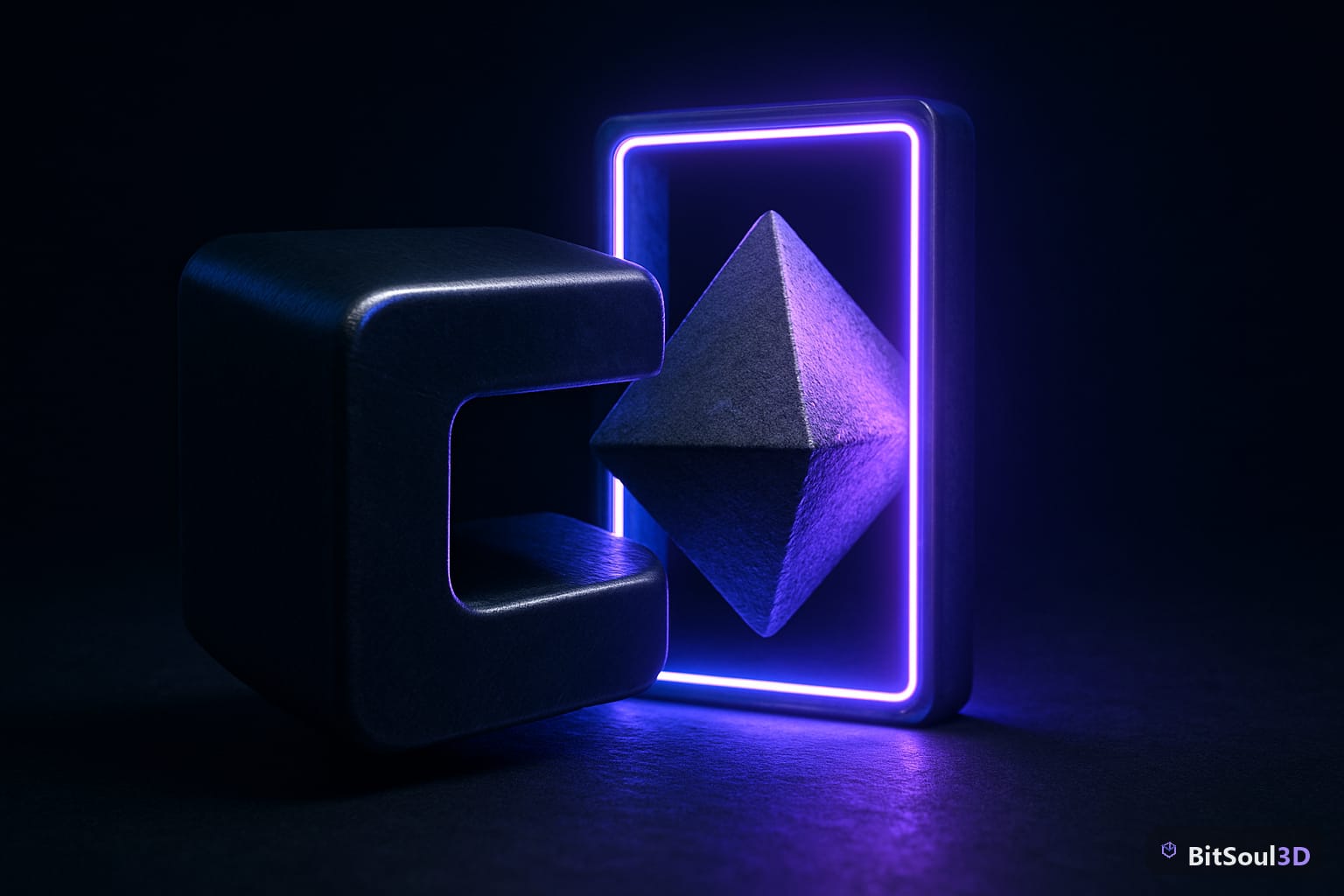
Picture a beaker marked with a line at 1.0 liters. You can pour in as much glowing liquid as you want, but the beaker only reports what's below that line — the rest spills over the side and vanishes. That's what happens to your emission value on export: emissiveFactor can only ever describe 0.0 to 1.0 per RGB channel, full stop, in the base glTF spec.
KHR_materials_emissive_strength exists specifically to fix this. It adds one scalar, emissiveStrength, and the render math becomes finalEmissive = emissiveFactor.rgb * emissiveTexture.rgb * emissiveStrength.
Set emissiveStrength to 4.0 and a factor of [1,1,1] renders four times brighter than the clamp would otherwise allow — the beaker now has a second, taller container to catch the overflow.
Blender exports it correctly — automatically
Blender's glTF exporter does the right thing without you touching an extensions panel. In the Shader Editor, set the Principled BSDF's Emission Strength input above 1.0, and on export the glTF-Blender-IO addon detects the overflow and writes KHR_materials_emissive_strength into the file for you. Nothing to enable, no checkbox — it's automatic once your strength value exceeds 1.0.
That means the file leaving Blender is correct. The gap opens up on the import side, and it's engine-dependent.
| Engine | Reads KHR_materials_emissive_strength | What you'll see if it doesn't | Fix |
|---|---|---|---|
| Godot 4.2+ | Yes, both import and export | N/A — renders correctly out of the box | None needed |
| Unreal Engine 5 (Interchange glTF importer) | Yes, via the standard PBR material | Emission reads flat and dim | Re-import if you're on an older 5.x build |
| Unity (glTFast / Unity.Cloud.glTFast) | Inconsistent across package versions — check per-version release notes | Emission color imports but caps near 1.0, glowing surfaces read matte | See below |
Unity is where this actually bites
If you're bringing a GLB into Unity through glTFast and the surface looks correct in color but refuses to glow past a certain brightness, don't assume the asset is broken — check whether that package version parses the extension at all. It's changed across glTFast releases, so a project pinned to an older version can silently ignore emissiveStrength while a newer one honors it.
The reliable workaround doesn't depend on the importer at all: Unity's Standard and URP Lit shaders both expose an HDR emission color swatch directly in the material inspector. Click the color field, push the intensity slider past 1.0 in the HDR picker, and you're setting the same overflow the extension was meant to carry — just by hand instead of by import.
// Bump emission past the glTF 1.0 clamp directly in code
var mat = GetComponent<Renderer>().material;
mat.EnableKeyword("_EMISSION");
mat.SetColor("_EmissionColor", baseColor * strength); // strength > 1.0 = HDR overflow
Run this once after import (or via an AssetPostprocessor) if you're bringing in emissive assets on a pipeline rather than by hand — it's a two-line fix that sidesteps whatever the current glTFast version does or doesn't parse.
Gotchas people hit after "fixing" it
The Emission Strength slider in Blender isn't the emission color's alpha or intensity slider in the color picker — they're two different controls, and boosting the wrong one leaves your factor at exactly 1.0 with no extension written at all, so double-check which field you dragged.
Textured emission maps make this worse to debug: a bright white pixel in your emissiveTexture combined with a factor already at 1.0 looks identical to a genuinely HDR surface until you check the glTF JSON directly — open the GLB in a text-capable glTF inspector and look for the KHR_materials_emissive_strength block under extensions on that material to confirm what actually got written.
And UE5's Lumen has its own separate ceiling on top of all this — values above roughly 10 start over-contributing to indirect light and blow out the bounce lighting in a scene regardless of what the glTF extension says, which is a Lumen-side concern, not an import bug.
For a sci-fi prop that's already built around a bright emissive core, the Sentry Orb GLB is a decent reference file to pull apart in a glTF inspector — its core material ships with a factor and strength already set, so you can see a correctly-authored extension block before you go hunting for why your own export looks flat.
Related reading: the Lumen GI settings guide covers the UE5-side emissive ceiling in more depth, and the PBR texturing workflow guide walks through setting up the rest of a material's channels before you get to emission. If you're packing emission into unused channels rather than a dedicated texture, the vertex color painting guide covers using the blue channel for emissive intensity as an alternative approach.
A free BitSoul3D account's two monthly downloads cover evaluating models like this one; commercial use is included with paid memberships — see pricing.
This post is part of the Ultimate Guide to Free 3D Game Assets — BitSoul's complete reference for formats, texturing, rigging, optimization, and engine integration.
Need drop-in assets for this workflow? Grab the 67-model Weapons Bundle on the BitSoul marketplace and drop them straight into your project.